How to Flush DNS Cache on Windows, Mac, and Chrome
Flushing the DNS cache removes outdated or incorrect website-address records stored on your device or browser. Use it when a website will not load, shows the wrong server, or you recently changed DNS settings.
ipconfig /flushdns • Mac: sudo dscacheutil -flushcache; sudo killall -HUP mDNSResponder • Chrome: chrome://net-internals/#dns → Clear host cache
DNS_PROBE_FINISHED_NXDOMAIN and server mismatch errors.
| Operating System / Browser | Tool to Open | Command or Navigation Path | Expected Output |
|---|---|---|---|
| Windows 11 & 10 | Command Prompt (Admin) | ipconfig /flushdns |
Successfully flushed the DNS Resolver Cache. |
| Windows 8 & 7 | Command Prompt (Admin) | ipconfig /flushdns |
Successfully flushed the DNS Resolver Cache. |
| macOS (Modern) | Terminal | sudo dscacheutil -flushcache; sudo killall -HUP mDNSResponder |
Password prompt → Silent clean exit |
| macOS (Legacy) | Terminal | sudo killall -HUP mDNSResponder |
Silent daemon reload |
| Google Chrome DNS | Chrome Omnibox | chrome://net-internals/#dns |
Click Clear host cache |
| Google Chrome Sockets | Chrome Omnibox | chrome://net-internals/#sockets |
Click Flush socket pools |
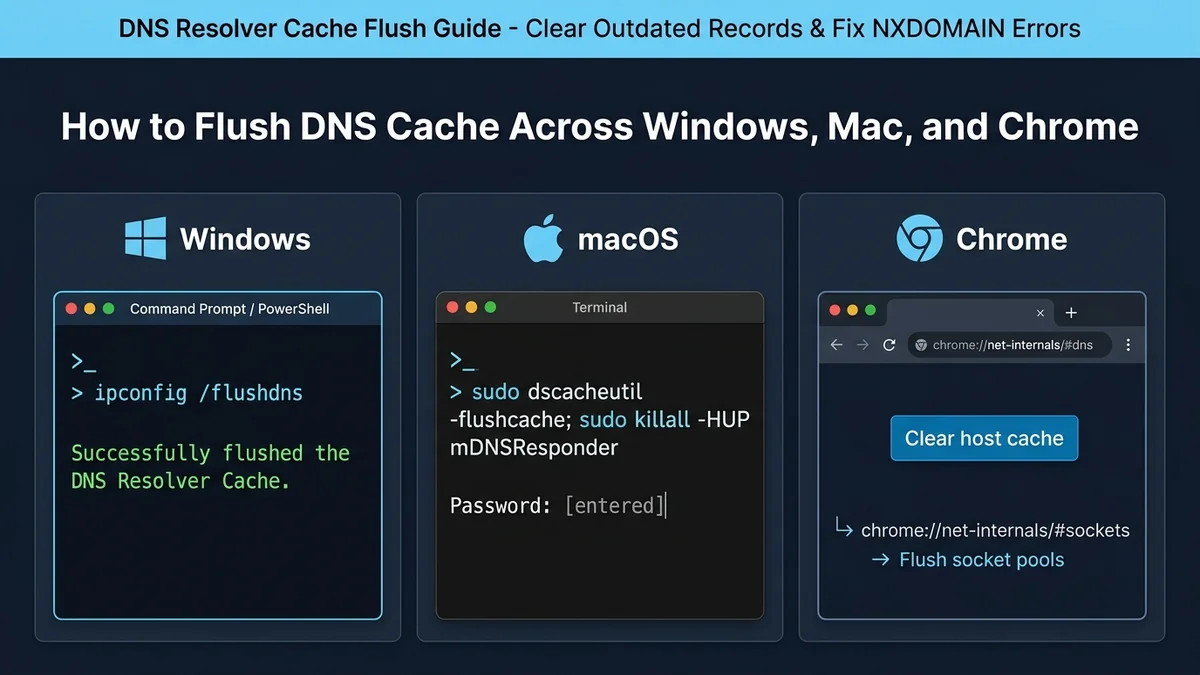
Windows
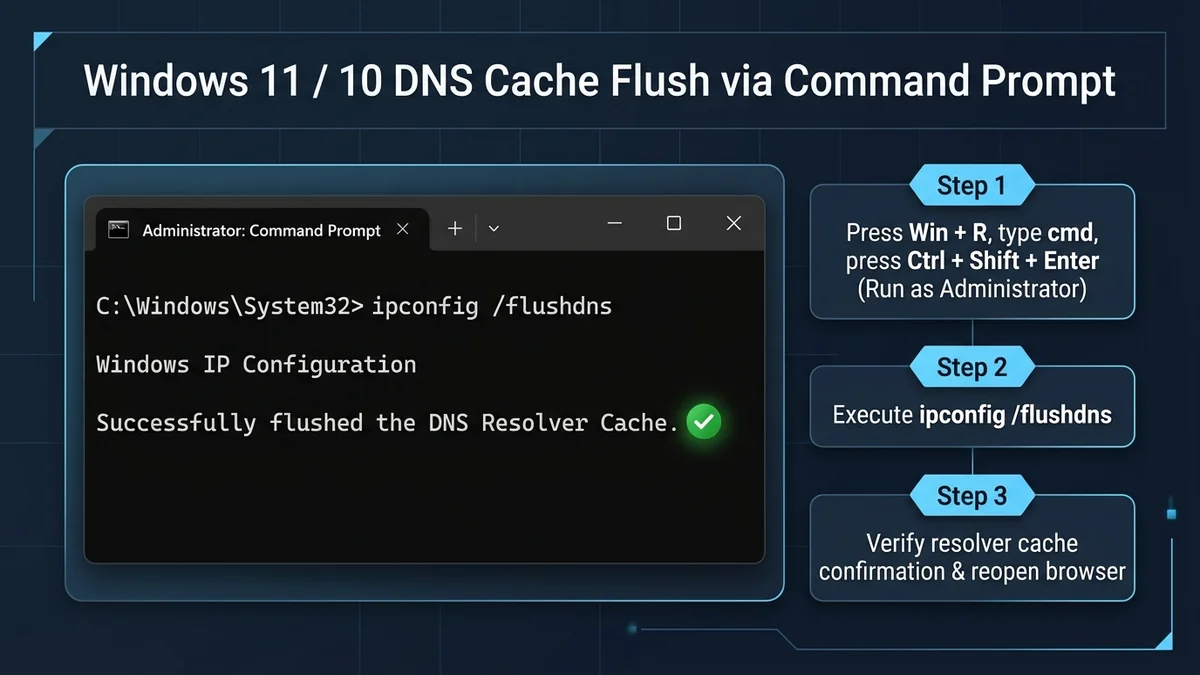
Windows 11 and Windows 10
- Press Windows + R on your keyboard to open the Run dialog.
- Type
cmdand press Ctrl + Shift + Enter to open Command Prompt with administrator privileges. - Type the command below and press Enter:
ipconfig /flushdns - Wait for the confirmation message:
Successfully flushed the DNS Resolver Cache. - Close Command Prompt and reopen the website in your browser.
Windows 8 and Windows 7
- Click Start.
- Type
cmdin the search box. - Right-click Command Prompt and choose Run as administrator.
- Enter:
ipconfig /flushdns - Press Enter.
Mac
macOS Ventura, Monterey, Big Sur, Catalina
- Open Terminal from Applications > Utilities or via Spotlight (Cmd + Space).
- Enter this command:
sudo dscacheutil -flushcache; sudo killall -HUP mDNSResponder - Press Enter.
- Enter your Mac login password when prompted (characters will not show on screen for security).
- Press Enter again.
The command does not always display a confirmation message. Once it completes and returns to the prompt, the DNS cache has been cleared.
Older macOS Versions
For older macOS versions (macOS Sierra, El Capitan, Yosemite), use:
sudo killall -HUP mDNSResponderIf that does not work (OS X Yosemite 10.10.0–10.10.3), try:
sudo discoveryutil mdnsflushcacheGoogle Chrome
Chrome keeps its own internal DNS cache, separate from Windows or macOS.
- Open Chrome.
- Type this into the address bar:
chrome://net-internals/#dns - Press Enter.
- Click Clear host cache.
- Open a new tab and test the website again.
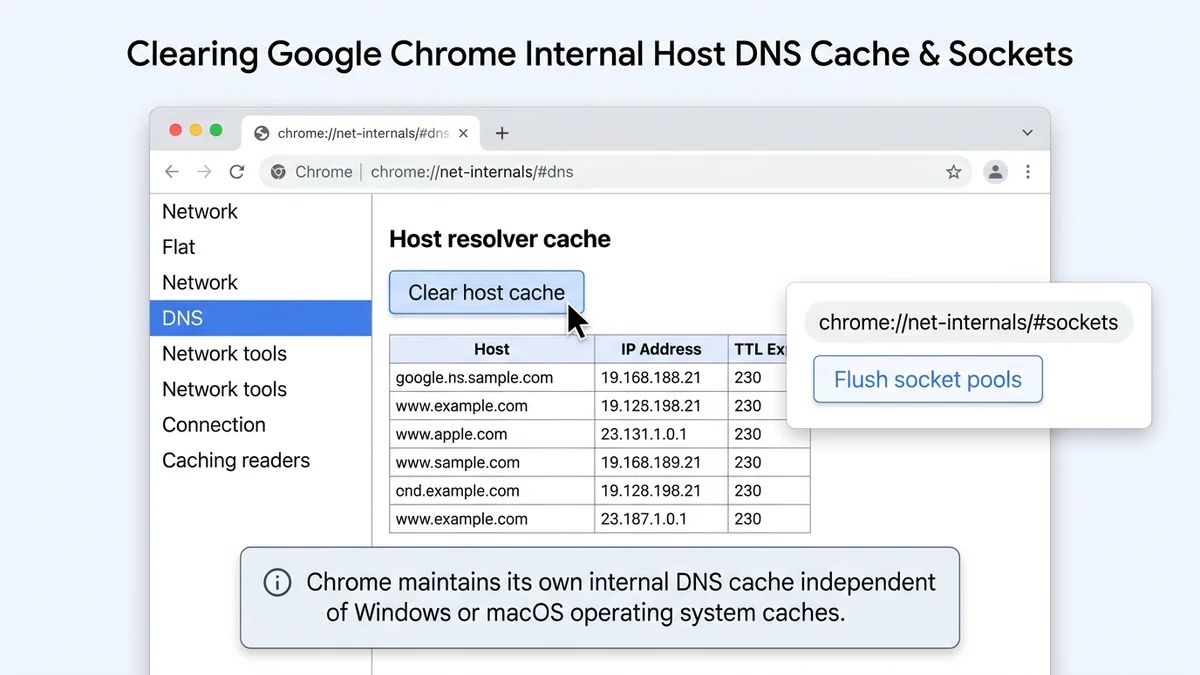
Chrome may also store open socket connections to previous IP addresses. To clear those as well:
- Type this in the address bar:
chrome://net-internals/#sockets - Click Flush socket pools.
- Restart Chrome.
When to Flush DNS
Flush your DNS cache if:
- A website will not load even though it works on another device.
- You changed DNS servers, such as moving to Google DNS or Cloudflare DNS.
- A website recently changed servers but still opens the old version.
- You see DNS-related errors such as
DNS_PROBE_FINISHED_NXDOMAIN. - You changed hosting, domain settings, or website DNS records.
| Browser Error Code | Root Cause | Recommended Fix |
|---|---|---|
DNS_PROBE_FINISHED_NXDOMAIN |
Negative DNS cache or unpropagated A-record | Run ipconfig /flushdns & test in Chrome Incognito |
ERR_NAME_NOT_RESOLVED |
Operating system resolver cannot resolve host | Flush DNS & reboot your home router |
DNS_PROBE_STARTED |
DNS lookup request is timing out | Disconnect VPN/proxy & switch to Cloudflare (1.1.1.1) |
DNS_PROBE_FINISHED_BAD_CONFIG |
Invalid DNS IP entered in network adapter | Set DNS to Automatic (DHCP) or Google (8.8.8.8) |
If the Problem Continues
If flushing DNS does not fix the issue:
- Restart your router: Power cycle your router by disconnecting its power adapter for 30 seconds. Routers maintain an internal DNS proxy cache that can serve stale translations to all connected home devices (see our 30-Second Hard Reset Guide).
- Restart your computer or phone: Reboots system-level networking services and cleans temporary socket bindings.
- Change your DNS servers to Cloudflare DNS or Google DNS: Switch from your ISP's default resolver to Cloudflare (
1.1.1.1and1.0.0.1) or Google (8.8.8.8and8.8.4.4) using our complete How to Change Router DNS Guide. - Disable VPN, proxy, or browser extensions temporarily: VPN clients (such as NordVPN or ExpressVPN) and proxy extensions reroute DNS traffic through encrypted virtual network interfaces, bypassing your local DNS resolver cache.
- Test the website in another browser: Open the target URL in Firefox, Microsoft Edge, or Safari to determine if the issue is restricted to Chrome's local profile.
- Check whether the website works on another device: Connect your smartphone to cellular data or verify with our DNS Propagation Checker to confirm whether the issue is local or server-side.
FAQs
What does flushing the DNS cache actually do?
Flushing the DNS cache erases your operating system and web browser's local database of recently resolved domain-to-IP address translations. This forces your device to perform a fresh DNS lookup from configured resolvers (e.g. Cloudflare 1.1.1.1, Google 8.8.8.8, or your ISP gateway).
When should I flush my DNS cache?
You should flush your DNS cache whenever a website fails to load with errors like DNS_PROBE_FINISHED_NXDOMAIN or ERR_NAME_NOT_RESOLVED, after changing your router or computer DNS servers, or when a recently migrated domain still displays its old server content.
Does flushing DNS delete my browsing history or saved passwords?
No. Flushing the DNS cache only deletes IP resolution records in the operating system resolver and browser host cache. It does not affect cookies, browsing history, form autofill data, or saved login credentials.
What does 'Successfully flushed the DNS Resolver Cache' mean?
This confirmation message means that Windows has wiped all cached A, AAAA, and CNAME records from memory. Your next web request will immediately query your active DNS server for current routing information.
Why do I need to clear Chrome's DNS cache separately from Windows or Mac?
Google Chrome maintains an internal, independent socket pool and host resolver cache designed to speed up browsing. Even if you clear your OS cache, Chrome may continue serving stale IP mappings until you clear chrome://net-internals/#dns and restart the browser.
What if flushing DNS does not fix my connection error?
If flushing DNS fails to restore access, power cycle your router to clear its internal DNS forwarding proxy, switch your router DNS to Cloudflare (1.1.1.1) or Google (8.8.8.8), disable any active VPN or proxy software, and test the website on another device connected to the same network.
The Bottom Line
Use ipconfig /flushdns on Windows, the Terminal command on Mac, and Clear host cache in Chrome. These steps remove stored DNS records and force your device or browser to request fresh information.
Fastest fix: Flush DNS on your operating system first, then clear Chrome’s host cache if the website still fails to load.
Default Gateway Directories & Subnets
Access login sheets and diagnostic consoles for major RFC 1918 private gateway subnets:
Router Manufacturer Portals
Browse factory default credentials, setup guides, and model databases by brand: