Which Port Do I Plug My Router Into on an AT&T Gateway?
Plug your router’s WAN/Internet port into one of the AT&T gateway’s Ethernet LAN ports. Do not use the fiber/ONT port, phone port, or power port.
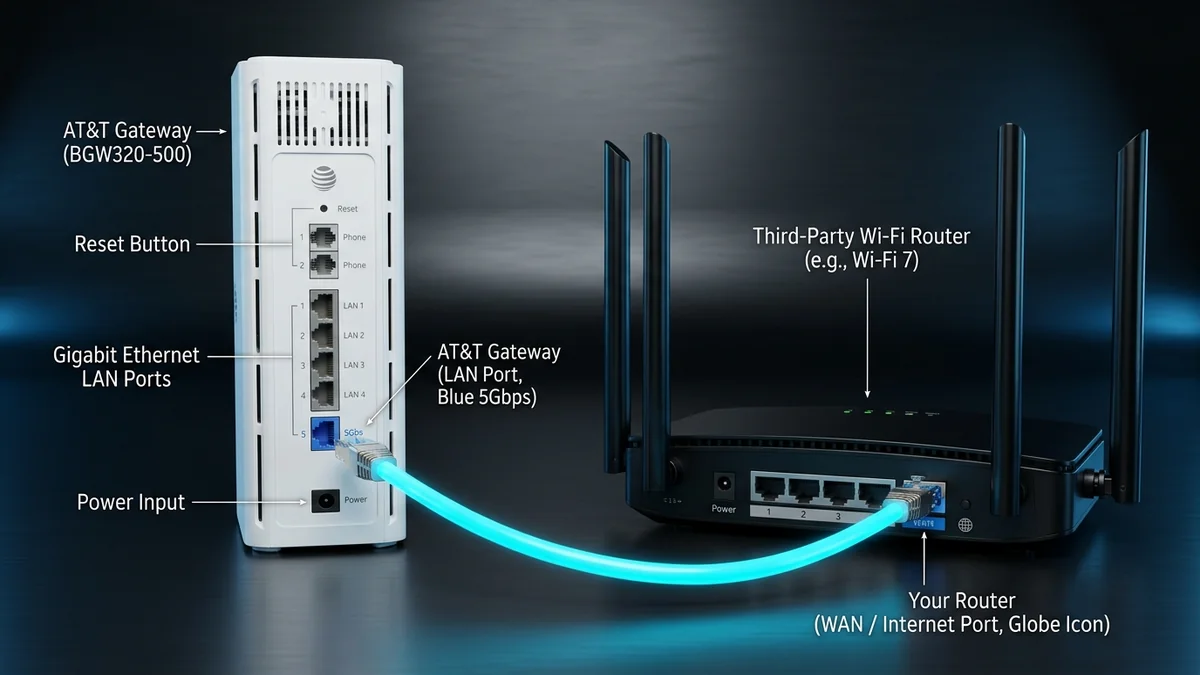
Correct Connection
Establishing the physical link between an AT&T gateway (such as the BGW320, BGW210, or NVG599) and your standalone Wi-Fi 6/7 router or mesh system requires connecting two specific network interfaces:
AT&T gateway Ethernet LAN port ── Ethernet cable ──> Your router WAN/Internet port- On the AT&T gateway, use a regular Ethernet/LAN port.
- On the AT&T BGW320, use the blue 5Gb Ethernet port if you subscribe to a 2 Gig or 5 Gig plan.
- Use one of the yellow 1Gb LAN ports for fiber or broadband plans up to 1 Gig.
- On your router, use the port labeled WAN, Internet, or marked with a globe icon.
- Do not plug the cable into one of your router’s LAN ports. That will prevent your router from obtaining a public IP address and will not deliver an internet connection.
Which AT&T Port to Use
The port you choose on your AT&T gateway determines your network throughput ceiling. The table below outlines the recommended port configuration based on your internet service tier:
| AT&T Plan Tier | Recommended Gateway Port | Your Router Port | Maximum Supported Bandwidth |
|---|---|---|---|
| Up to 1 Gig (300M, 500M, 1000M) | Any yellow 1Gb Ethernet LAN port (Ports 2, 3, or 4) | WAN / Internet port | 1,000 Mbps (1 Gbps) Full Duplex |
| 2 Gig or 5 Gig Hyper-Gigabit | Blue 5Gb Ethernet LAN port (Port 1) | Multi-Gig (2.5G / 5G / 10G) WAN port | Up to 5,000 Mbps (5 Gbps) Full Duplex |
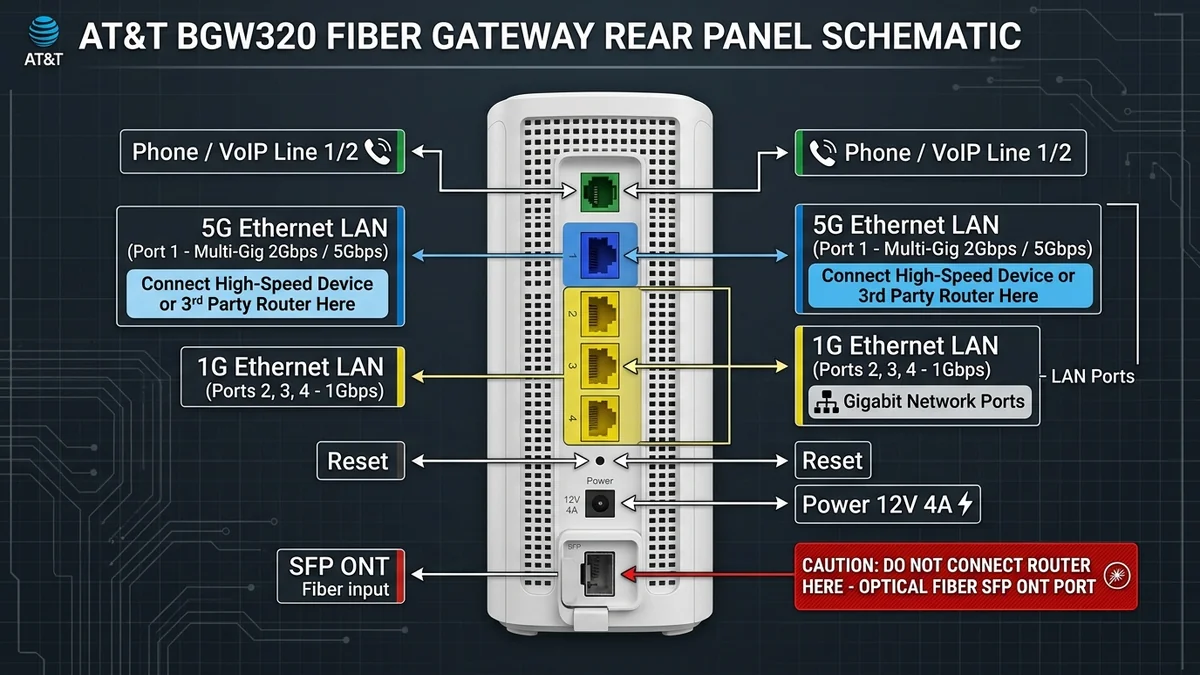
On the AT&T BGW320, the blue port is the dedicated 5Gbps multi-gigabit Ethernet port. Use it if you have a high-speed AT&T Fiber plan and your third-party router supports 2.5Gbps, 5Gbps, or 10Gbps on its WAN interface.
The yellow ports support standard Gigabit Ethernet (up to 1,000 Mbps). If you plug a 2 Gig or 5 Gig fiber connection into a yellow port, your entire home network will be throttled to approximately 940 Mbps due to Gigabit hardware overhead.
Do Not Plug Your Router Into These Sockets
- Optical SFP / Fiber ONT Port (Bottom): This is the incoming fiber-optic transceiver port that connects to AT&T’s central office optical network. Connecting an Ethernet cable here will damage the connector and disconnect your fiber service.
- Green Phone / VoIP Jack: This RJ11 jack carries analogue voice telephone service for AT&T Voice, not internet data.
- Red ONT Port (BGW210 / older models): On gateways using an external Nokia/Alcatel ONT, the red Ethernet jack is the incoming WAN uplink from the fiber box. Your personal router cannot be plugged in here.
- USB Ports: Reserved for diagnostic utilities and low-power charging; does not support local area networking.
How to Connect Your Router (Step-by-Step)
To ensure clean DHCP lease negotiation and prevent IP assignment conflicts, connect and boot your networking hardware in this precise sequence:
Power Down Both Devices
Unplug the power adapters from both the AT&T gateway and your personal third-party router. Wait 30 seconds to allow the volatile memory buffers and active DHCP sessions to discharge completely.
Connect Ethernet Cable to AT&T Gateway LAN
Plug one end of a high-grade Cat 6 or Cat 6a Ethernet cable into an available LAN port on the AT&T gateway. For 2 Gig/5 Gig plans on a BGW320, use the Blue 5Gb Port; for 300M to 1 Gig plans, use any Yellow 1Gb Port.
Connect Opposite End to Router WAN/Internet Port
Insert the other end of the Ethernet cable into the port clearly labeled WAN, Internet, or marked with a globe icon on your third-party router. Do not plug it into any of the numbered LAN ports (1–4).
Power On the AT&T Gateway First
Reconnect power to the AT&T gateway. Allow 3 to 5 minutes for it to establish fiber synchronization, authenticate with AT&T 802.1x network certificates, and display a solid green (or solid white on BGW320) status light.
Power On Your Third-Party Router
Plug your personal router into power. Once booted, its WAN interface will broadcast a DHCP request to the AT&T gateway and receive an IP assignment.
Connect Your Device and Test Access
Connect your computer or phone to your own router’s Wi-Fi network or plug directly into one of its LAN ports. Open a browser and verify that websites load promptly.
Avoid Double NAT: Why IP Passthrough Is Critical
When you connect a third-party router behind an AT&T gateway out of the box, both devices operate as active routers performing Network Address Translation (NAT). This condition is called Double NAT.
In a Double NAT topology, the AT&T gateway assigns a private local IP (typically 192.168.1.64–192.168.1.253) to your router’s WAN port, while your router translates that into a secondary private subnet (such as 192.168.0.1 or 10.0.0.1). Data traversing two firewalls and two NAT layers suffers severe connectivity degradation:
- Port Forwarding Breaks: Inbound traffic cannot reach local servers or services because the outer AT&T firewall blocks unsolicited packets before they ever reach your inner router.
- Online Gaming NAT Type: Consoles (PlayStation 5, Xbox Series X/S, Nintendo Switch) will report Strict NAT or Type 3, preventing multiplayer peer-to-peer matchmaking and voice chat.
- VPN Tunnels: Enterprise IPsec, WireGuard, and OpenVPN client-to-site tunnels fail during phase 1 handshake negotiation due to nested IP header encapsulation.
- Smart Home Devices & Security Cameras: Apple HomeKit hubs, Matter bridges, and security cameras lose cloud synchronization or display offline statuses.
- Remote Access to NAS: Direct domain access to Synology, QNAP, or Plex media servers is blocked without hairpin NAT translation.
To permanently eliminate Double NAT, configure the AT&T gateway in IP Passthrough mode. IP Passthrough disables NAT on the gateway and transparently bridges AT&T’s public WAN IP address directly to your own router’s WAN interface.
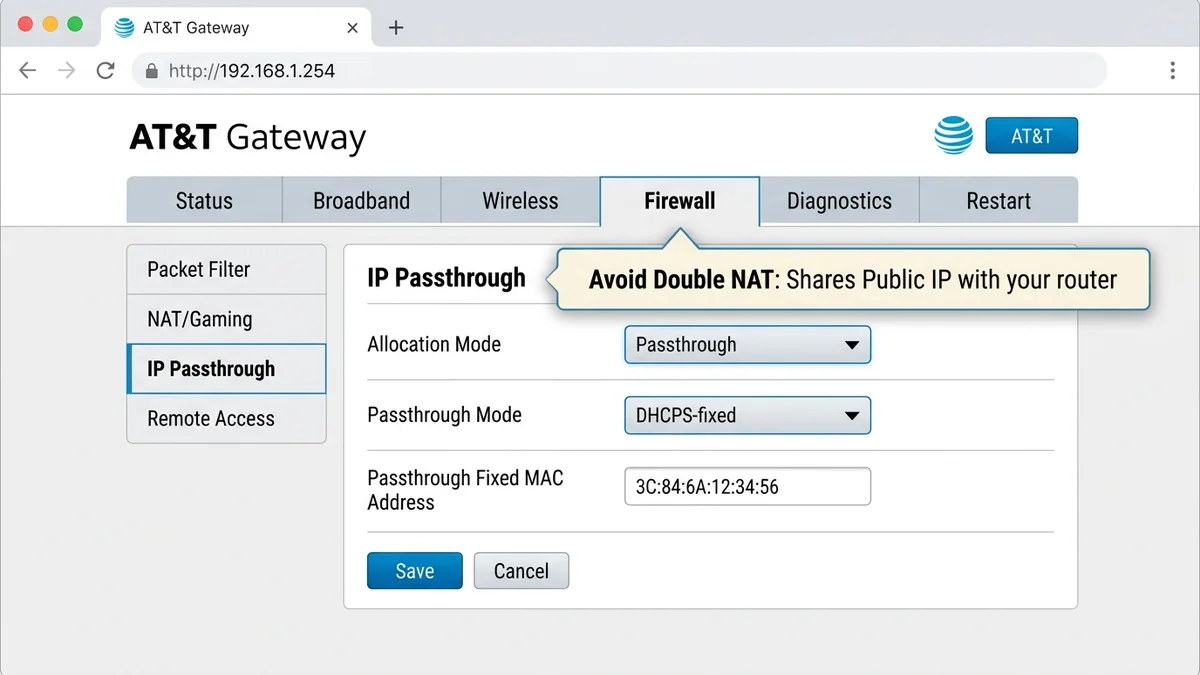
How to Enable IP Passthrough on an AT&T Gateway
Follow these step-by-step instructions to configure IP Passthrough on an AT&T BGW320, BGW210, or NVG599 gateway using its internal web manager at 192.168.1.254:
Connect to the AT&T Gateway
Connect a computer directly to one of the AT&T gateway’s LAN ports using an Ethernet cable, or connect to the AT&T factory Wi-Fi SSID shown on the gateway label.
Open the Gateway Management Page
Launch your web browser and navigate to http://192.168.1.254. The AT&T Gateway status overview dashboard will open.
Navigate to Firewall Settings
Click the Firewall tab in the top navigation bar, then select IP Passthrough from the sub-menu.
Authenticate with Device Access Code
When prompted, enter the Device Access Code printed on the gateway sticker (located on the back or underside of the unit) and click Submit.
Configure Passthrough Parameters
Update the configuration fields as follows:
- Allocation Mode: Select
Passthroughfrom the dropdown. - Passthrough Mode: Select
DHCPS-fixed. - Passthrough Fixed MAC Address: Click the dropdown list of detected devices and select your third-party router’s WAN MAC address. If not listed, type the router’s MAC address manually.
Disable AT&T Gateway Wi-Fi Radios
Go to Home Network → Wi-Fi → Advanced Options. Turn both 2.4 GHz Wi-Fi Operation and 5 GHz Wi-Fi Operation to Off. This eliminates 2.4 GHz and 5 GHz wireless interference with your new router.
Save Settings and Reboot Both Units
Click Save at the bottom of the page. Restart the AT&T gateway, wait for the connection lights to turn solid, and then restart your third-party router.
Once rebooted, log into your personal router’s administrative dashboard. Check its WAN/Internet status: it should now display a public IPv4 address (e.g. 104.x.x.x or 108.x.x.x) rather than a private 192.168.1.x address, verifying that IP Passthrough is working flawlessly.
Common Mistakes to Avoid
When adding a separate router to an AT&T gateway, avoid these frequent installation errors:
- Plugging into Router LAN Instead of WAN: If you connect the gateway cable to a router LAN port (1–4), your router acts as an unmanaged switch with competing DHCP servers, creating IP conflicts and blocking internet access.
- Subnet IP Collisions: The AT&T gateway defaults to
192.168.1.254on the192.168.1.0/24subnet. If your third-party router also defaults to192.168.1.1, their subnets will collide. Change your router’s LAN subnet to192.168.2.1or10.0.0.1. - Leaving AT&T Wi-Fi Enabled: Leaving the gateway’s internal Wi-Fi broadcast active causes severe 2.4 GHz and 5 GHz RF channel congestion, increasing latency and jitter for your router.
- Using a Damaged or Sub-Spec Cable: Using a Cat 5 cable (limited to 100 Mbps) or a damaged Cat 5e cable will cap your multi-gig fiber connection at 100 Mbps. Always deploy certified Cat 6 or Cat 6a cables.
- Connecting Devices to Both Gateways: Once IP Passthrough is active, connect all client devices (PCs, phones, TVs, consoles) exclusively to your personal router, not the AT&T gateway LAN ports.
Troubleshooting Connection Issues
Cause: The Ethernet cable is plugged into a router LAN port rather than the WAN port, or the router has not renewed its DHCP lease.
Fix: Confirm that the cable runs from an AT&T gateway LAN port to your router’s dedicated WAN/Internet port. Power off both devices, wait 30 seconds, boot the AT&T gateway fully until its broadband light is solid green/white, and then power on your router.
Cause: The Ethernet cable is plugged into one of the yellow 1Gb ports on the AT&T BGW320 instead of the blue 5Gb port, or your router’s WAN port only supports 1 Gbps.
Fix: Move the Ethernet cable to the Blue 5Gb Ethernet Port (Port 1) on the AT&T BGW320. Ensure your third-party router features a 2.5G or 10G multi-gig WAN port and that you are using a certified Cat 6 or Cat 6a Ethernet patch cord.
Cause: Double NAT is active because IP Passthrough has not been configured on the AT&T gateway.
Fix: Open 192.168.1.254, navigate to Firewall → IP Passthrough, select Passthrough and DHCPS-fixed, and choose your router’s WAN MAC address. Once saved and rebooted, configure your port forwarding rules strictly inside your own router’s management GUI.
Cause: The MAC address entered in IP Passthrough does not match your router’s physical WAN MAC address, or an 802.1Q VLAN tag is enabled.
Fix: Verify your router’s WAN MAC address on its underside sticker or in its status page (note that WAN MAC is often 1 digit different from LAN MAC). In your router’s Internet setup, ensure WAN connection type is set to Automatic IP / Dynamic DHCP with VLAN tagging disabled.
FAQs
Which port do I plug into on an AT&T BGW320 gateway?
Plug your Ethernet cable into one of the BGW320's LAN ports. For 2 Gig or 5 Gig fiber plans, plug into the Blue 5Gb Ethernet Port (Port 1). For plans up to 1 Gig, you can plug into any of the Yellow 1Gb LAN ports (Ports 2, 3, or 4). Connect the other end directly to your router's WAN or Internet port.
Can I plug my router into the green or fiber port on an AT&T gateway?
No. The green jack is an RJ11 telephone port for landline VoIP service, and the bottom SFP bay is the optical fiber transceiver that connects to AT&T's network. Connecting an Ethernet cable to either will not provide internet and can damage the physical connectors.
What is the blue Ethernet port on the AT&T BGW320?
The blue port on the BGW320 is a 5Gbps multi-gigabit Ethernet LAN port (Port 1). It allows connections exceeding 1,000 Mbps without bottlenecking, making it essential for AT&T 2 Gig and 5 Gig fiber subscribers connecting multi-gig third-party routers.
Why is my internet limited to 1 Gbps on an AT&T 2 Gig or 5 Gig plan?
If your speed is capped at approximately 940 Mbps on a 2 Gig or 5 Gig plan, your router is likely plugged into one of the yellow 1Gb LAN ports on the AT&T gateway, your router's WAN port only supports 1Gbps, or you are using an older Cat 5/5e Ethernet cable.
Why do I need to enable IP Passthrough on my AT&T gateway?
Connecting a third-party router without IP Passthrough creates Double NAT, where two firewalls and two DHCP routers manage the network simultaneously. This breaks port forwarding, causes Strict NAT in online gaming, disrupts VPNs, and disconnects smart home hubs.
Will IP Passthrough turn off Wi-Fi on my AT&T gateway?
No. IP Passthrough only delegates the public IP address to your router; it does not automatically disable the gateway's Wi-Fi radios. You should manually navigate to Home Network > Wi-Fi > Advanced Options on the gateway and turn both 2.4GHz and 5GHz Wi-Fi to Off to prevent radio interference.
The Bottom Line
Use AT&T gateway LAN port → your router WAN/Internet port. For a BGW320 with a 2 Gig or 5 Gig plan, use the blue 5Gb port; otherwise, use a yellow 1Gb LAN port.
Fastest fix: Connect the cable from an AT&T LAN port to your router’s WAN port, restart both devices, and enable IP Passthrough if you need advanced network control.
Default Gateway Directories & Subnets
Access login sheets and diagnostic consoles for major RFC 1918 private gateway subnets:
Router Manufacturer Portals
Browse factory default credentials, setup guides, and model databases by brand: