How to Change Password of Tenda WiFi Without Entering the Previous Password
You generally cannot change a Tenda Wi-Fi password without either signing in with the current administrator password or resetting the router to factory settings. If you do not know the previous password, use the Tenda WiFi app’s password-recovery option first; if that is unavailable, a factory reset is the reliable fallback.
A factory reset removes custom settings, including your Wi-Fi name, Wi-Fi password, and router administrator password. Record any settings you need before proceeding.
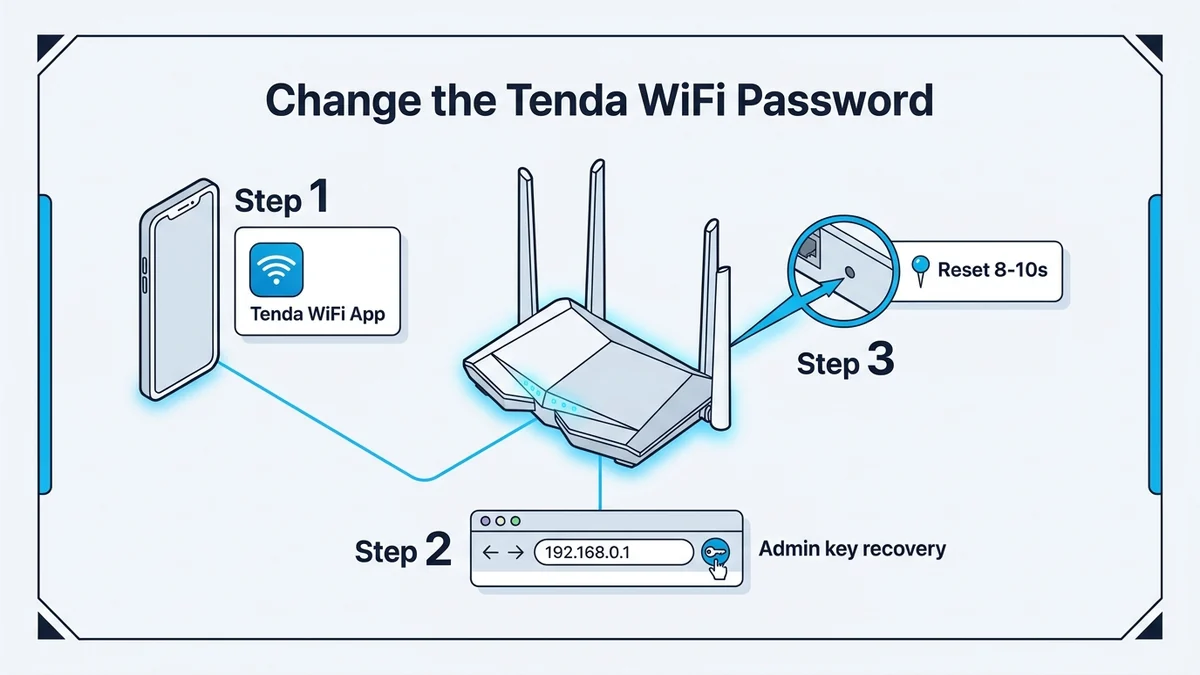
Quick Answer
| Your situation | Best option |
|---|---|
| You know the router administrator password | Sign in and change the Wi-Fi password |
| You do not know the admin password but use the Tenda WiFi app | Use Forgot password? in the app or web login |
| You are still connected to the Wi-Fi network | Try changing the password from the connected device |
| You cannot sign in and recovery fails | Factory reset the Tenda router |
| You only want to change the Wi-Fi password | Use WiFi Settings → WiFi Name & Password after signing in |
The normal Wi-Fi password-change process requires signing in to the router’s management page, opening the Wi-Fi settings, entering a new password, and saving it.
Before You Start
Confirm which password you are trying to change:
| Password | What it controls |
|---|---|
| Wi-Fi password | The password devices use to join your wireless network |
| Router administrator password | The password used to open Tenda router settings |
| Tenda WiFi app account password | The password for your Tenda online account |
Do not assume these are the same. Changing the Wi-Fi password does not automatically change the administrator password, and changing the administrator password does not automatically change the Wi-Fi password.
Option 1: Use the Tenda WiFi App
If your router is already added to the Tenda WiFi app, try this first.
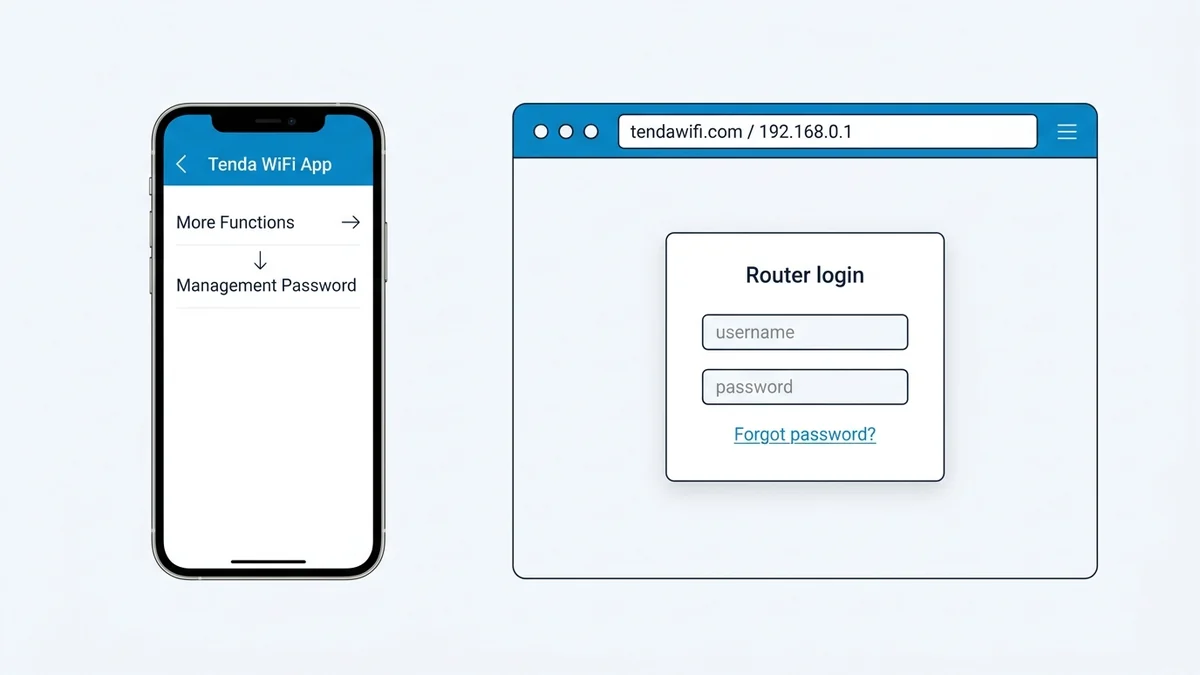
- Open the Tenda WiFi app.
- Tap your router.
- Tap More Functions.
- Tap Management Password.
- Follow the prompts to verify or reset the password.
- Set a new password and tap Confirm.
On some Tenda Wi-Fi 7 models, the old management password may be the Wi-Fi password. This can let you recover access without knowing the separate administrator password.
If you are not signed in to the app, or the router is no longer bound to your account, this method may not work.
Option 2: Use Forgot Password in the Web Login
- Connect your phone or computer to the Tenda router.
- Open a browser.
- Enter
http://tendawifi.comorhttp://192.168.0.1. - On the login screen, select Forgot password?
- Follow the on-screen verification or reset instructions.
- Set a new administrator password.
- Sign in and change the Wi-Fi password.
The Forgot password? option is intended for users who previously set a router login password but cannot remember it.
Option 3: Change the Wi-Fi Password While Connected
If your phone or computer is still connected to the Tenda Wi-Fi network, try signing in and changing the password directly.
- Connect to the Tenda Wi-Fi network.
- Open a browser.
- Enter
http://tendawifi.comorhttp://192.168.0.1. - Sign in with the administrator password.
- Open WiFi Settings.
- Select WiFi Name & Password.
- Enter the new Wi-Fi password.
- Tap Save.
- Reconnect your devices using the new password.
Changing the Wi-Fi password disconnects currently connected wireless devices. They must reconnect using the new password.
If the router asks for the previous administrator password and you do not know it, this method will not work. Move to the recovery or reset option.
Option 4: Factory Reset the Tenda Router
Use this only if you cannot recover the administrator password and no longer have access to the router settings.
What a reset changes
A factory reset restores the Tenda router to its original settings. You may need to set up the router again, including its internet connection, Wi-Fi name, Wi-Fi password, and administrator password.
Before resetting, check whether you have:
- A saved configuration backup.
- The internet-service details required for setup.
- Access to the router’s physical reset button.
- The ability to reconnect and configure the router afterward.
Reset using the physical button
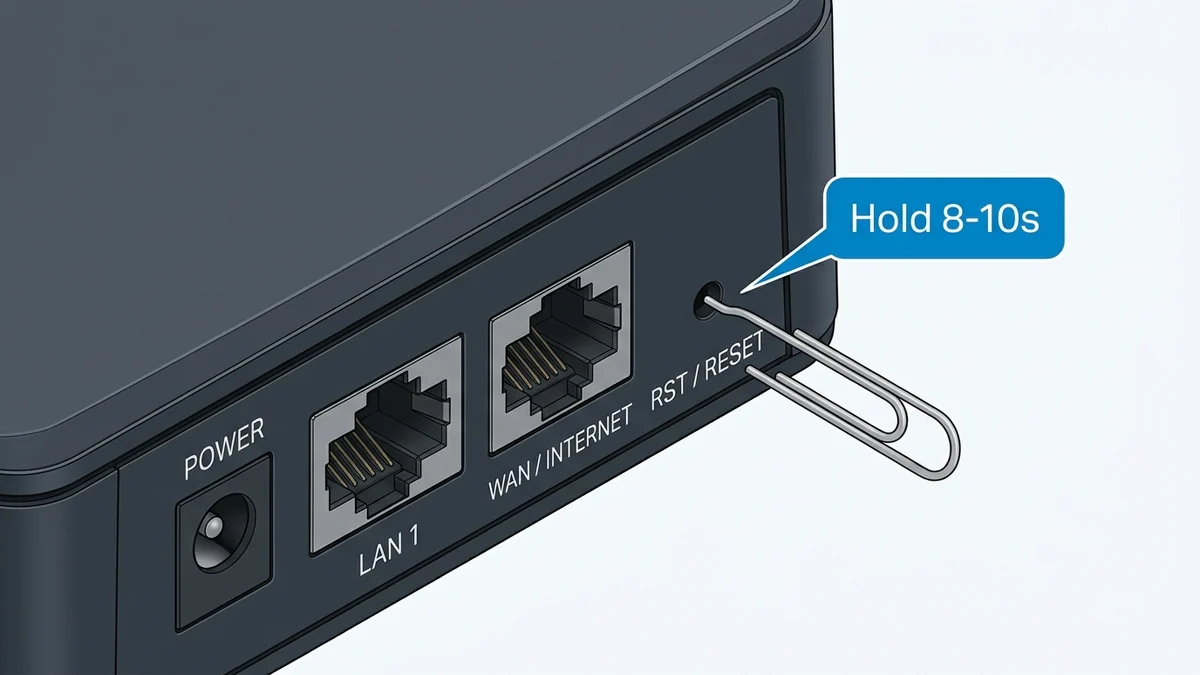
- Keep the Tenda router powered on.
- Find the RST, RESET, or WPS/RESET button on the back.
- Press and hold it for about 8 to 10 seconds.
- Release when the indicator light begins flashing quickly.
- Wait for the router to reboot.
- Connect to the router’s default Wi-Fi network or use an Ethernet cable.
- Open the management address shown on the router label.
- Follow the first-time setup instructions.
- Create a new Wi-Fi name and password.
Some Tenda models use a WPS/RESET button held for more than 10 seconds. Follow the instructions printed on your router or in its manual (also see our general router factory reset guide).
Reset through the web interface
If you can still sign in to the router:
- Open the Tenda web interface.
- Go to More.
- Select System Settings.
- Open Backup & Restore.
- Select Reset.
- Confirm the reset and wait for the router to reboot.
This method is only useful if you already have administrator access.
Set a New Wi-Fi Password After Reset
After the reset and first-time setup:
- Connect to the Tenda router.
- Open
http://tendawifi.comor the management IP address on the router label. - Create or enter the new administrator password.
- Open WiFi Settings.
- Select WiFi Name & Password.
- Enter a strong new Wi-Fi password.
- Save the settings.
- Reconnect your devices.
Use a Wi-Fi password of at least eight characters. Prefer WPA2 or WPA3 security if your router offers it.
Create a Strong New Password
Use a password that is (or generate one locally with our Router Password Generator):
- At least 12 characters long where the router allows it.
- A mix of uppercase letters, lowercase letters, numbers, and symbols.
- Different from your router administrator password.
- Not based on your name, address, phone number, or common words.
Example format: Blue-Tea-47-Lamp!
Do not reuse a password from another account.
If You Cannot Access the Router at All
If the router page will not open after a reset, try:
- Connecting by Ethernet cable instead of Wi-Fi.
- Using the management address printed on the router label (or check your device’s active gateway address).
- Trying
http://192.168.0.1if that is the address shown for your model. - Waiting several minutes for the router to finish rebooting.
- Trying another browser or device.
- Checking that VPN, proxy, or private DNS settings are disabled.
The management IP address and login details are usually printed on the label on the back of the device. If the IP address or password was changed, use the new values.
Common Mistakes
- Confusing the Wi-Fi password with the router administrator password.
- Trying to change the Wi-Fi password without administrator access.
- Assuming the Tenda WiFi app can recover a router that is not bound to your account.
- Resetting the router before checking whether the app’s password-recovery option works.
- Forgetting to reconnect devices after changing the Wi-Fi password.
- Using a weak or reused password after resetting the router.
FAQs
Can I change my Tenda Wi-Fi password without the old password?
Not directly through the normal settings page. You need either the current administrator password, access through the Tenda WiFi app’s recovery option, or a factory reset.
Does resetting a Tenda router delete the Wi-Fi password?
Yes. A factory reset restores default settings, so your previous custom Wi-Fi name and password are removed. You will need to set up the router again.
What is the default Tenda router login?
Older Tenda routers commonly use admin for both the username and password. Newer models may not use a default username and password in the same way, so check the router label and first-time setup screen.
What is the Tenda router management address?
Common addresses include http://tendawifi.com and http://192.168.0.1. Some models use a different address, so check the label on the back of the router.
Will changing the Wi-Fi password disconnect my devices?
Yes. Devices connected to the old Wi-Fi password will disconnect and must reconnect using the new password.
Can I recover the administrator password through the Tenda WiFi app?
Sometimes. If the router is bound to your Tenda WiFi app account, open the router, go to More Functions, then Management Password, and follow the recovery prompts.
The Bottom Line
If you do not know the previous Tenda password, first try the Tenda WiFi app’s Management Password recovery option or the web login’s Forgot password? link. If neither works, factory reset the router, complete setup again, and create a new strong Wi-Fi password.
Default Gateway Directories & Subnets
Access login sheets and diagnostic consoles for major RFC 1918 private gateway subnets:
Router Manufacturer Portals
Browse factory default credentials, setup guides, and model databases by brand: