Why Can’t I Access My BT Hub Manager?
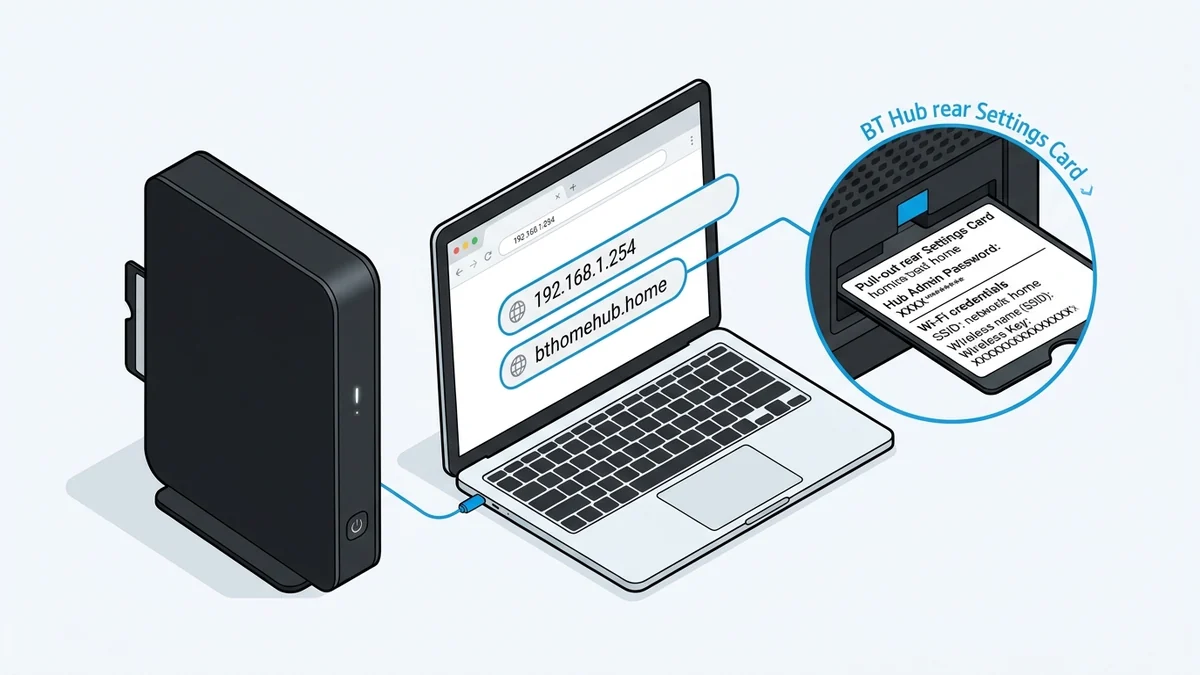
The most common reason is that your device is not connected to the BT Hub’s network, or the browser is blocking the Hub’s secure HTTPS connection. BT Hub Manager is normally opened at 192.168.1.254 or http://bthomehub.home, and changing settings requires the Hub’s admin password.
Start with the connection and address before changing any Hub settings. Do not factory reset the Hub until you have ruled out the simpler causes.
Quick Answer
| Likely cause | What to do |
|---|---|
| Not connected to the BT Hub | Connect to the Hub’s Wi-Fi or use an Ethernet cable |
| Browser shows a security warning | Continue to the HTTPS Hub Manager page |
| VPN or proxy is active | Disconnect the VPN and disable proxy settings |
| Wrong address entered | Use 192.168.1.254 or bthomehub.home |
| Admin password rejected | Use the current admin password, not the Wi-Fi password |
| Hub is unresponsive | Restart the Hub |
BT Hub Manager is a local management page. It must be opened from a device connected to the Hub’s network, not through mobile data.
BT Hub Manager Login Details
| Setting | What to use |
|---|---|
| Hub Manager address | 192.168.1.254 |
| Alternative address | http://bthomehub.home |
| Secure address | https://192.168.1.254 |
| Admin password location | Hub settings card on the back of the Hub |
| Wi-Fi password | Separate from the Hub admin password |
| Custom admin password | Use the password you created, if changed |
The Hub admin password is not the same as your wireless password. It is printed on the Hub settings card unless you changed it.
Step-by-Step: Open BT Hub Manager
1. Connect to the BT Hub
Connect your phone, tablet, or computer to the BT Hub’s Wi-Fi network. For a more reliable test, connect a computer directly to one of the Hub’s Ethernet ports.
Do not use mobile data. Hub Manager is a local management page, so your device must be connected to the Hub’s network.
2. Open the Hub Manager address
In a new browser tab, enter 192.168.1.254. You can also use http://bthomehub.home. Type the address directly into the browser’s address bar, not into a search engine.
3. Accept the HTTPS security warning
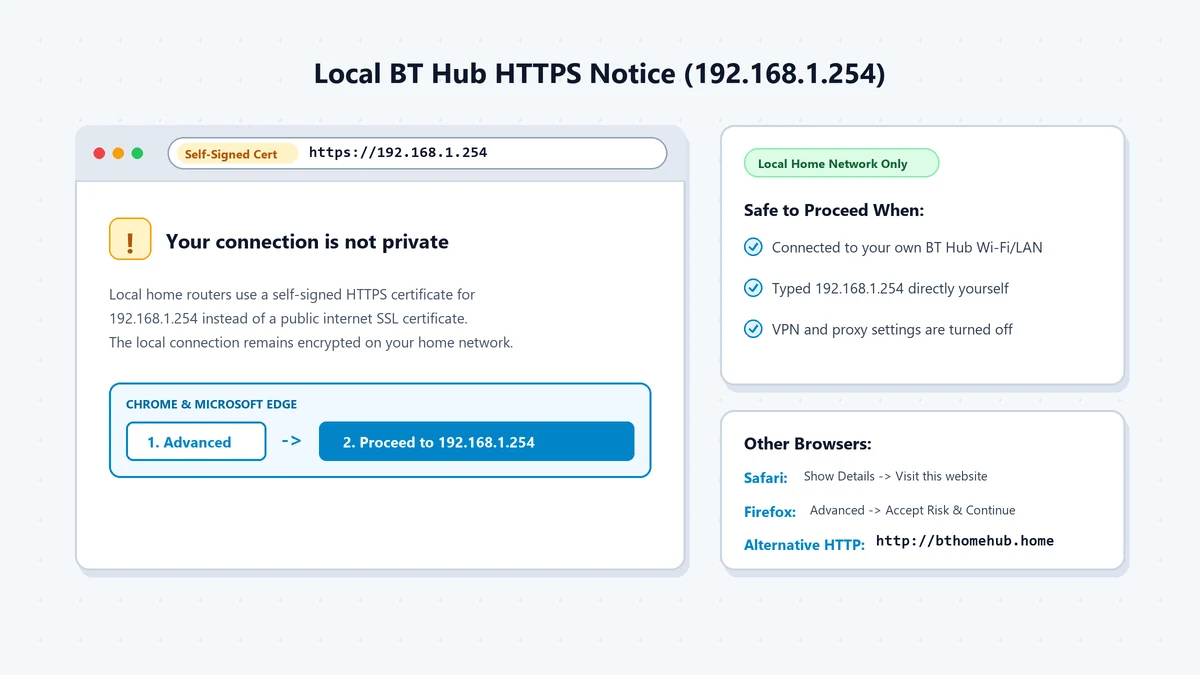
BT Hub Manager uses a secure HTTPS connection. Your browser may show a message saying the connection is not private or secure.
This warning can be normal for a local Hub Manager page because the Hub uses a self-signed certificate. The connection is still encrypted and safe to proceed with when you reached the address yourself and are on your own home network.
| Browser | What to select |
|---|---|
| Chrome | Advanced → Proceed to 192.168.1.254 (unsafe) |
| Microsoft Edge | Advanced → Continue to 192.168.1.254 (unsafe) |
| Safari | Show Details → Visit this website → Visit Website |
| Firefox | Advanced → Accept the Risk and Continue |
Only proceed if you entered 192.168.1.254 directly and you are connected to your own home network.
4. Enter the admin password
When prompted, enter the Hub admin password:
- If you have not changed it, use the password on the Hub settings card on the back of the Hub.
- If you changed it previously, use your current custom admin password.
- Do not use the Wi-Fi password unless it is the same password you deliberately set for Hub Manager.
If the Page Will Not Open
1. Confirm the connection
Make sure you are connected to the correct BT Hub. If you have a mesh system, extender, powerline adapter, or another router, you may be connected to a different network device.
Use an Ethernet cable directly to the BT Hub when possible. This removes Wi-Fi signal issues from the troubleshooting process.
2. Try the alternative address
If 192.168.1.254 does not open, try http://bthomehub.home. This is an alternative way to reach Hub Manager.
3. Check the address carefully
Enter the address directly in the browser’s address bar rather than searching for it.
http://192.168.1.254http://bthomehub.home
192.168.l.254192.168.1.254.com192.168.1.254 router login192.168.1.254/adminwhen you only want the main Hub Manager page
4. Disconnect VPN and proxy
A VPN, proxy, or privacy-focused browser setting can prevent access to a local Hub address. Disconnect the VPN and temporarily disable proxy settings, then try again.
5. Try another browser or device
Try Chrome, Firefox, Edge, or Safari. If one browser fails, test the page from another phone, tablet, or computer connected to the same BT Hub.
6. Restart the Hub
Turn the Hub off, wait about 30 seconds, then turn it back on. Wait for the lights to stabilize, reconnect your device, and try 192.168.1.254 again.
A restart preserves your Hub settings. Do not confuse it with a factory reset.
If the Admin Password Is Rejected
Check the correct password field
Look for the admin password, not the Wi-Fi password. The admin password opens Hub Manager settings; the Wi-Fi password connects devices to the wireless network.
Check the Hub model
The location of the default password depends on the Hub version (see our BT Smart Hub Gateway Portal guide for more model notes):
| Hub model | Default admin password location |
|---|---|
| BT Smart Hub 2 | Hub settings card on the back |
| BT Smart Hub | Hub settings card on the back |
| BT Home Hub 4 or Hub 5 | Hub settings card or label on the base |
| BT Home Hub 3 | Hub settings card or label on the base |
Consider whether the password was changed
If you previously changed the admin password, the original password on the settings card will no longer work. Use the current password instead.
Use the password-reset option if available
If you cannot remember the changed admin password, check the password-reset guidance for your Hub model. Do not reset the Hub until you understand what settings may be lost.
Why You May Reach a Different Router Page
If you have another router, mesh system, or extender, your device may be connected to a network that uses a different gateway address. In that case, 192.168.1.254 may not be the address of the device you are trying to manage. Check your device’s gateway address and use that instead. A Hub Manager page should only be reached from within your local home network.
When to Factory Reset the BT Hub
Do not factory reset the Hub as the first fix. Before resetting:
- Confirm you are connected to the BT Hub.
- Try
192.168.1.254andbthomehub.home. - Disable VPN and proxy settings.
- Try another browser or device.
- Restart the Hub.
- Check the correct admin password.
A factory reset can remove custom Hub settings, including Wi-Fi names, passwords, and other configuration. Record anything you need before resetting, and follow the reset instructions for your exact Hub model (review safe reset practices).
Common Mistakes
- Using mobile data instead of connecting to the BT Hub.
- Assuming the Wi-Fi password is the Hub admin password.
- Closing the browser when the HTTPS warning appears without checking that it is the local Hub page.
- Trying
192.168.1.1when the BT Hub uses192.168.1.254. - Leaving a VPN or proxy enabled.
- Factory resetting before trying the simpler access fixes.
FAQs
What is the BT Hub Manager address?
The standard address is 192.168.1.254. You can also use http://bthomehub.home.
Why does my browser say the BT Hub connection is not private?
BT Hub Manager uses a self-signed certificate for its HTTPS connection. This browser warning is normal for a local Hub page, and the connection remains encrypted.
What is the default BT Hub admin password?
It is printed on the Hub settings card on the back of the Hub, unless you changed it. The location can vary slightly by Hub model.
Is the BT Hub admin password the same as the Wi-Fi password?
No. The admin password opens Hub Manager settings; the Wi-Fi password connects devices to the wireless network.
Can I access BT Hub Manager from outside my home?
No. Hub Manager is a local management interface and must be accessed from a device connected to the Hub's network.
Should I reset my BT Hub if 192.168.1.254 does not work?
Not immediately. First check the connection, try the alternative address, disable VPN or proxy settings, test another browser, and restart the Hub.
The Bottom Line
Connect to your BT Hub, open 192.168.1.254 or http://bthomehub.home, and accept the expected HTTPS warning if it appears. Use the Hub admin password—not the Wi-Fi password—to make changes. If the page will not open, disconnect VPN or proxy settings and restart the Hub before considering a reset.
Default Gateway Directories & Subnets
Access login sheets and diagnostic consoles for major RFC 1918 private gateway subnets:
Router Manufacturer Portals
Browse factory default credentials, setup guides, and model databases by brand: