How Do I Access My Router Settings Page?
To access your router’s settings page, connect to your home Wi-Fi network, open a browser, and enter your router’s management IP address—commonly 192.168.1.1 or 192.168.0.1. Then sign in with the administrator credentials for that specific router.
The settings page is usually called the router admin panel, web management page, or gateway interface. It lets you manage Wi-Fi names, passwords, connected devices, security settings, and other router functions.
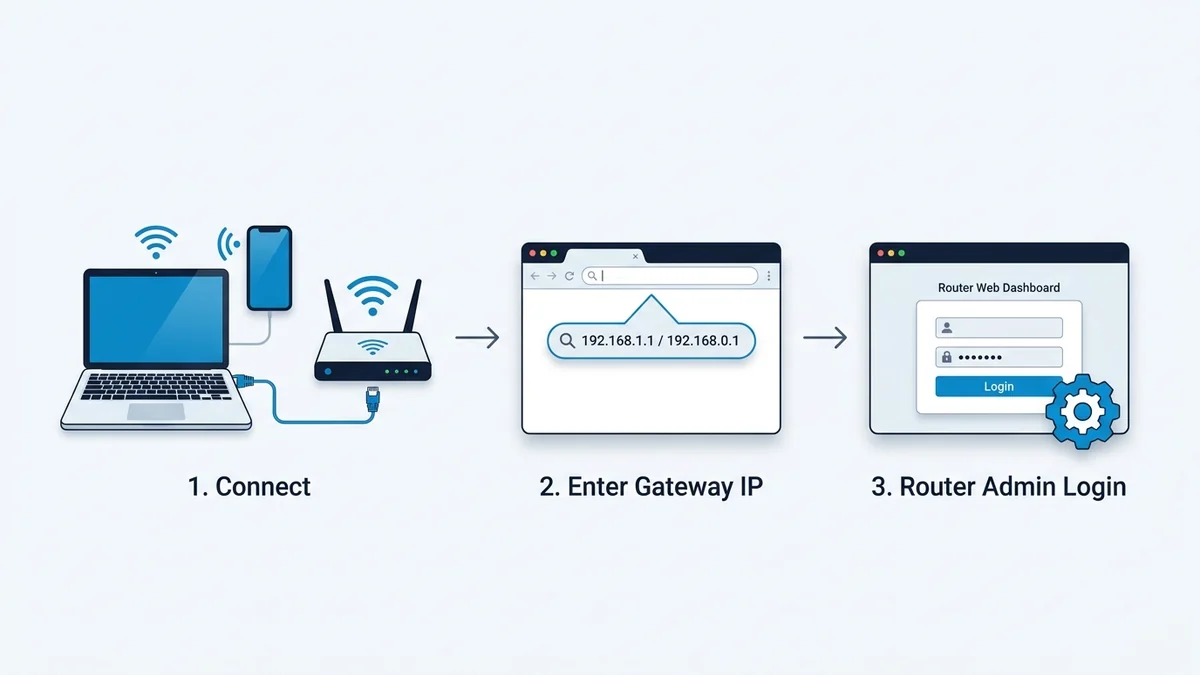
Quick Answer
| Step | What to do |
|---|---|
| 1 | Connect your phone or computer to the router’s Wi-Fi network, or use an Ethernet cable |
| 2 | Open a browser such as Chrome, Firefox, Edge, or Safari |
| 3 | Enter the router’s management address in the browser’s address bar |
| 4 | Sign in with the router’s administrator username and password |
| 5 | Open the settings section you need |
Common router management addresses include 192.168.1.1, 192.168.0.1, and 10.0.0.1. The correct address depends on the router brand, model, and network configuration.
Find Your Router’s Management Address
Try these addresses first, one at a time:
| Router type | Common management address |
|---|---|
| TP-Link standard router | 192.168.0.1 or 192.168.1.1 |
| TP-Link DSL modem router | 192.168.1.1 |
| Linksys, ASUS, and many other routers | 192.168.1.1 |
| Xfinity gateway | 10.0.0.1 |
| AT&T gateway | 192.168.1.254 |
| Router with a custom address | Check the router label or your network’s gateway address |
For TP-Link routers, tplinkwifi.net or 192.168.0.1 are commonly used. TP-Link DSL modem routers may use tplinkmodem.net or 192.168.1.1.
Check the Router Label
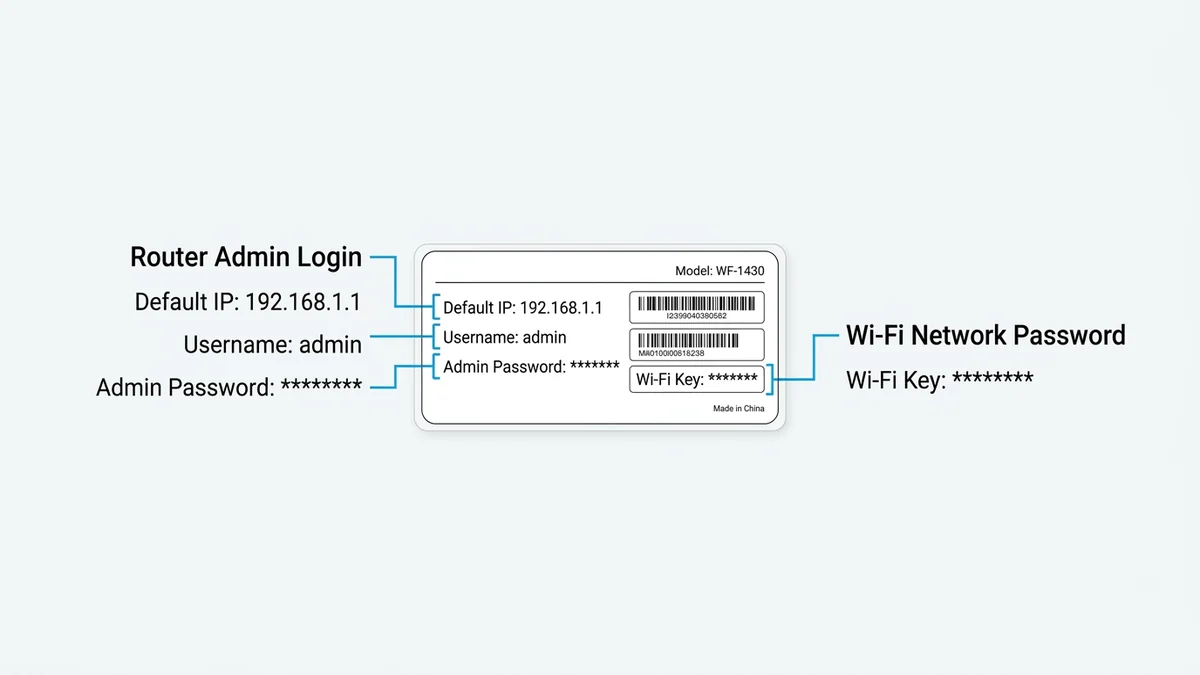
Turn the router over or look at its back panel. The label often lists:
- The router’s default management IP address.
- The default administrator username.
- The default administrator password.
- The Wi-Fi network name.
- The Wi-Fi password.
Use the administrator credentials—not the Wi-Fi password—when the settings page asks for a router login. Some newer routers require you to create an administrator password during first-time setup instead of using a default one.
Step-by-Step: Open Router Settings
1. Connect to the router
Connect your device to the router’s Wi-Fi network. For more reliable access, use an Ethernet cable between your computer and one of the router’s LAN ports.
Do not rely on mobile data. The settings page is a local interface, so your device must be connected to the router’s network.
2. Open a browser
Use Chrome, Firefox, Edge, or Safari. Open a new tab and find the address bar at the top of the browser window.
3. Enter the management address
Type the address directly into the browser’s address bar and press Enter. Common examples:
http://192.168.1.1http://192.168.0.1http://10.0.0.1http://192.168.1.254
Do not enter the address into a search engine. A search result page is not the router’s settings page.
4. Sign in
Enter the administrator username and password:
| Login situation | What to use |
|---|---|
| Router label lists a default username and password | Use those exact details |
| You created a password during setup | Use your custom administrator password |
| The page asks you to create a password | Create and save a strong new password |
| The page asks for Wi-Fi credentials | You may be on the wrong login page or entering the wrong password |
Some older routers use admin as both the default username and password. Other brands and models use different credentials, so check the label or search our router model directory before trying generic passwords.
5. Open the setting you need
After signing in, look for menus such as:
- Wireless or Wi-Fi
- LAN
- WAN or Internet
- Security
- Administration
- Connected Devices
- Parental Controls
- Port Forwarding
- Firmware Update
Menu names vary by brand and model. Do not change settings you do not recognize.
Find the Router IP If Common Addresses Fail
If 192.168.1.1 and 192.168.0.1 do not open your settings page, find your network’s gateway address (or try our Gateway Auto-Detector tool).
On Windows
- Open Settings.
- Go to Network & Internet.
- Open your active Wi-Fi or Ethernet connection.
- Find the Default gateway or IPv4 Default Gateway.
- Enter that address in your browser.
On Mac
- Open System Settings.
- Go to Wi-Fi or Network.
- Open the details for your active connection.
- Find Router or Gateway.
- Enter that address in your browser.
On Android
- Open Settings.
- Go to Network & internet or Connections.
- Open Wi-Fi.
- Tap your connected network.
- Look for Gateway or Router.
On iPhone or iPad
- Open Settings.
- Go to Wi-Fi.
- Tap the information icon next to your connected network.
- Find Router.
- Enter that address in your browser.
The gateway address is the address to use for the router’s local management interface. For terminal commands across every operating system, read our complete Router IP Discovery Guide.
If the Settings Page Will Not Open
1. Confirm the connection
Make sure your device is connected to the correct router. If you have a modem, mesh system, extender, or separate router, you may be reaching a different device.
Use a direct Ethernet connection to the router when possible. This removes Wi-Fi signal problems from the troubleshooting process.
2. Check the address
Enter the IP address exactly. Do not add .com to an IP address.
http://192.168.1.1http://192.168.0.1
192.168.l.1(lowercase letter l)192.168.1.l192.168.1.1.com192.168.1.1 router login
3. Try another common address
If one address does not load, try:
http://192.168.0.1http://192.168.1.1http://10.0.0.1
Do not change router settings at random. Use the address shown on the router label or found through your device’s gateway settings.
4. Disable VPN or proxy temporarily
A VPN, proxy, or privacy-focused browser setting can interfere with access to a local router address. Temporarily disconnect the VPN and try again.
5. Restart the router
Turn the router off, wait about 30 seconds, then turn it back on. Wait for the Wi-Fi and internet lights to stabilize before trying again.
Restarting is different from factory resetting. A restart preserves your settings; a factory reset removes them.
If the Router Password Is Rejected
Check the correct password field
The router administrator password is not necessarily the same as the Wi-Fi password. Check the label field labeled Admin Password, Router Password, or Network Settings Password.
Check whether the password was changed
If you or someone else changed the administrator password, the label’s original password will no longer work.
Use the password created during setup. If you cannot recover it, follow the recovery procedure for your exact router model.
Do not reset immediately
A factory reset can erase custom Wi-Fi names, passwords, parental controls, port-forwarding rules, and other configuration. Record any settings you need before resetting.
Use a reset only after checking the exact instructions for your router model. When a reset is genuinely required, see our 30-Second Factory Reset Guide.
Common Mistakes
- Using mobile data instead of connecting to the router’s network.
- Typing the management address into a search engine.
- Entering the Wi-Fi password as the router administrator password.
- Assuming every router uses
192.168.1.1. - Adding
.comto an IP address. - Factory resetting before checking model-specific recovery instructions.
FAQs
What is the most common router settings-page address?
The most common addresses are 192.168.1.1 and 192.168.0.1. Some routers and gateways use different addresses, such as 10.0.0.1 or 192.168.1.254.
Do I need internet access to open router settings?
No. You need a connection to the router's local network, not necessarily an active internet connection.
What username and password should I use?
Check the router label for the default administrator credentials. If you changed the password during setup, use your custom password instead.
Why can I connect to Wi-Fi but not open the router page?
You may be using the wrong management address, connected to a different device, or using a browser setting that blocks the local address. Confirm the gateway address and try a direct Ethernet connection.
Can I access router settings from my phone?
Yes. Connect your phone to the router's Wi-Fi network, open a browser, and enter the router's management address in the address bar.
Is the router settings page safe to use?
Yes, when you access it from your own home network and use a strong, unique administrator password. Avoid changing security settings you do not understand.
The Bottom Line
Connect to your router’s network, enter its management address directly into the browser’s address bar, and sign in with the administrator credentials. Start with 192.168.1.1 or 192.168.0.1, then check the router label or your device’s gateway address if those do not work.
Default Gateway Directories & Subnets
Access login sheets and diagnostic consoles for major RFC 1918 private gateway subnets:
Router Manufacturer Portals
Browse factory default credentials, setup guides, and model databases by brand: