What Does a Blinking Red Light Mean on a Spectrum Router or Modem?
A blinking red light on a Spectrum router or modem usually means the device is trying to connect but cannot establish a stable internet connection. It can indicate a service outage, loose cable, signal issue, or a device that needs to restart.
A blinking red light usually indicates that:
- Connection Handshake in Progress: The modem or router is actively attempting to sync with Spectrum’s central network.
- Unstable or Missing Broadband Signal: Downstream or upstream radio frequencies on the coaxial line are out of acceptable decibel margins.
- Loose or Damaged Cabling: The coaxial cable, Ethernet patch cord, or power adapter is partially dislodged or damaged.
- Service Outage: Spectrum is conducting localized line maintenance or experiencing a node failure in your area.
- Volatile Memory Lockup: The router or modem has encountered a firmware stall requiring a power cycle.
- Hardware Failure: In rare cases, internal surge or component degradation requires equipment replacement.
Fastest fix: Check all cable connections, restart the modem or router for 60 seconds, and wait 5–10 minutes. If the red light continues blinking, check for a Spectrum outage or contact Spectrum support.
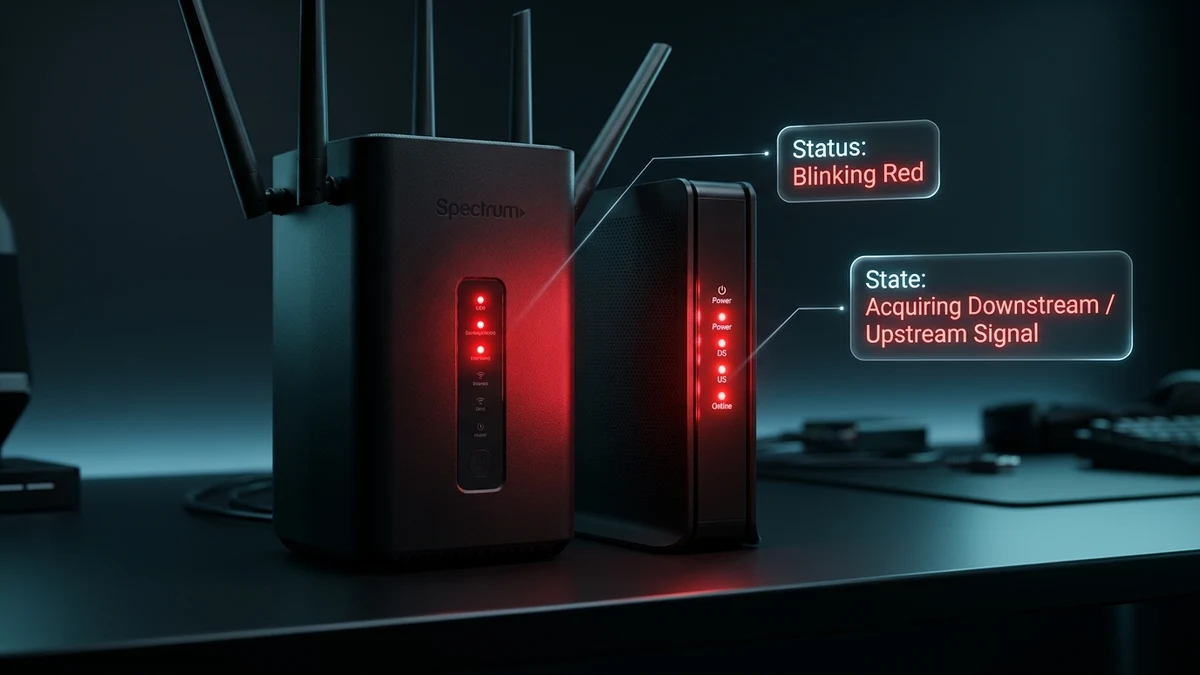
Quick Diagnostic Table
Spectrum hardware uses color-coded front panel LEDs to communicate diagnostic telemetry. Identify your device’s current LED behavior to determine the correct immediate remedy:
| Light Behavior | Likely Meaning | What to Do |
|---|---|---|
| Blinking red light | Device is attempting to connect to the Spectrum network | Verify cable connections, restart the device, and wait 5–10 minutes |
| Solid red light | Critical connection failure or hardware/line fault | Check cables, power cycle the device, and contact Spectrum support |
| Blinking blue light | Device is booting, syncing channels, or receiving firmware updates | Wait 5–10 minutes for the light to turn solid; do not unplug |
| Solid blue light | Normal connection established; internet fully active | No action needed; network is operational |
| No lights illuminated | Power supply interruption, tripped GFCI outlet, or power supply failure | Check power cable, try another wall outlet, or test power strip |
| Red light after a storm | External utility line fault, surge damage, or regional power grid outage | Inspect physical wiring outside, restart equipment, and report outage to Spectrum |
Spectrum Router & Modem LED Status Guide
Click any status tile below to simulate equipment telemetry, diagnose channel sync failures, and display step-by-step resolution actions.
Normal operation, active broadband connection.
Powering up or acquiring DOCSIS channel lock.
Attempting connection; cable or headend fault.
Hardware fault, severed cable, or line outage.
OTA software update; do not power off or unplug.
Blinking Red — No Upstream Signal Connection
The Spectrum router or modem is attempting to synchronize with the Spectrum cable headend (CMTS), but upstream frequencies cannot be acquired. This occurs when the coaxial cable is disconnected, loose at the wall plate, damaged by a splitter, or when an area outage disrupts the street node.

What the Red Light Means
Spectrum routers and modems use integrated multi-color LED rings and indicators to reflect low-level network state. A blinking red light generally means the device has physical power but has not established a bidirectional communication link with Spectrum’s Cable Modem Termination System (CMTS).
Think of the indicator like a traffic signal: a blinking red light does not necessarily signify that your equipment is broken; rather, it indicates that the unit is stuck attempting to synchronize its upstream and downstream transmission channels.
Common triggers for this state include:
- A loose or disconnected coaxial, Ethernet, or power cable.
- Temporary Spectrum service interruption or fiber/coax maintenance.
- Low RF signal levels or excessive line noise in your local node.
- Stale routing caches in the router or modem requiring a power cycle.
- Over-the-air firmware updates being downloaded and verified.
- Thermal throttling due to poor equipment ventilation.
- Physical cable shielding damage or hardware component wear.
First Steps
1. Check the Cables
Physical cable disconnects and high-resistance connections account for over 50% of blinking red light issues on residential cable networks.
- Make sure the power cord is firmly seated into the back of the modem or router and not loose in the socket.
- Confirm the power adapter is plugged directly into a working wall outlet rather than an overloaded extension board.
- Inspect the screw-on coaxial cable connected to your Spectrum cable modem or gateway.
- Ensure the coaxial connector is hand-tightened snugly at both the back of the modem and the wall outlet faceplate (do not over-tighten with a wrench).
- Inspect the yellow or blue Ethernet cable connecting the modem’s LAN port to the router’s WAN/Internet port. Listen for a distinct click.
- Examine cables for sharp 90-degree kinks, frayed insulation, or bent copper center conductor pins.
2. Restart the Device
Power cycling discharges internal capacitors, clears volatile packet buffers, and prompts the modem to negotiate a completely fresh DOCSIS connection.
- Unplug the power cables from both the Spectrum modem and the Wi-Fi router.
- Wait a full 60 seconds to ensure all residual hardware cache is cleared.
- Plug the modem into power first.
- Wait 3 to 5 minutes until the modem’s Online LED turns solid blue.
- Next, plug the Spectrum router into power.
- Allow 5 to 10 minutes for the router to boot, authenticate, and turn solid blue.
- Test internet connectivity on your smartphone, computer, or tablet.
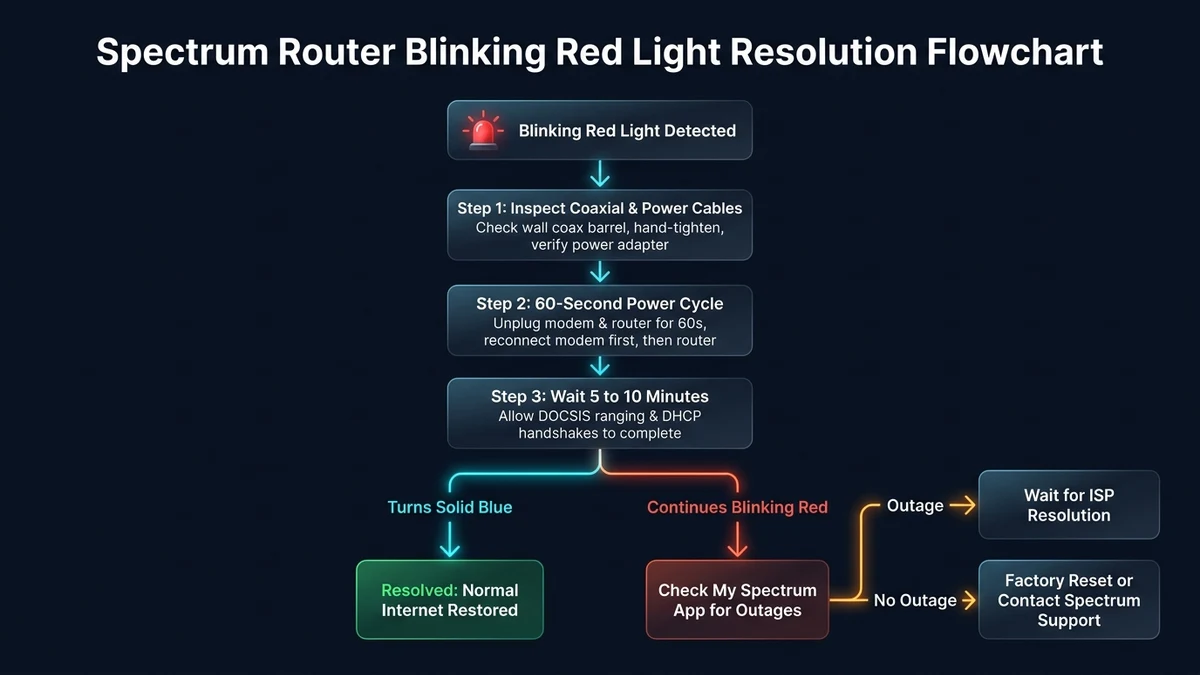
Troubleshooting Decision Flowchart
Follow this structured troubleshooting decision path to resolve a blinking red light on your Spectrum hardware systematically:
Check for a Spectrum Outage
If the red light continues to blink after a clean power cycle, the underlying cause is frequently external to your home. Spectrum regularly conducts neighborhood maintenance and upgrades that temporarily disconnect lines.
- Open the My Spectrum app on your mobile phone using your cellular data connection.
- Sign in with your Spectrum username and password.
- Review the home dashboard banner for active outage alerts or estimated restoration times.
- Alternatively, visit Spectrum’s official service status page via a mobile browser.
- If no outage is listed but your neighbors on Spectrum are also disconnected, contact customer support to report the localized drop.
Wait for the Device to Reconnect
Modern Spectrum Wi-Fi 6 gateways (SAC2V1K and SAX1V1K) perform multiple handshakes during boot, including channel bonding, security certificate exchanges, and cloud provisioning checks.
- Do not unplug the device repeatedly within a few minutes; repeated power cycles can corrupt firmware installation.
- Do not press the reset button while the indicator is blinking.
- Allow at least 5 to 10 minutes for the sync process to finish.
- Watch for the light to transition from blinking red → blinking blue → solid blue.
- Once solid blue, run a speed test or load a website to verify throughput.
If the indicator remains blinking red after 15 to 20 continuous minutes, advance to environment and hardware checks below.
Check the Device Location & Overheating
Thermal overload causes internal network processors to enter a protected low-power state, dropping radio transmitters and upstream signal synchronizers.
- Maintain Open Airflow: Keep the router and modem in an open area with ample ventilation.
- Avoid Enclosed Cabinets: Never operate networking hardware inside closed TV entertainment centers, media cabinets, or closets.
- Keep Clear of Heat Radiators: Position devices at least three feet away from space heaters, gaming PCs, and amplifiers.
- Prevent Direct Sunlight: Avoid window sills where solar exposure can heat the enclosure beyond rated operating temperatures.
- Uncover Vents: Ensure device top and side ventilation grilles are free of papers, books, or fabric covers.
If your device feels hot to the touch, unplug it from power for 10 to 15 minutes to cool down, then restart it in a well-ventilated spot.
Check Your Spectrum Account Status
Spectrum hardware requires continuous authorization from account billing and provisioning databases. If an administrative block is triggered, the modem will be refused network access and display a blinking red light:
- Open the My Spectrum app or navigate to Spectrum.net.
- Verify that your internet service tier shows an Active status.
- Check for past-due balance alerts, pending service transfers, or equipment upgrade requirements.
- If new replacement equipment was mailed to you, the old modem may have been automatically deactivated on the network.
Factory Reset: Last Resort
If all cable checks, power cycles, and outage verifications have failed, a hardware factory reset can resolve deep configuration corruption. Learn more in our clean router factory reset guide.
- Locate the recessed Reset pinhole on the rear panel of your Spectrum router.
- Keep the device plugged into power.
- Insert a straightened paperclip into the pinhole and press gently until you feel a mechanical click.
- Hold the button down for 10 to 15 seconds.
- Release the button when the front LED flashes or powers off.
- Allow 5 to 10 minutes for the router to restore factory defaults and reboot.
- Reconnect using the original default Wi-Fi network name and password printed on the router’s rear sticker label.
When to Contact Spectrum Support
Contact Spectrum technical customer support (1-833-267-6094) or schedule a service visit if:
- The red indicator continues blinking after following all cabling and power cycle steps.
- The light turns solid red, indicating a persistent hardware or upstream signal rejection.
- No connected device can access the internet or resolve default gateway addresses at 192.168.1.1.
- The My Spectrum app displays an unresolved line signal alert on your specific address.
- The equipment emits an unusual burning odor, excessive fan noise, or shows visible casing warping.
- The connection failed immediately following severe weather, lightning storms, or utility pole work.
Spectrum can remotely run line tests to measure signal-to-noise ratio (SNR) and upstream power levels (dBmV). If signal levels are outside DOCSIS specifications, a field technician will replace the line drop, splitters, or equipment.
Common Misunderstandings
A Blinking Red Light Does Not Always Mean a Broken Router
Users frequently assume hardware failure when they see a blinking red light. In reality, the device is usually functioning properly and simply communicating that it cannot detect an incoming broadband signal from the wall outlet.
Restarting Is Different From Resetting
Restarting (power cycling) safely clears temporary memory and reboots the operating system without altering your personalized network names or passwords. Resetting (factory reset) restores firmware to original factory defaults and deletes all personalized network configurations.
A Red Light Does Not Always Mean You Must Replace the Device
Equipment swaps are costly and inconvenient. In the overwhelming majority of cases, tightening a loose coaxial cable, resolving a local utility outage, or performing a clean 60-second power cycle restores full solid-blue connectivity without requiring hardware replacement.
Frequently Asked Questions
A blinking red light indicates that your Spectrum device is attempting to establish a connection but cannot sync with the Spectrum headend network. Common causes include a loose or disconnected coaxial cable, a regional ISP service outage, an unprovisioned hardware MAC address, or a temporary gateway firmware crash that requires a power cycle.
You should wait at least 5 to 10 minutes after plugging your Spectrum modem and router back in. The modem must lock onto downstream and upstream DOCSIS channels, perform ranging, and acquire an IP via DHCP before the router can turn solid blue. If the red light blinks continuously for over 15 to 20 minutes, an outage or physical line fault is likely present.
A blinking red light means the device is actively attempting to establish network handshake and signal acquisition. A solid red light signifies a critical failure, such as complete absence of broadband signal, an invalid account status, an incompatible hardware provisioning error, or a severe internal hardware fault.
No. Do not press the pinhole Reset button as an initial troubleshooting step. Pressing Reset clears your custom Wi-Fi network name (SSID), Wi-Fi password, port forwarding rules, and can require time-consuming reactivation through the My Spectrum app. Always perform a 60-second power cycle (unplugging the power adapter) first.
Yes. A loose, corroded, or poorly shielded coaxial cable is one of the leading causes of blinking red lights on Spectrum modems. Even half a turn of looseness on the coaxial F-connector can introduce signal leakage (ingress/egress) and disrupt upstream DOCSIS bonding.
Open the My Spectrum app on your smartphone using cellular data, or log into your account at Spectrum.net. Spectrum displays real-time banner alerts if your neighborhood is affected by an outage or maintenance event. You can also check if neighbors are experiencing connectivity loss.
FAQs
Why is my Spectrum router or modem blinking red?
A blinking red light indicates that your Spectrum device is attempting to establish a connection but cannot sync with the Spectrum headend network. Common causes include a loose or disconnected coaxial cable, a regional ISP service outage, an unprovisioned hardware MAC address, or a temporary gateway firmware crash that requires a power cycle.
How long should I wait for a Spectrum router to connect after a restart?
You should wait at least 5 to 10 minutes after plugging your Spectrum modem and router back in. The modem must lock onto downstream and upstream DOCSIS channels, perform ranging, and acquire an IP via DHCP before the router can turn solid blue. If the red light blinks continuously for over 15 to 20 minutes, an outage or physical line fault is likely present.
What is the difference between a blinking red light and a solid red light on Spectrum equipment?
A blinking red light means the device is actively attempting to establish network handshake and signal acquisition. A solid red light signifies a critical failure, such as complete absence of broadband signal, an invalid account status, an incompatible hardware provisioning error, or a severe internal hardware fault.
Should I press the red Reset button when the light is blinking red?
No. Do not press the pinhole Reset button as an initial troubleshooting step. Pressing Reset clears your custom Wi-Fi network name (SSID), Wi-Fi password, port forwarding rules, and can require time-consuming reactivation through the My Spectrum app. Always perform a 60-second power cycle (unplugging the power adapter) first.
Can a loose coaxial cable cause the blinking red light?
Yes. A loose, corroded, or poorly shielded coaxial cable is one of the leading causes of blinking red lights on Spectrum modems. Even half a turn of looseness on the coaxial F-connector can introduce signal leakage (ingress/egress) and disrupt upstream DOCSIS bonding.
How can I tell if the issue is a Spectrum area outage or my hardware?
Open the My Spectrum app on your smartphone using cellular data, or log into your account at Spectrum.net. Spectrum displays real-time banner alerts if your neighborhood is affected by an outage or maintenance event. You can also check if neighbors are experiencing connectivity loss.
The Bottom Line
A blinking red light on a Spectrum router or modem usually means the device is trying to connect but has not established a stable internet connection. Check the cables, restart the device, and wait 5–10 minutes.
Fastest fix: Unplug the Spectrum modem or router for 60 seconds, plug it back in, wait for the lights to stabilize, and check the My Spectrum app for an outage if the red light remains.
Default Gateway Directories & Subnets
Access login sheets and diagnostic consoles for major RFC 1918 private gateway subnets:
Router Manufacturer Portals
Browse factory default credentials, setup guides, and model databases by brand: