How to Fix Wi-Fi Connected but No Internet Access on Android / iPhone
If your Android or iPhone says it is connected to Wi-Fi but websites and apps will not load, the issue is usually a temporary network glitch, router problem, DNS error, or saved Wi-Fi configuration. Start by restarting your phone and router, then forget and reconnect to the Wi-Fi network.
- Turn Wi-Fi off and back on: Toggle Wi-Fi in your phone’s quick settings to trigger an instant handshake reset.
- Restart your Android or iPhone: Power cycling purges transient network stack caches and renews local IP addressing.
- Restart your router: Unplug the router power adapter for 30 seconds to clear congested NAT tables and restore ISP WAN links.
- Forget the Wi-Fi network and reconnect: Wipe corrupted Wi-Fi credentials and renegotiate a fresh WPA3/WPA2 security profile.
- Reset network settings if the problem continues: Revert mobile network configurations, routing tables, and DNS bindings to clean factory defaults.
- Check whether other devices can use the same Wi-Fi: Isolate whether the outage is localized to your smartphone or affects the entire home network.
Fastest fix: Restart your phone and router first. If that does not work, forget the Wi-Fi network and reconnect using the correct password.
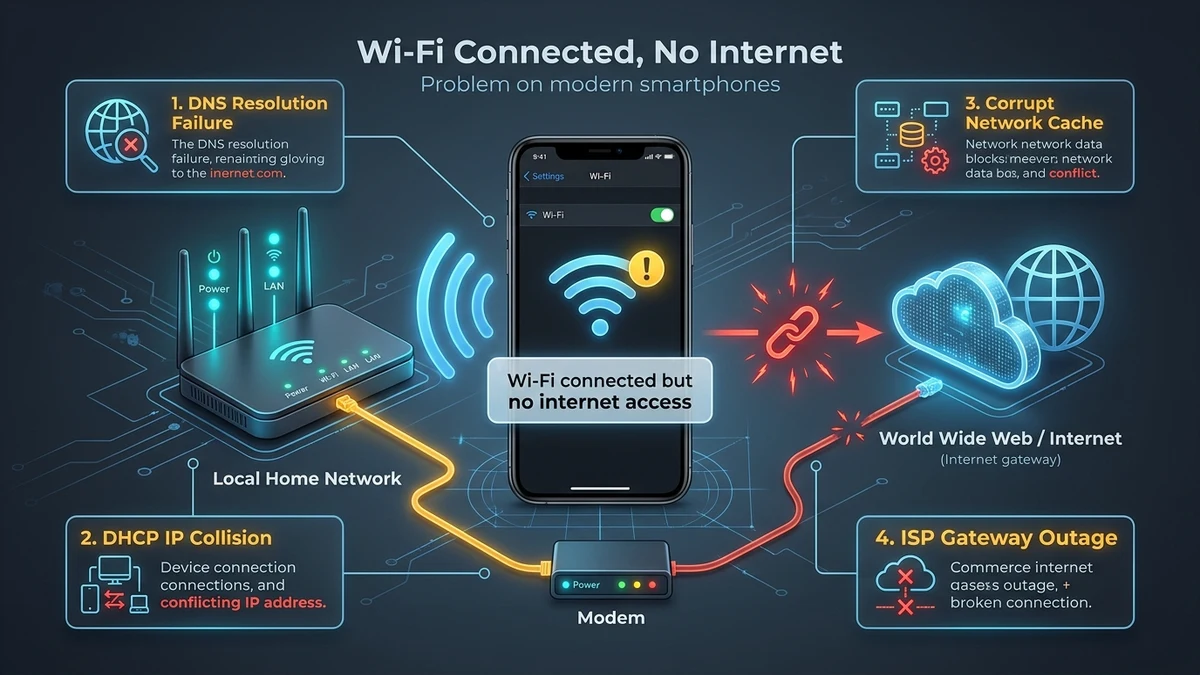
Quick Diagnostic Table
Use this triage matrix to identify your specific connectivity failure mode and execute the exact remedy without wasting time:
| Symptom | Likely Cause | Quick Fix |
|---|---|---|
| Wi-Fi connects but no internet on one phone | Temporary phone network glitch or stale DHCP lease | Turn Wi-Fi off and on, then restart the phone |
| No internet on all devices | Router, modem, or internet provider outage | Restart the router and check with your internet provider |
| Websites fail but apps work | DNS resolution failure or timed-out ISP nameservers | Change DNS to Cloudflare (1.1.1.1) or Google (8.8.8.8) |
| Wi-Fi connects after entering password but no internet | Saved network configuration or security handshake corrupted | Forget the network and reconnect with the password |
| Internet works on another Wi-Fi network | Issue with your home router gateway or ISP upstream connection | Restart the router or inspect your ISP status page |
| Internet works on Ethernet but not Wi-Fi | Router Wi-Fi wireless radio lockup or severe RF interference | Restart the router and check 2.4 GHz / 5 GHz wireless band settings |
| No internet after changing router settings | Incorrect DNS, static IP subnet mask, or DHCP pool allocation | Reset phone network settings or restore router defaults via 192.168.1.1 |
First Steps
Turn Wi-Fi Off and On
Toggling the wireless radio forces the smartphone operating system to terminate its current 802.11 association and establish a clean physical link.
- Open Settings.
- Tap Network & internet or Connections.
- Tap Internet or Wi-Fi.
- Turn Wi-Fi off.
- Wait 10 seconds.
- Turn Wi-Fi back on.
- Reconnect to your network.
- Open Settings.
- Tap Wi-Fi (do not merely disconnect in Control Center).
- Toggle the main Wi-Fi switch off.
- Wait 10 seconds.
- Turn Wi-Fi back on.
- Tap your network and reconnect.
Restart Your Phone
Restarting clears temporary network errors, flushes corrupted socket memory, and refreshes the low-level connection handshake between your phone and router.
- Android: Press and hold the Power button (or Power + Volume Down on modern Samsung / Pixel devices), then tap Restart.
- iPhone: Press and hold the Side button and either Volume button until the slider appears, then slide to power off. Wait 30 seconds, then hold the Side button until the Apple logo appears.
Restart the Router
If no device on your premises can access the internet, or if multiple phones encounter the same “Connected without internet” warning, the issue is almost always within the router, modem, or upstream ISP fiber/cable circuit.
- Unplug the power cable from the back of your router and modem.
- Wait a full 30 seconds to allow the onboard capacitors to discharge completely and clear the volatile routing cache.
- Plug the power cable back in.
- Wait 2 to 5 minutes for the router to complete its self-test and establish WAN synchronization.
- Verify that the Internet / WAN LED indicator turns solid green or white (never blinking red or amber).
- Reconnect your phone to Wi-Fi and open a fresh web browser tab to test the connection.
Forget and Reconnect to Wi-Fi
Over time, saved Wi-Fi profiles can retain outdated IP leasing parameters, expired gateway security certificates, or conflicting BSSID references. Forgetting the network purges this profile and prompts a clean DHCP negotiation.
Forget Network on Android
- Open Settings → Network & internet or Connections.
- Tap Internet or Wi-Fi.
- Locate your active network name.
- Tap the gear icon or long-press the network name.
- Tap Forget or Forget network.
- Select the network name from the available list, enter your Wi-Fi password carefully, and tap Connect.
Forget Network on iPhone
- Open Settings → Wi-Fi.
- Tap the blue info icon (i) next to your connected Wi-Fi network.
- Tap Forget This Network at the top of the screen.
- Confirm by tapping Forget in the prompt.
- Return to the Wi-Fi list, tap your network, enter the Wi-Fi password, and tap Join.
Check Other Devices
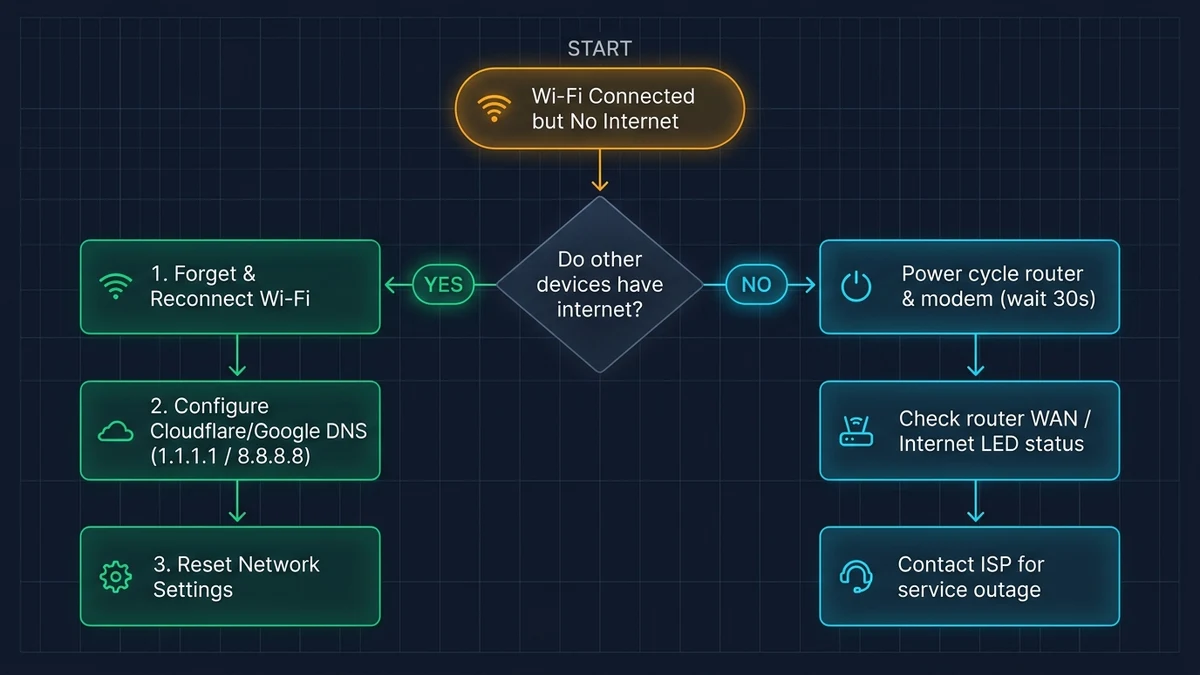
Testing network behavior across multiple hardware clients immediately isolates whether the root issue is local to your smartphone hardware or an environmental network failure:
| Diagnostic Result | What It Means | Immediate Next Step |
|---|---|---|
| Other devices have normal internet | The issue is strictly isolated to your smartphone network stack | Proceed to DNS configuration and network settings reset below |
| No device has internet access | Upstream ISP service failure, line cutoff, or router hardware lockup | Power cycle modem/router or inspect provider service outage status |
| Ethernet works, but Wi-Fi fails on all devices | Router wireless radio crash, band steering bug, or severe channel interference | Access router admin at 192.168.1.1 or 192.168.0.1 and update Wi-Fi channel |
| Phone works on cellular data, fails only on Wi-Fi | The issue is restricted to the Wi-Fi handshake or gateway DNS routing | Check Private DNS, disable third-party VPNs, and renew local IP lease |
Fix DNS Settings
The Domain Name System (DNS) translates human-readable web addresses (such as routeriphub.com) into numerical IP addresses. When your internet provider’s default DNS servers experience downtime or return NXDOMAIN errors, your phone remains securely connected to Wi-Fi but cannot load websites or external server endpoints. You can also review our guide on how to flush DNS cache for complete platform steps.
Change DNS on Android
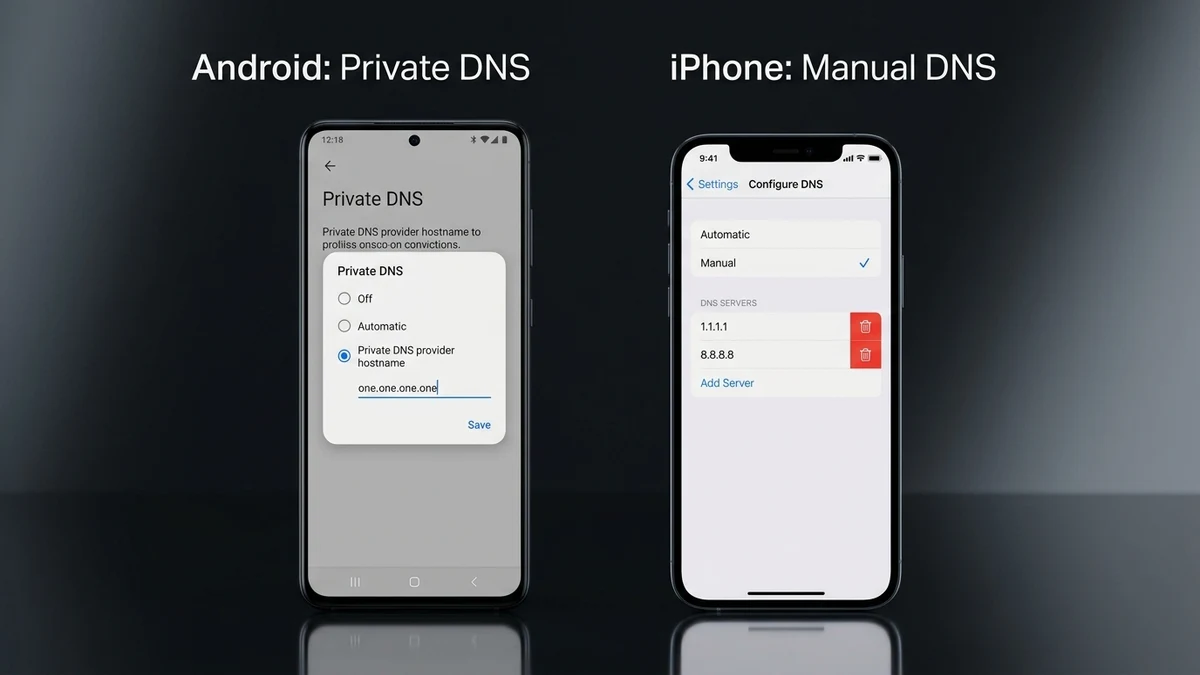
Android utilizes system-wide Private DNS (DNS-over-TLS), which encrypts DNS lookups and bypasses buggy ISP recursive resolvers:
- Open Settings → Network & internet (or More connection settings on Samsung One UI).
- Tap Private DNS.
- Select Private DNS provider hostname.
- Enter either:
one.one.one.one(Cloudflare Privacy-first DNS)dns.google(Google Public DNS)
- Tap Save and toggle Wi-Fi off and back on.
Change DNS on iPhone
iOS allows granular DNS configuration per individual Wi-Fi connection:
- Open Settings → Wi-Fi.
- Tap the blue info icon (i) beside your connected network.
- Scroll down and tap Configure DNS.
- Switch from Automatic to Manual.
- Under DNS Servers, tap the red minus icon to remove existing ISP servers.
- Tap Add Server and input:
- Cloudflare:
1.1.1.1(Primary) and1.0.0.1(Secondary) - Google DNS:
8.8.8.8(Primary) and8.8.4.4(Secondary)
- Cloudflare:
- Tap Save in the upper right corner to activate changes immediately.
Tip: To protect your entire home network at the source, learn how to change router DNS inside your main gateway dashboard.
Reset Network Settings
If reconnecting and swapping DNS does not restore web connectivity, underlying cellular-to-Wi-Fi routing tables or IP sockets may be corrupted. Resetting network settings rebuilds the phone’s entire networking stack from scratch.
- Open Settings.
- Scroll down and select System (or General management on Samsung).
- Tap Reset or Reset options.
- Tap Reset Wi-Fi, mobile & Bluetooth (or Reset network settings).
- Tap Reset settings and confirm with your device PIN or pattern.
- Once rebooted, select your Wi-Fi network and input the password.
- Open Settings → General.
- Scroll to the bottom and tap Transfer or Reset iPhone.
- Tap Reset at the bottom of the screen.
- Select Reset Network Settings.
- Enter your iPhone lock screen passcode when prompted.
- Confirm by tapping Reset Network Settings.
- Allow the iPhone to reboot automatically, then reconnect to Wi-Fi.
Check Router Settings
When multiple client devices report “No Internet Access” despite showing full Wi-Fi signal bars, the router’s internal services or security rules may be blocking outgoing traffic. Use our default router IP discovery guide to log in to your administrative dashboard:
- Verify Power and WAN LEDs: Check that the router power light and Internet/Globe LED show continuous green or white illumination.
- Inspect Physical Cabling: Ensure the Ethernet patch cord connecting your modem to the router’s WAN/Internet port is firmly seated (listen for an audible click).
- Verify Active Service Plan: Log in to your ISP customer portal to rule out account suspensions or regional billing holds.
- Check for Regional ISP Outages: Check Downdetector or your provider’s status app (Spectrum, AT&T Smart Home Manager, or Verizon My Fios).
- Disable Parental Controls & MAC Filtering: Inspect whether access scheduling, bedtime pauses, or MAC address access control lists are mistakenly blocking your smartphone.
- Update Router Firmware: Outdated router software can crash under high concurrent Wi-Fi 6 / 6E traffic. Update firmware via the manufacturer portal (TP-Link, Netgear, or ASUS).
- Verify DHCP Scope Exhaustion: Ensure your router’s DHCP server has spare available IP addresses in its allocation pool (e.g.,
192.168.1.100to192.168.1.250).
Disable VPN or Private DNS
Virtual Private Networks (VPNs) and third-party encrypted DNS configurations route traffic through remote servers. If the remote VPN tunnel fails or the proxy endpoint drops offline, the operating system’s “kill-switch” will silently sever all outbound internet traffic while maintaining an active Wi-Fi radio connection.
On Android
- Open Settings → Network & internet → VPN.
- If an active VPN connection is listed, tap the gear icon next to it and toggle Disconnect or disable Block connections without VPN.
- Return to Network & internet, tap Private DNS, and set it temporarily to Off to see if your custom DNS resolver was timing out.
On iPhone
- Open Settings → General → VPN & Device Management.
- Under VPN, verify that the status toggle is set to Not Connected.
- If third-party security apps (like Cloudflare WARP, NordVPN, or ExpressVPN) remain installed, tap the info icon and delete the profile temporarily.
- Reconnect to your local Wi-Fi and test website loading in Safari.
Update Your Phone
Operating system updates frequently patch Wi-Fi driver regressions, WPA3 enterprise handshake incompatibilities, and power-saving sleep bugs that disconnect devices from the internet.
- Android: Open Settings → System → System update (or Software update on Samsung), tap Check for updates, and install any pending release.
- iPhone: Open Settings → General → Software Update, download and install available iOS updates, then restart your device.
When to Contact Your Internet Provider
If you have completed phone restarts, network forgetting, router power cycles, and DNS adjustments without success, the breakdown is external to your premises. Contact your ISP customer support when:
- All connected smartphones, laptops, and smart TVs report no internet access simultaneously.
- The router or optical fiber gateway’s Internet/PON indicator LED remains solid red or flashes amber continuously.
- The outage persists across power cycles of both the modem and router.
- Your ISP subscriber account portal confirms a scheduled area maintenance outage or optical fiber node failure.
- You recently replaced hardware, altered external coaxial/fiber wiring, or modified account subscription speed tiers.
Frequently Asked Questions
This status message appears when your Android or iPhone successfully associates with your local Wi-Fi router via DHCP, but fails the operating system's automatic HTTP/HTTPS connectivity check. The phone cannot ping captive portal servers or resolve domain names via DNS, usually due to upstream ISP modem outages, stale DHCP leases, DNS server timeouts, or corrupt saved network profiles.
No. Resetting network settings on Android or iPhone only clears saved Wi-Fi networks and passwords, paired Bluetooth peripherals, VPN profiles, and cellular network preferences. It does not erase your personal files, photos, contacts, downloaded apps, or device accounts.
When other devices connect normally, your home router and ISP gateway are functioning properly. The phone failure is typically isolated to a corrupted local Wi-Fi profile, an invalid static IP assignment, a malfunctioning VPN or Private DNS configuration, or an aggressive randomized MAC address conflict in the router's DHCP table.
Check the Wi-Fi icon and internet access on a second device (laptop, tablet, or another phone). If multiple devices lack internet access or the router's WAN/Internet LED is red or flashing amber, the issue lies in your router, modem, or ISP line. If all other devices load web pages seamlessly, the issue is isolated to your phone.
Messaging apps like WhatsApp often communicate directly using cached IP addresses or proprietary sockets that bypass standard domain lookups. If web browsers fail to load websites while chat notifications come through, your local DNS server is malfunctioning or timing out. Switching to Cloudflare (1.1.1.1) or Google DNS (8.8.8.8) resolves this immediately.
Android uses Private DNS (DNS-over-TLS / DoT) at the system level using an encrypted hostname like one.one.one.one or dns.google across all Wi-Fi and mobile networks. iOS configures DNS per individual Wi-Fi SSID under network settings using standard IPv4 addresses (such as 1.1.1.1 and 8.8.8.8) or via installed Encrypted DNS configuration profiles.
FAQs
Why does my phone say Connected without internet or No internet connection?
This status message appears when your Android or iPhone successfully associates with your local Wi-Fi router via DHCP, but fails the operating system's automatic HTTP/HTTPS connectivity check. The phone cannot ping captive portal servers or resolve domain names via DNS, usually due to upstream ISP modem outages, stale DHCP leases, DNS server timeouts, or corrupt saved network profiles.
Will resetting network settings delete my photos, messages, or apps?
No. Resetting network settings on Android or iPhone only clears saved Wi-Fi networks and passwords, paired Bluetooth peripherals, VPN profiles, and cellular network preferences. It does not erase your personal files, photos, contacts, downloaded apps, or device accounts.
Why does Wi-Fi work on my laptop or TV but not on my phone?
When other devices connect normally, your home router and ISP gateway are functioning properly. The phone failure is typically isolated to a corrupted local Wi-Fi profile, an invalid static IP assignment, a malfunctioning VPN or Private DNS configuration, or an aggressive randomized MAC address conflict in the router's DHCP table.
How do I know if the Wi-Fi problem is my phone or my router?
Check the Wi-Fi icon and internet access on a second device (laptop, tablet, or another phone). If multiple devices lack internet access or the router's WAN/Internet LED is red or flashing amber, the issue lies in your router, modem, or ISP line. If all other devices load web pages seamlessly, the issue is isolated to your phone.
Why do apps like WhatsApp work on Wi-Fi but web browsers will not open pages?
Messaging apps like WhatsApp often communicate directly using cached IP addresses or proprietary sockets that bypass standard domain lookups. If web browsers fail to load websites while chat notifications come through, your local DNS server is malfunctioning or timing out. Switching to Cloudflare (1.1.1.1) or Google DNS (8.8.8.8) resolves this immediately.
What is the difference between Android Private DNS and iPhone Manual DNS?
Android uses Private DNS (DNS-over-TLS / DoT) at the system level using an encrypted hostname like one.one.one.one or dns.google across all Wi-Fi and mobile networks. iOS configures DNS per individual Wi-Fi SSID under network settings using standard IPv4 addresses (such as 1.1.1.1 and 8.8.8.8) or via installed Encrypted DNS configuration profiles.
The Bottom Line
If Wi-Fi is connected but there is no internet access, start with a phone and router restart. Then forget the Wi-Fi network, reconnect, and change DNS if websites still will not load.
Fastest fix: Restart your phone and router, forget the Wi-Fi network, reconnect with the correct password, and test the connection again.
Default Gateway Directories & Subnets
Access login sheets and diagnostic consoles for major RFC 1918 private gateway subnets:
Router Manufacturer Portals
Browse factory default credentials, setup guides, and model databases by brand: