CenturyLink / Quantum Fiber Gateway Login — 192.168.0.1 Admin Access
If you searched 192.168.0.1 expecting your CenturyLink or Quantum Fiber gateway’s settings page, you have the right address. The important detail is the login credential: CenturyLink gateways use an Admin Username and Admin Password printed on the modem sticker—not a universal admin and password combination.
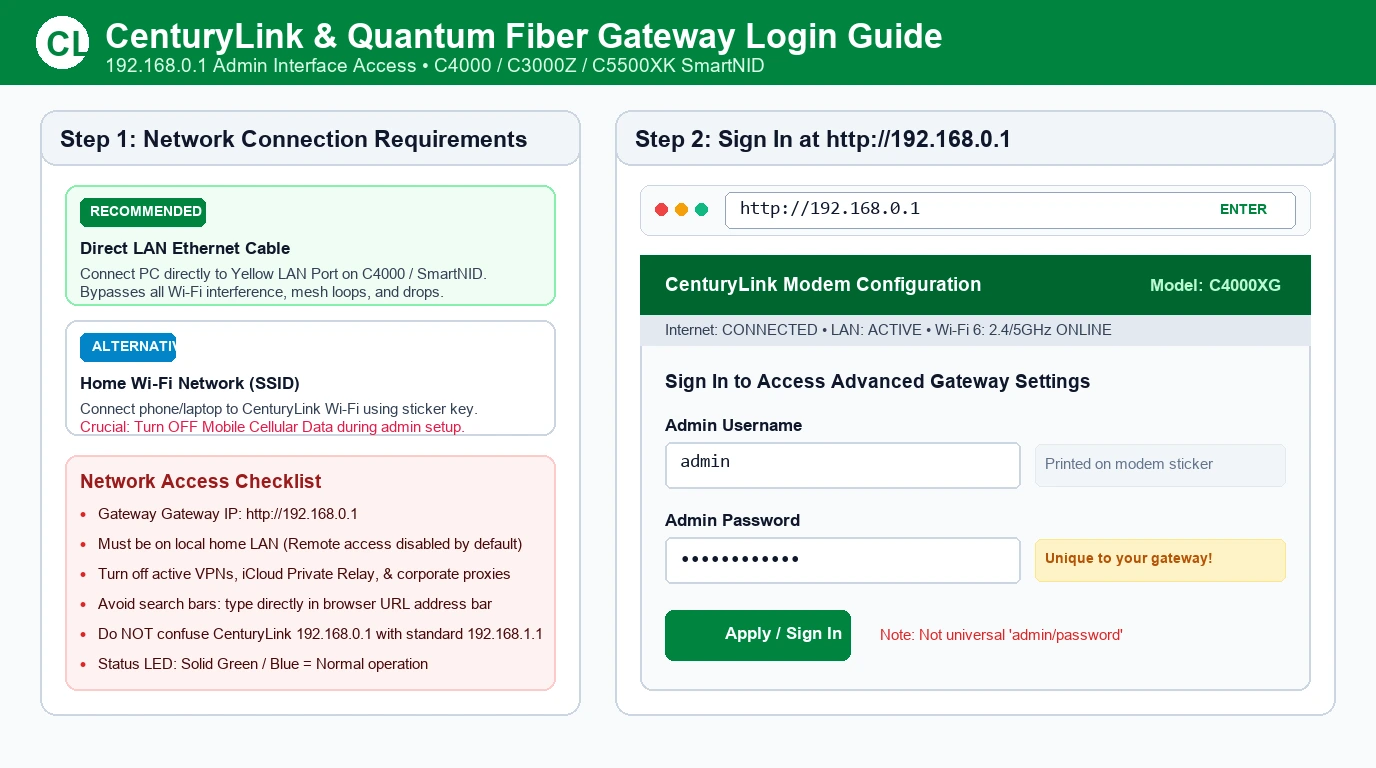
Open http://192.168.0.1 from a device connected to your home network. Sign in with the admin credentials shown on the side, back, or bottom of your modem.
Quick Answer
| Setting | What to use |
|---|---|
| Gateway management address | http://192.168.0.1 |
| Login credential | Admin Username and Admin Password |
| Default credentials location | Sticker on the side, back, or bottom of the modem |
| SmartNID credentials location | Sticker on the front of the C5500XK SmartNID |
| Wi-Fi password | Separate from the admin password |
| Previously changed password | Use your custom admin username and password |
Generic admin / password login |
Do not assume this applies |
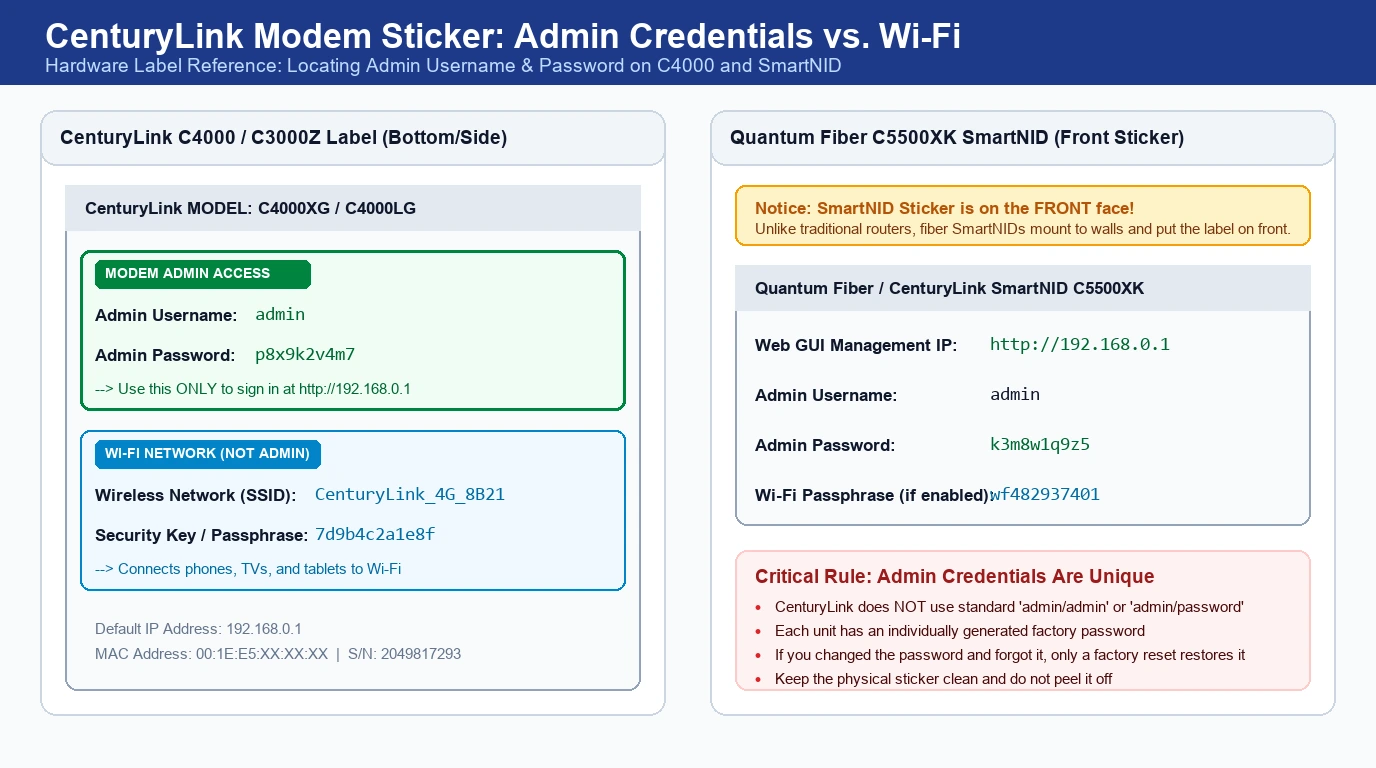
The admin credentials are different from the wireless network name and Wi-Fi password. The modem label shows both sets of credentials.
CenturyLink Gateway Login Details
| Setting | What to use |
|---|---|
| Gateway management address | http://192.168.0.1 |
| Login credential | Admin Username and Admin Password |
| Default credentials location | Modem sticker |
| SmartNID credentials location | Sticker on the front of the C5500XK SmartNID |
| Wi-Fi password | Separate from the admin password |
| Custom admin credentials | Use the username and password you created |
Generic admin / password login |
Do not assume this applies |
The admin username and password are printed on the modem sticker. These default credentials cannot be retrieved if lost, so keep the sticker intact.
How to Log In to Your CenturyLink Gateway
1. Connect to the gateway’s network
Connect your phone, tablet, or computer to the CenturyLink or Quantum Fiber gateway’s Wi-Fi network. For a more reliable connection, use an Ethernet cable between your computer and one of the gateway’s LAN ports.
Do not use mobile data. The gateway settings page is a local interface and must be accessed from the home network.
2. Open the management address
Enter this directly into your browser’s address bar:
http://192.168.0.1
Do not enter the address into a search engine. You need the local modem interface, not a web search result.
3. Enter the admin credentials
Use the Admin Username and Admin Password printed on the modem sticker.
- If you have not changed them, use the credentials on the sticker.
- If you changed them previously, use your custom admin username and password.
- Do not use the Wi-Fi password unless it is the same password you deliberately set for the admin login.
The admin credentials are separate from the wireless network name and Wi-Fi password.
4. Open the settings you need
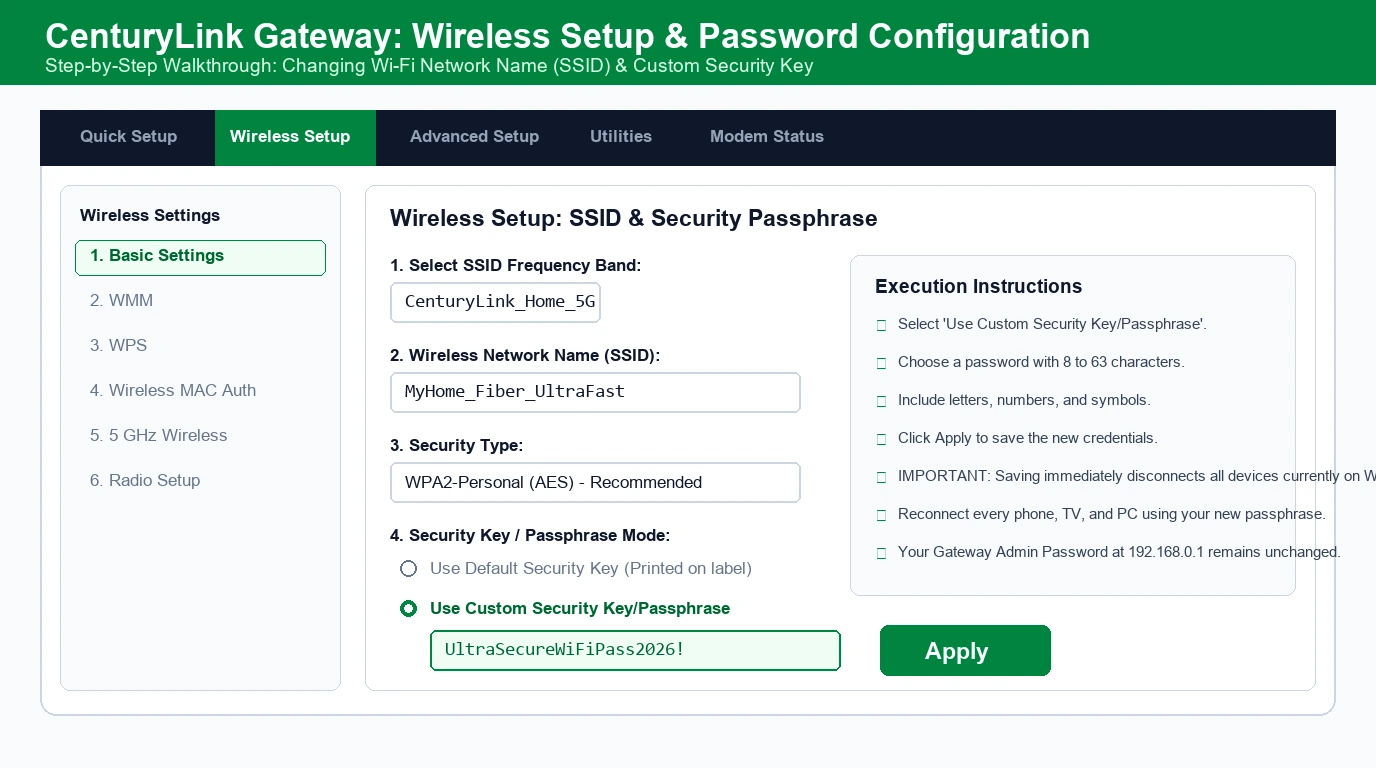
Once signed in, select the section related to your task. Common options include Wireless Setup, Advanced Setup, Utilities, and Administrator Password.
Change Your CenturyLink Wi-Fi Name and Password
To change the wireless network details:
- Sign in to the gateway at
http://192.168.0.1. - Select Wireless Setup.
- Open the Wi-Fi network you want to change.
- Select Use Custom Security Key/Passphrase.
- Enter your new Wi-Fi password.
- Save the changes.
Changing the Wi-Fi password disconnects devices using the old password. Reconnect them using the updated details.
Admin Password vs. Wi-Fi Password
The Admin Username and Admin Password open the gateway’s management interface. The Wi-Fi password connects phones, computers, TVs, and other devices to the wireless network.
Both may appear on the same modem sticker, so read the field names carefully. The admin credentials are used to access secure settings such as firmware updates, Wi-Fi security, schedules, and more.
If your phone is connected to Wi-Fi but the gateway rejects your login, that does not necessarily mean the Wi-Fi password is wrong. Check that you are entering the admin username and password in the login form.
If 192.168.0.1 Will Not Open
1. Confirm the connection
Make sure your device is connected to the correct CenturyLink or Quantum Fiber gateway. If you have a mesh system, extender, powerline adapter, or separate router, you may be connected to a different device.
Use a direct Ethernet connection to the gateway when possible. This removes Wi-Fi signal issues from the troubleshooting process.
2. Check the address carefully
Use:
http://192.168.0.1
Avoid incorrect entries such as:
192.168.o.1192.168.0.l192.168.0.1.com192.168.0.1 router login192.168.0.01
Enter the address directly into the browser’s address bar rather than a search engine.
3. Try another browser or device
Try Chrome, Firefox, Edge, or Safari. If one browser fails, test the page from another phone, tablet, or computer connected to the same CenturyLink network.
4. Disable VPN or proxy temporarily
A VPN, proxy, or privacy-focused browser setting can interfere with access to a local gateway address. Disconnect the VPN and disable proxy settings, then try again.
5. Restart the gateway
Turn the gateway off, wait about 30 seconds, then turn it back on. Wait for the lights to stabilize, reconnect your device, and try 192.168.0.1 again.
A restart preserves your settings. Do not confuse it with a factory reset.
If the Admin Password Is Rejected
Check the correct password field
Look for the Admin Username and Admin Password, not the Wi-Fi password. CenturyLink separates these two credentials.
Check the modem sticker
The default admin credentials are printed on the sticker attached to the side, back, or bottom of the modem. For the C5500XK SmartNID, they are on the sticker attached to the front.
Consider whether the password was changed
If you previously changed the admin username or password, use that custom credential. The original sticker password will no longer work.
If you cannot remember the changed admin credentials, check the recovery guidance for your exact modem model. Do not reset the gateway until you understand what settings may be lost.
SmartNID Fiber Gateway Login
For the C5500XK SmartNID fiber modem, the management address is still 192.168.0.1. The admin username and password are printed on the sticker attached to the front of the SmartNID.
Use the same login process as other CenturyLink gateways, but check the sticker location carefully because it is on the front rather than the back.
When to Factory Reset the Gateway
Do not factory reset the gateway as the first fix.
Before resetting:
- Confirm you are connected to the CenturyLink or Quantum Fiber gateway.
- Try
http://192.168.0.1. - Disable VPN and proxy settings.
- Try another browser or device.
- Restart the gateway.
- Check the correct admin username and password.
A factory reset can remove custom gateway settings, including Wi-Fi names, passwords, and admin credentials. Record anything you need before resetting, and follow the reset instructions for your exact modem model.
Common Mistakes
- Using mobile data instead of connecting to the CenturyLink home network.
- Assuming the Wi-Fi password is the admin password.
- Using a generic
admin/passwordcombination instead of the modem sticker credentials. - Trying
192.168.1.1when the CenturyLink gateway uses192.168.0.1. - Leaving a VPN or proxy enabled.
- Factory resetting before trying the simpler access fixes.
FAQs
What is the CenturyLink gateway login address?
http://192.168.0.1.
What is the default CenturyLink admin username and password?
admin / password credentials.
Is the CenturyLink admin password the same as the Wi-Fi password?
Can I change my Wi-Fi password from the gateway page?
Where is the admin password on the C5500XK SmartNID?
Can I access the gateway settings from outside my home?
The Bottom Line
Open http://192.168.0.1 from your CenturyLink or Quantum Fiber home network and sign in with the Admin Username and Admin Password printed on the modem sticker. Do not confuse these with the Wi-Fi password. If the page will not open, check the connection and disable VPN or proxy settings before restarting the gateway.
Quickly test whether your device can reach the CenturyLink Gateway IP on your local home network.
Step-by-Step Gateway Setup & Troubleshooting Guides
Guides for logging into administration panels, configuring Wi-Fi, enabling bridge mode, and hard resets: