Spectrum Router Login — 192.168.1.1 Admin Access
Official login, setup, and admin settings guide for Spectrum Wi-Fi 6 Routers (SAC2V1K, SAX1V1K) managing your home internet, Wi-Fi network, connected devices, and security settings.
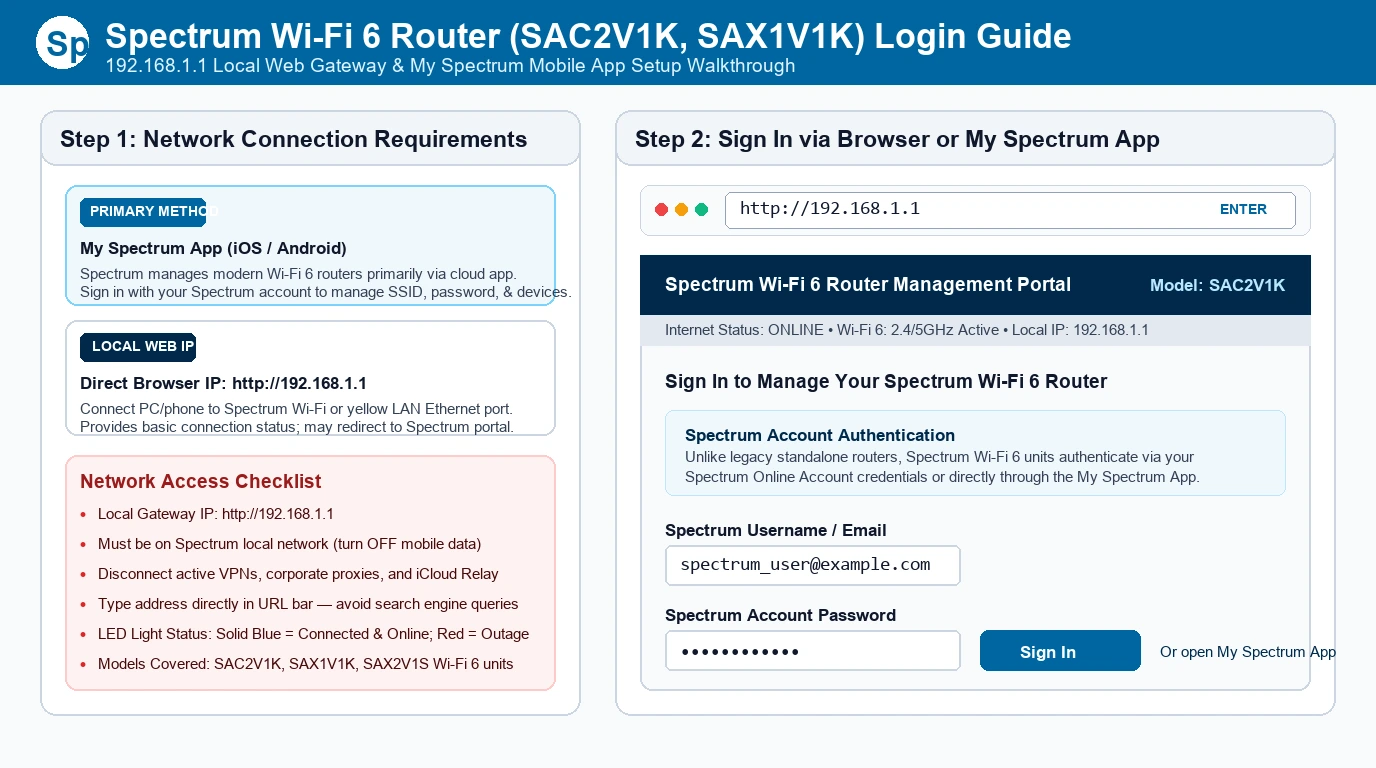
For most settings, Spectrum expects you to use the My Spectrum app rather than a traditional router login page. You can usually reach the local admin page by entering 192.168.1.1 in a browser but options may be limited compared with a standard third-party router.
Quick Reference
| Item | Details |
|---|---|
| Router models | SAC2V1K, SAX1V1K, SAX2V1S |
| Router type | Spectrum-provided Wi-Fi 6 router/gateway |
| Common local admin IP | 192.168.1.1 |
| Primary management method | My Spectrum app (iOS / Android) |
| Default admin username | Usually no separate login required; app uses your Spectrum account |
| Default Wi-Fi name | Printed on the router label |
| Default Wi-Fi password | Printed on the router label |
| Best use | Spectrum internet, home Wi-Fi, device management, basic network controls |
Diagnostic Table
| Symptom | Likely cause | Quick fix |
|---|---|---|
| 192.168.1.1 does not open | You are using mobile data or connected to another network | Connect to the Spectrum router’s Wi-Fi or use an Ethernet cable |
| Browser shows a Spectrum page instead of a router login | Spectrum may redirect the local admin page to its online account/app system | Use the My Spectrum app to manage the router |
| Cannot find Wi-Fi name or password | Default credentials are on the router label | Check the sticker on the bottom or side of the router |
| Wi-Fi is slow in one room | Distance, walls, interference, or router placement | Move the router to a central, elevated location away from metal objects |
| A device will not connect | Wrong password, saved-network issue, or device compatibility | Forget the network on the device, reconnect, and re-enter the password |
| Internet works but Wi-Fi does not | Router Wi-Fi setting or temporary router issue | Restart the router; if needed, reset Wi-Fi settings through the My Spectrum app |
| No internet on any device | Service outage, loose cable, or modem/gateway issue | Check the router lights, restart it, and check the My Spectrum app for outage alerts |
What Is the Spectrum Wi-Fi 6 Router?
The SAC2V1K and SAX1V1K are not ordinary standalone routers you configure through a full traditional admin dashboard. They are Spectrum-managed Wi-Fi 6 routers designed to work with Spectrum internet service and the My Spectrum app.
Think of the router as the main control center for your home network. It receives internet from Spectrum, creates your Wi-Fi network, assigns local IP addresses to devices, and manages basic security and parental controls.
Unlike many third-party routers, Spectrum limits some advanced settings. This is intentional: it reduces misconfiguration and allows Spectrum to manage firmware, security updates, and network features remotely.
How to Log In
On Windows or Mac
- Connect your computer to the Spectrum router using Wi-Fi or an Ethernet cable.
- Open a browser such as Chrome, Edge, Safari, or Firefox.
- Type
192.168.1.1into the address bar. - Press Enter.
- If prompted, sign in with your Spectrum account credentials or follow the on-screen instructions.
- If the page redirects to Spectrum’s online portal or app download page, use the My Spectrum app instead.
On iPhone
- Open Settings.
- Tap Wi-Fi.
- Connect to your Spectrum Wi-Fi network.
- Open the My Spectrum app.
- Sign in with your Spectrum username and password.
- Select your internet service and choose Router or Wi-Fi settings.
- Update the network name, password, or connected-device settings as needed.
On Android
- Open Settings.
- Tap Network & internet or Connections.
- Connect to your Spectrum Wi-Fi network.
- Open the My Spectrum app.
- Sign in to your Spectrum account.
- Select your router or internet service.
- Use the available options to manage Wi-Fi, devices, and network settings.
Default Wi-Fi Credentials
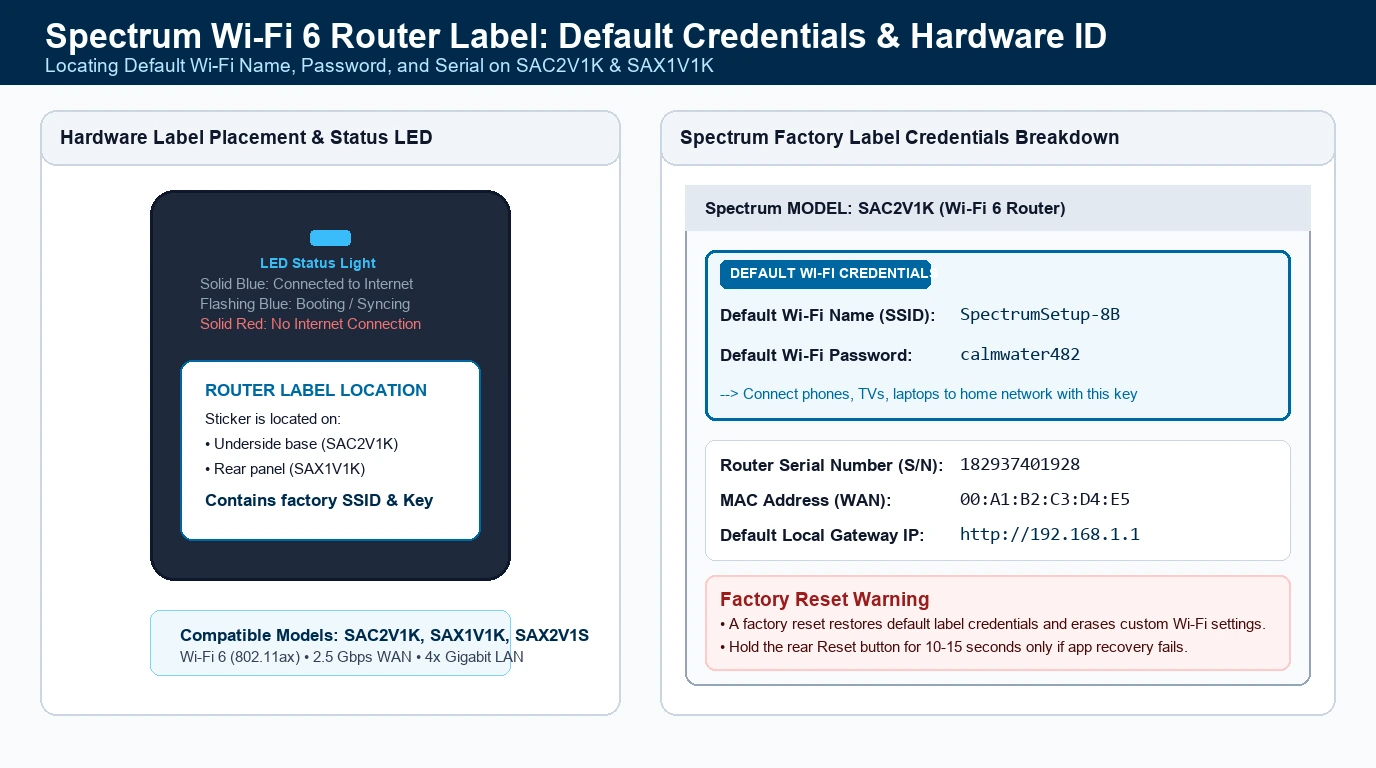
The SAC2V1K and SAX1V1K usually include a preconfigured Wi-Fi name and password printed on the router label.
| Item | Where to find it |
|---|---|
| Wi-Fi network name | Bottom or side sticker on the router |
| Wi-Fi password | Bottom or side sticker on the router |
| Serial number | Router label |
| MAC address | Router label |
| Router model | SAC2V1K or SAX1V1K on the label |
If you changed the Wi-Fi password and cannot remember it, use the My Spectrum app to view or update the Wi-Fi settings. If the app is unavailable, a router reset may restore the original label credentials.
My Spectrum App vs. Local Admin Page
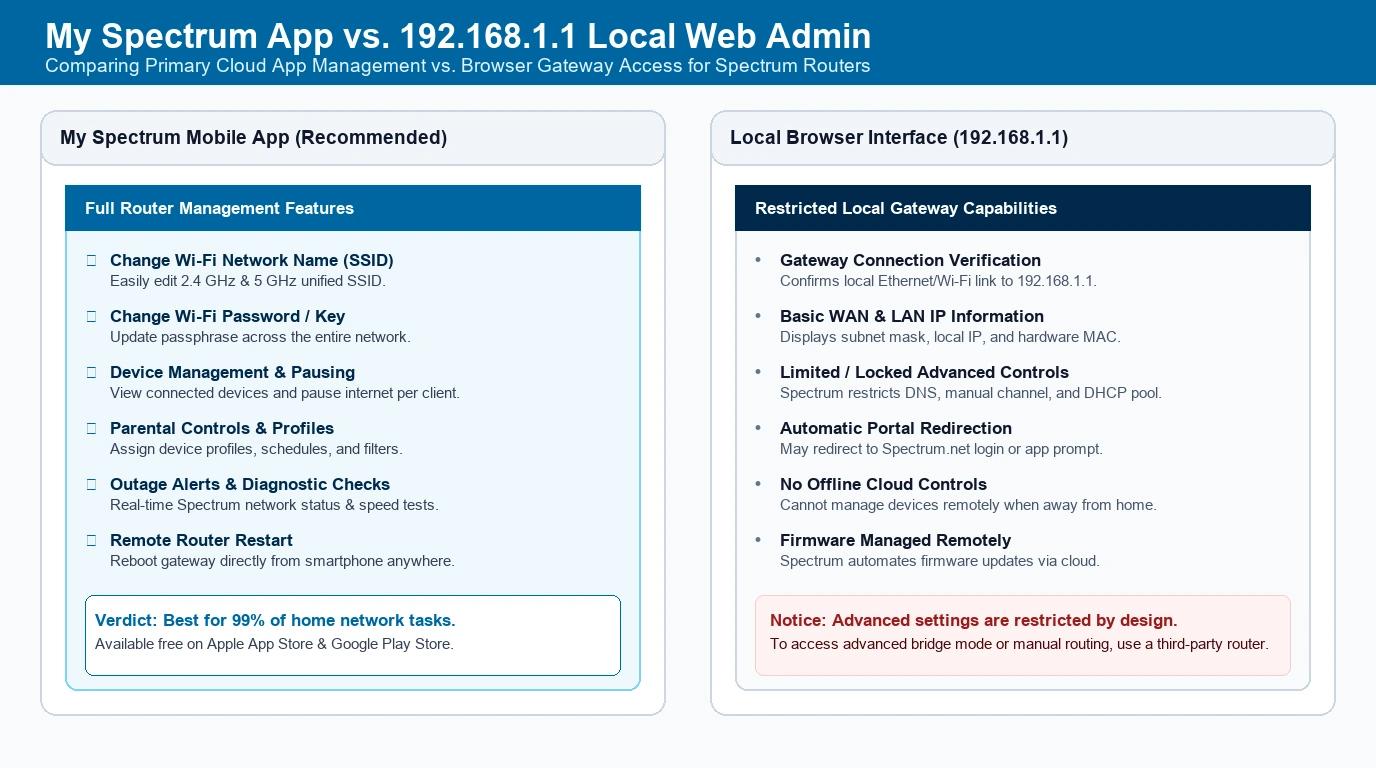
Spectrum splits router management between its app and the local admin interface.
| Task | Best place to manage it |
|---|---|
| Change Wi-Fi name | My Spectrum app |
| Change Wi-Fi password | My Spectrum app |
| View connected devices | My Spectrum app |
| Pause a device’s internet access | My Spectrum app |
| Set parental controls | My Spectrum app |
| Check for outages | My Spectrum app |
| Restart the router remotely | My Spectrum app |
| Access local gateway settings | 192.168.1.1 |
| Advanced router configuration | Often limited or unavailable |
How to Change Wi-Fi Name and Password
- Open the My Spectrum app.
- Sign in to your Spectrum account.
- Select your internet service.
- Tap Router or Wi-Fi.
- Choose Edit Wi-Fi or a similar option.
- Enter a new Wi-Fi network name.
- Enter a new Wi-Fi password.
- Save the changes.
- Reconnect your devices using the new password.
Use a password with at least 12 characters, including uppercase letters, lowercase letters, numbers, and symbols. Avoid using your address, phone number, or common words.
Wi-Fi 6 Benefits
Wi-Fi 6 improves performance in homes with many connected devices. It is especially useful if you use smart TVs, security cameras, gaming consoles, phones, laptops, tablets, and smart-home devices at the same time.
| Feature | What it means for you |
|---|---|
| Higher capacity | More devices can use Wi-Fi without major slowdowns |
| Better efficiency | Devices send and receive data more efficiently |
| Improved performance in busy homes | Helpful for streaming, gaming, video calls, and smart-home devices |
| Better battery efficiency | Compatible devices may use less power during Wi-Fi communication |
| Faster potential speeds | Actual speed still depends on your Spectrum plan, wiring, distance, and interference |
Wi-Fi 6 does not automatically make every device faster. Older devices may still connect at their original supported speeds, but the router can manage traffic more efficiently across the network.
Best Router Placement
Place the SAC2V1K or SAX1V1K in a central, open location:
- Keep it off the floor.
- Avoid placing it inside a cabinet, closet, or entertainment center.
- Keep it away from metal objects, thick concrete walls, and large appliances.
- Do not place it directly beside a microwave, baby monitor, cordless phone base, or Bluetooth device.
- Keep it away from aquariums and large mirrors.
- Position it centrally between the rooms where you use Wi-Fi most.
If your home is large or has multiple floors, one router may not cover every room effectively. A mesh system or Spectrum-provided extenders may be a better solution than repeatedly restarting the router.
Troubleshooting
Cannot Access 192.168.1.1
Cause: You may be using mobile data, connected to another network, or using an incorrect address.
Fix: Connect to the Spectrum router’s Wi-Fi network or plug an Ethernet cable directly into the router. Then enter 192.168.1.1 in the browser address bar—not the search bar.
Browser Redirects to Spectrum
Cause: Spectrum may route gateway management through its online account system or app.
Fix: Use the My Spectrum app. This is normal for many Spectrum-provided routers.
Wi-Fi Password Is Not Working
Cause: The password may have been changed, entered incorrectly, or the device may have saved an old network profile.
Fix: On the device, choose Forget This Network or Forget Network, then reconnect using the current Wi-Fi password. Check the My Spectrum app if you are unsure of the current password.
Wi-Fi Is Slow
Cause: Distance, interference, too many devices, or a poor router location.
Fix: Move closer to the router, restart it, and reduce interference. For best results, place the router centrally and away from obstructions.
No Internet Connection
Cause: A service outage, loose coax/Ethernet cable, or a router issue.
Fix: Check the router lights, confirm all cables are secure, restart the router, and check the My Spectrum app for outage information.
Router Keeps Restarting
Cause: Power issues, overheating, faulty cables, or a hardware problem.
Fix: Plug the router directly into a working wall outlet, avoid power strips if possible, ensure ventilation, and check all cable connections. If the issue continues, contact Spectrum support.
Factory Reset
A factory reset should be your last option.
- Locate the Reset button on the router.
- Keep the router powered on.
- Press and hold the Reset button for about 10–15 seconds using a paperclip or similar tool.
- Release the button when the router begins restarting.
- Wait several minutes for the router to fully reboot.
- Reconnect using the Wi-Fi name and password printed on the router label.
- Reconfigure your network through the My Spectrum app if needed.
Warning: A factory reset can erase custom Wi-Fi settings and may require reactivation through Spectrum. Do not reset the router unless you have tried simpler troubleshooting steps first.
Common Misspellings
People often search for the Spectrum router login using incorrect versions of the address:
192.168.l.1instead of192.168.1.1192.168.1.1.1192.168.0.110.0.0.1spectrumrouterlogin.comspectrum wifi loginSAC2V1K loginSAX1V1K login
After You Log In
Once you can access your router or My Spectrum app settings:
- Change the default Wi-Fi password if it is still the factory value.
- Use a strong, unique Wi-Fi password.
- Enable WPA2 or WPA3 security if the option is available.
- Review connected devices and remove unfamiliar ones.
- Keep the router powered on and ventilated.
- Allow automatic firmware updates.
- Avoid sharing your Wi-Fi password publicly.
- Use a guest network if available for visitors.
FAQs
Can I log in to the SAC2V1K or SAX1V1K?
What is the default IP address?
192.168.1.1. Enter it in your browser while connected to the Spectrum network.
What is the default username and password?
Where is the Wi-Fi password?
Can I use my own router with Spectrum?
Can I disable the Spectrum router’s Wi-Fi?
Why can’t I see advanced settings?
The Bottom Line
For the Spectrum Wi-Fi 6 routers SAC2V1K and SAX1V1K, use the My Spectrum app for Wi-Fi name, password, device management, parental controls, and outage support. Use 192.168.1.1 only when connected to the Spectrum network and when the local admin page is available.
Fastest fix: Connect to your Spectrum Wi-Fi, open the My Spectrum app, and manage the router from there. If the app does not solve the issue, restart the router and check all cable connections before performing a factory reset.
Quickly test whether your device can reach the Spectrum Router Gateway IP on your local home network.
Step-by-Step Gateway Setup & Troubleshooting Guides
Guides for logging into administration panels, configuring Wi-Fi, enabling bridge mode, and hard resets: