Verizon Fios Gateway Login — 192.168.1.1 Admin Access
Quick Answer
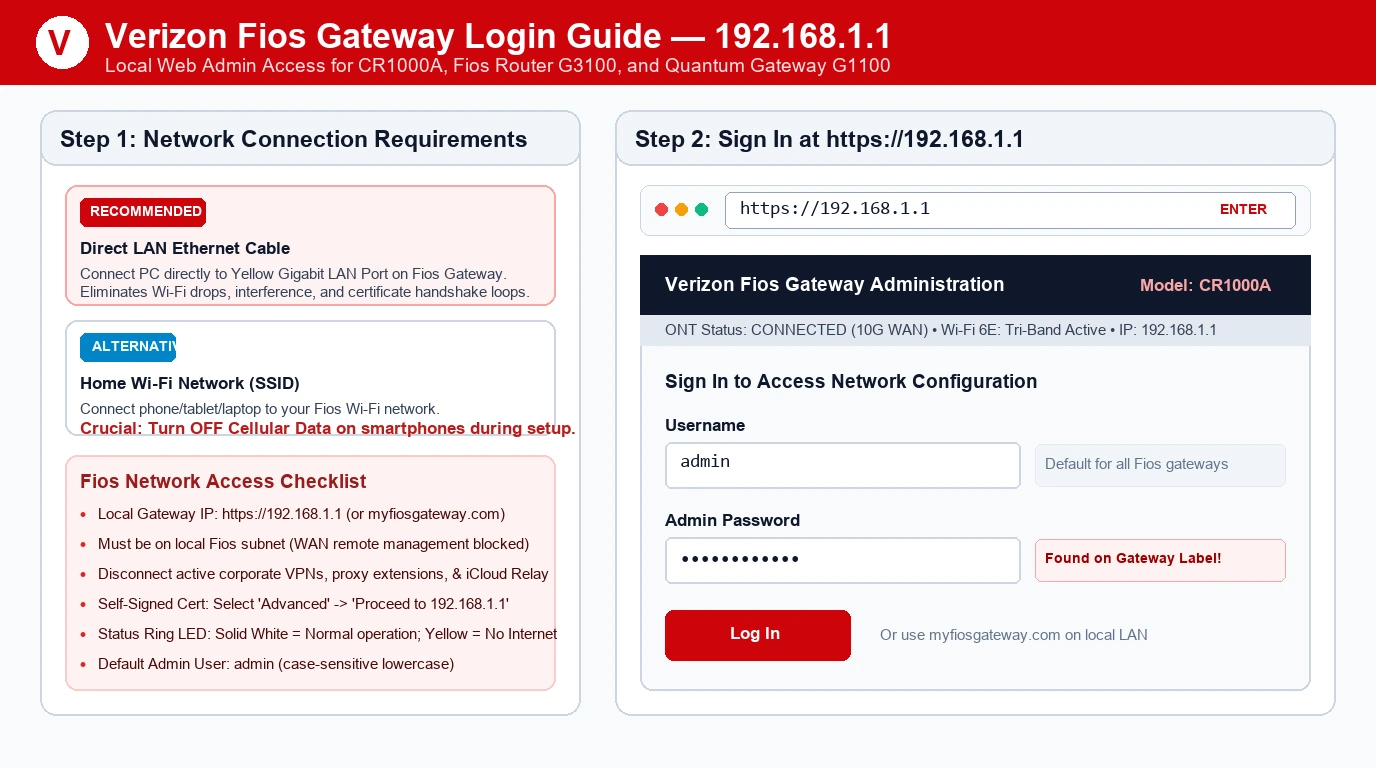
To access your Verizon Fios gateway, connect to your Fios Wi-Fi network or use an Ethernet cable, then enter 192.168.1.1 in your browser’s address bar. This opens the local admin page for supported Verizon Fios routers and gateways.
Most Verizon Fios gateways use admin as the default username. The default password is usually printed on the router label, often labeled Wi-Fi password, admin password, or serial number-based password.
192.168.1.1, and sign in using the credentials on your gateway label.
Quick Reference
| Item | Details |
|---|---|
| Login URL | 192.168.1.1 |
| Common gateway models | Verizon Fios Quantum Gateway, G3100, CR1000A, MI424WR |
| Default username | admin |
| Default password | Check the gateway label |
| Primary management method | Local admin page and My Fios app |
| Common local IP | 192.168.1.1 |
| Main settings | Wi-Fi, connected devices, firewall, port forwarding, DNS, LAN settings |
Diagnostic Table
| Symptom | Likely cause | Quick fix |
|---|---|---|
| 192.168.1.1 does not load | You are using mobile data or connected to another network | Connect to Fios Wi-Fi or use an Ethernet cable |
| Login page asks for a password you do not know | The password was changed or you are using the wrong label | Check the gateway label; use the My Fios app if available |
| Browser says “Not Secure” | The gateway uses a local self-signed certificate | This is normal for local router pages; proceed only if the address is exactly 192.168.1.1 |
| Page loads but login fails | Incorrect username, password, or browser issue | Use admin, check the label password, and try another browser |
| Wi-Fi works but admin page does not | Browser cache, VPN, or proxy interference | Disable VPN, clear cache, or try incognito/private mode |
| Gateway IP is not 192.168.1.1 | Custom LAN settings or a different network setup | Check the gateway label or use the My Fios app to confirm the gateway IP |
| Cannot log in after a reset | Password reverted to the factory value | Use the credentials printed on the gateway label |
What Is 192.168.1.1?
192.168.1.1 is a private IP address used by many home routers and gateways as their local admin address. For Verizon Fios, it is commonly the address that opens your gateway’s configuration page.
Think of it like the front desk of your home network. Your devices connect through the Fios gateway, and 192.168.1.1 is where you can manage network settings, connected devices, Wi-Fi, and security options.
This address works only when you are connected to the same local network. It does not work over mobile data or from a device connected to another Wi-Fi network.
How to Log In
On Windows or Mac
- Connect your computer to the Verizon Fios gateway using Wi-Fi or Ethernet.
- Open Chrome, Edge, Safari, Firefox, or another browser.
- Type
192.168.1.1into the address bar. - Press Enter.
- Enter
adminin the username field if prompted. - Enter the password from the gateway label.
- Select Sign In or Log In.
On iPhone
- Open Settings.
- Tap Wi-Fi.
- Connect to your Verizon Fios Wi-Fi network.
- Open Safari.
- Type
192.168.1.1in the address bar. - Enter the admin username and password.
- Sign in to access the gateway settings.
On Android
- Open Settings.
- Tap Network & internet or Connections.
- Connect to your Fios Wi-Fi network.
- Open Chrome or another browser.
- Type
192.168.1.1in the address bar. - Enter the gateway login credentials.
- Tap Sign In.
Default Gateway Credentials
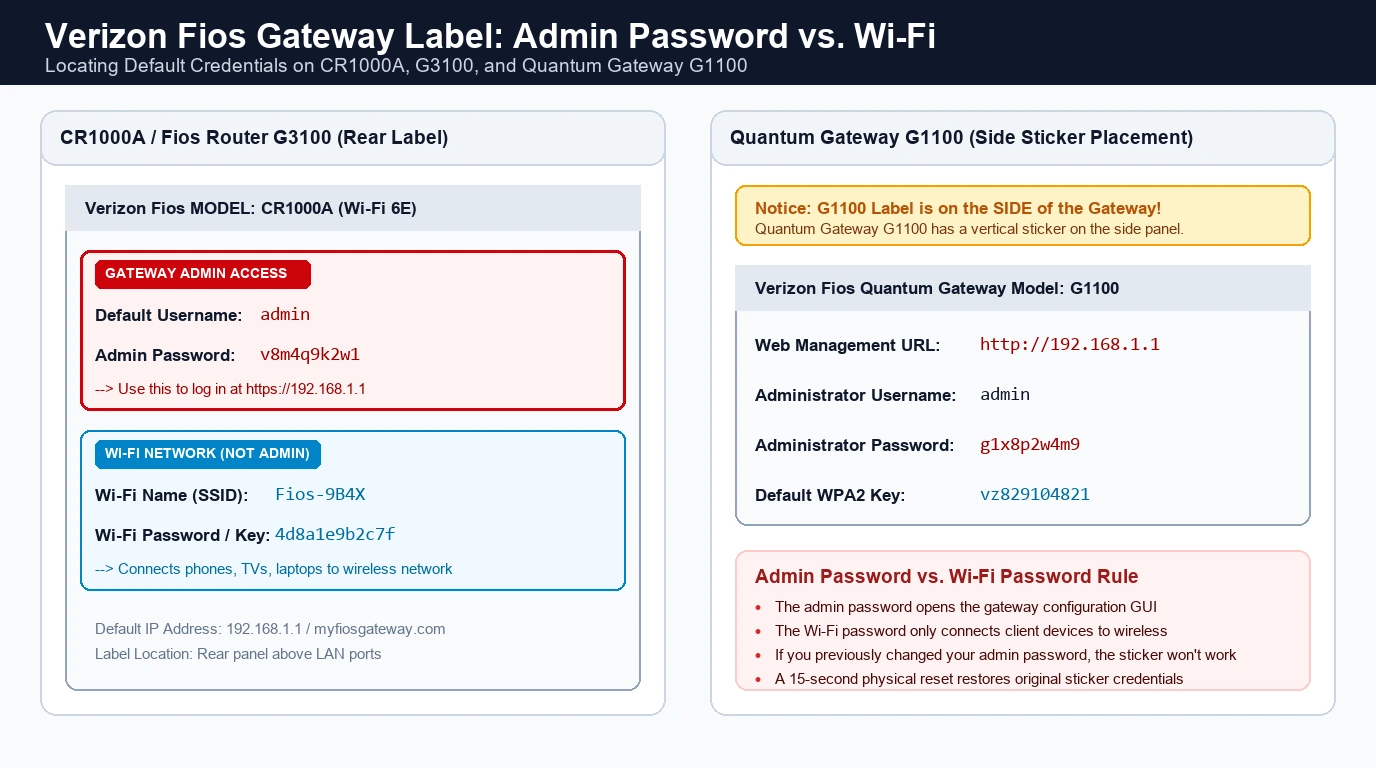
Verizon Fios gateway passwords vary by model and firmware version. The most reliable place to find the current password is the label on the gateway itself.
| Gateway model | Common username | Where to find password |
|---|---|---|
| Verizon Fios Quantum Gateway (G1100) | admin |
Router label (side panel) |
| Verizon Fios G3100 | admin |
Router label (rear panel) |
| Verizon Fios CR1000A | admin |
Router label (rear panel) |
| Verizon Fios MI424WR | admin |
Router label (bottom or rear) |
| Older Fios routers | admin |
Router label or original setup documentation |
If the label lists a Wi-Fi password, it may not always be the same as the admin password. Look specifically for admin password, router password, or a password printed near the serial number.
Important: Do not keep using the default password after logging in. Change it to a strong, unique password to protect your home network.
My Fios App vs. 192.168.1.1
Verizon gives you two main ways to manage your Fios network.
| Task | Best place to manage it |
|---|---|
| Change Wi-Fi name | My Fios app or 192.168.1.1 |
| Change Wi-Fi password | My Fios app or 192.168.1.1 |
| View connected devices | My Fios app or 192.168.1.1 |
| Restart gateway remotely | My Fios app |
| Check for outages | My Fios app |
| Port forwarding | 192.168.1.1 |
| Firewall settings | 192.168.1.1 |
| DNS settings | 192.168.1.1 |
| LAN and DHCP settings | 192.168.1.1 |
| Advanced router configuration | 192.168.1.1 |
Use the My Fios app for simple everyday tasks. Use 192.168.1.1 when you need advanced settings such as port forwarding, firewall rules, DNS changes, or local network configuration.
How to Change Wi-Fi Name and Password
- Log in at
192.168.1.1. - Open Wi-Fi Settings, Wireless Settings, or a similar menu.
- Select the 2.4 GHz and 5 GHz networks if they appear separately.
- Enter a new Wi-Fi network name, also called an SSID.
- Enter a strong new Wi-Fi password.
- Save the changes.
- Reconnect your devices using the new password.
For the best compatibility, use a Wi-Fi password with at least 12 characters. Include uppercase letters, lowercase letters, numbers, and symbols.
Avoid using your home address, phone number, pet’s name, or common words.
Port Forwarding
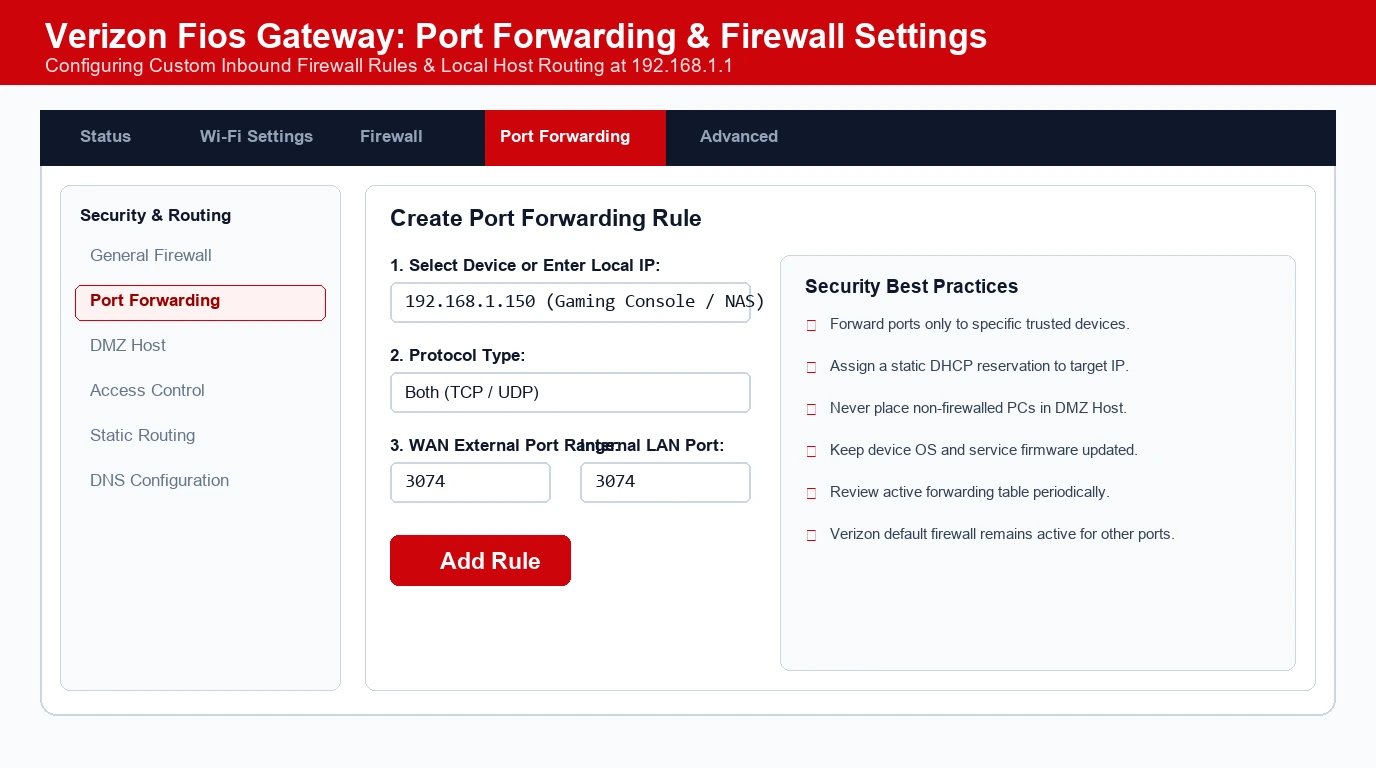
Port forwarding lets specific devices receive incoming connections from the internet. It is commonly used for gaming consoles, security cameras, NAS devices, and self-hosted services.
- Log in at
192.168.1.1. - Open Firewall, Port Forwarding, or Advanced settings.
- Select Create a new port forwarding rule.
- Choose the device or enter its local IP address.
- Enter the required external port or port range.
- Enter the internal port if it is different.
- Select the protocol: TCP, UDP, or both.
- Save and apply the rule.
Firewall and Security Settings
The Verizon Fios gateway includes firewall protection by default. Do not disable it unless you have a specific technical reason and understand the risk.
Recommended security settings:
- Keep the firewall enabled.
- Change the default admin password.
- Use a strong Wi-Fi password.
- Enable WPA2 or WPA3 security if available.
- Keep gateway firmware updated automatically.
- Review connected devices regularly.
- Disable remote management if you do not need it.
- Avoid exposing cameras, NAS devices, or servers directly to the internet unless necessary.
Troubleshooting
Cannot Access 192.168.1.1
Cause: You may be using mobile data, connected to another network, or entering the address incorrectly.
Fix: Connect to Fios Wi-Fi or Ethernet, then type 192.168.1.1 directly into the browser address bar. Do not search for it in Google.
Login Page Will Not Open
Cause: Browser cache, VPN, proxy, or an incorrect gateway IP.
Fix: Disconnect any VPN, try incognito/private browsing mode, clear the browser cache, or try another browser.
Admin Password Not Working
Cause: The password may have been changed, entered incorrectly, or the label password may not apply to the admin login.
Fix: Check the gateway label carefully. If the password still fails, use the My Fios app or contact Verizon support for account-based recovery options.
Wi-Fi Is Slow
Cause: Distance, interference, router placement, or too many connected devices.
Fix: Move closer to the gateway, restart it, and keep it in a central open location away from metal objects and thick walls.
Devices Keep Disconnecting
Cause: Weak signal, interference, outdated device drivers, or a Wi-Fi setting issue.
Fix: Restart the gateway, forget and reconnect to the Wi-Fi network on the affected device, and check for firmware updates.
No Internet Connection
Cause: Service outage, loose cable, or gateway issue.
Fix: Check the gateway lights, confirm the coax/Ethernet and power cables are secure, restart the gateway, and check the My Fios app for outage alerts.
Factory Reset
A factory reset should be your last option.
- Locate the Reset button on the Verizon Fios gateway.
- Keep the gateway powered on.
- Press and hold the Reset button for about 10–15 seconds using a paperclip.
- Release the button when the gateway begins restarting.
- Wait several minutes for the gateway to reboot.
- Reconnect using the Wi-Fi name and password printed on the label.
- Log in at
192.168.1.1using the restored default credentials.
Warning: A factory reset removes custom Wi-Fi names, passwords, port-forwarding rules, DNS settings, and other configurations. It may also require reactivation through Verizon.
Common Misspellings
Avoid these common mistakes when entering the gateway address:
192.168.l.1instead of192.168.1.1192.168.1.1.1192.168.0.1192.168.1.25410.0.0.1verizonfioslogin.comfios router login192.168.1.1 admin login
After You Log In
Once you gain access:
- Change the admin password.
- Change the default Wi-Fi password.
- Review connected devices.
- Enable WPA2 or WPA3 security if available.
- Keep automatic firmware updates enabled.
- Disable remote access if you do not use it.
- Set up a guest network for visitors.
- Avoid unnecessary port forwarding.
FAQs
What is the Verizon Fios gateway login IP?
192.168.1.1.
What is the default Verizon Fios username?
admin.
Where is the Verizon Fios admin password?
Why does my browser say “Not Secure”?
192.168.1.1 before continuing.
Can I change my Verizon Fios Wi-Fi password?
192.168.1.1 and open the Wi-Fi settings.
Can I use my own router with Verizon Fios?
What should I do if I forgot my admin password?
The Bottom Line
Use 192.168.1.1 to access your Verizon Fios gateway’s local admin page. Sign in with admin and the password printed on the gateway label, then change the default credentials as soon as possible.
Fastest fix: Connect to Fios Wi-Fi or Ethernet, enter 192.168.1.1 in the browser address bar, and use the gateway label for the correct password. If the page redirects or does not load, use the My Fios app to manage your network.
Quickly test whether your device can reach the Verizon Fios Gateway IP on your local home network.
Step-by-Step Gateway Setup & Troubleshooting Guides
Guides for logging into administration panels, configuring Wi-Fi, enabling bridge mode, and hard resets: