192.168.1.250 — Netgear Extender Login: What This IP Is and How to Access It
If you searched 192.168.1.250 expecting your main router’s login page, you are probably trying to reach a NETGEAR Wi-Fi range extender. This address is NETGEAR’s factory-default management IP for its EX, EAX, and EXS extender families—not the usual address for your router or modem.
192.168.1.250 is the default fallback IP address for most NETGEAR Wi-Fi range extenders before they are paired with your home router.
It is commonly used to open the extender’s setup or admin page when the extender is in its factory state or cannot find a DHCP server. To log in, connect directly to the extender’s Wi-Fi network or Ethernet port, enter http://192.168.1.250 in your browser’s address bar, and use:
- Username:
admin - Password:
password
If you want to set up the extender instead, NETGEAR also provides http://www.mywifiext.net for Windows and Android, while macOS and iOS devices can use http://mywifiext.local.
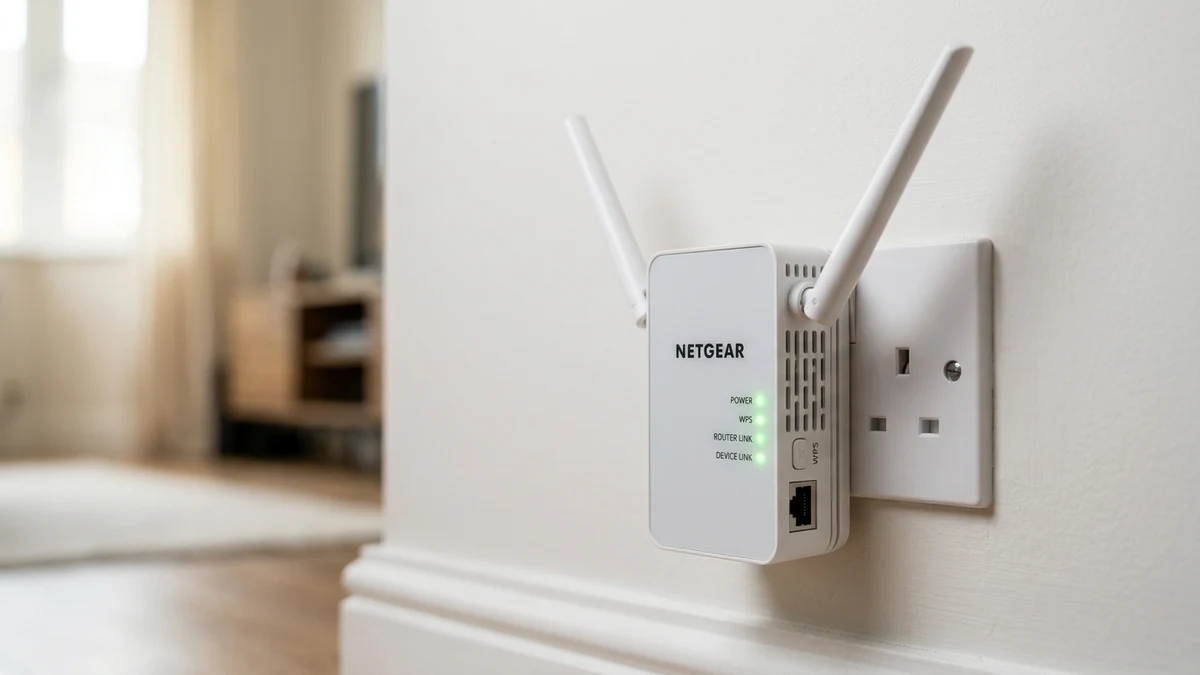
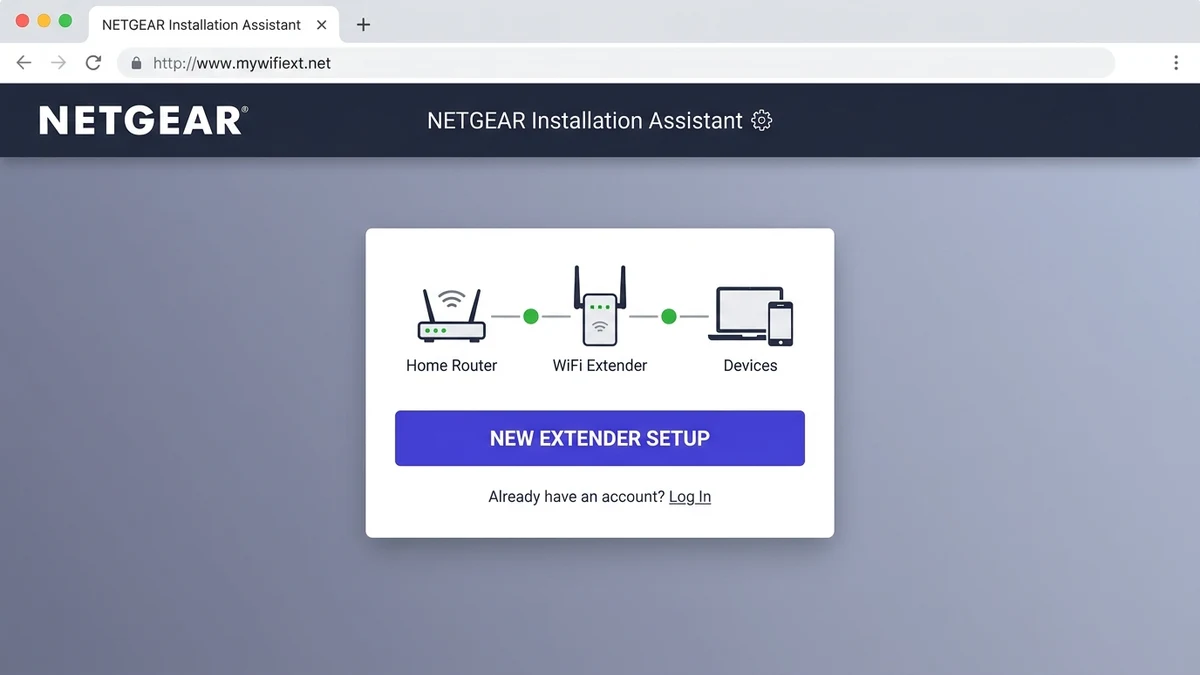
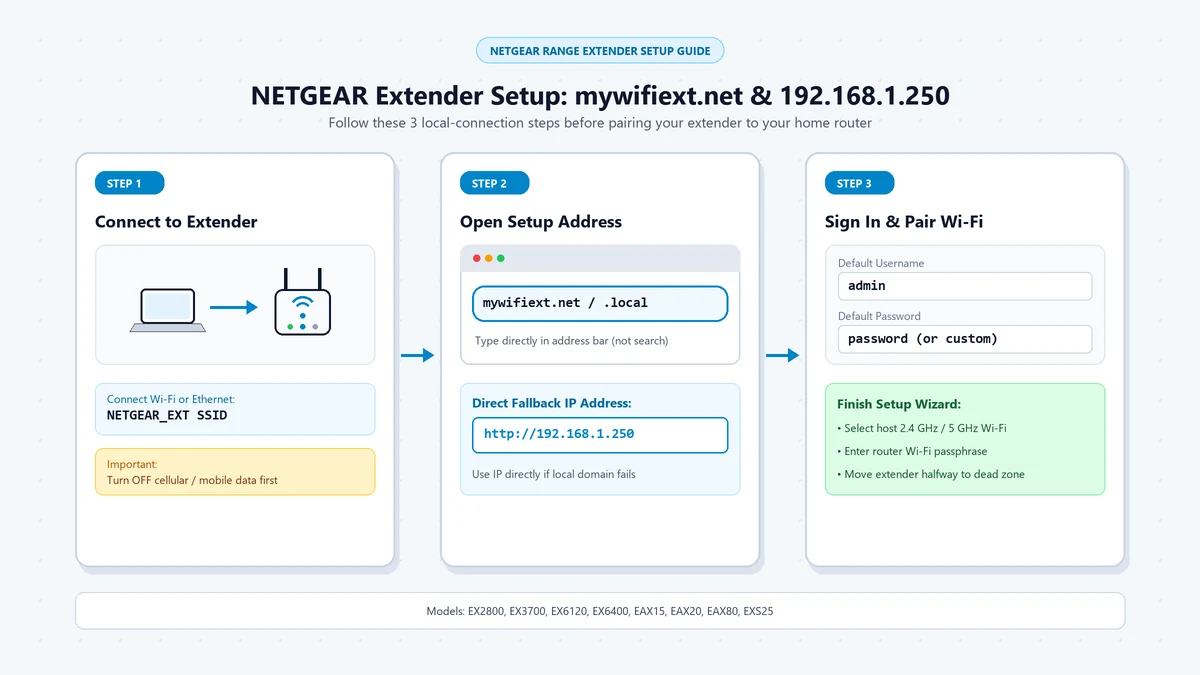
Which NETGEAR Extenders Use 192.168.1.250?
NETGEAR uses 192.168.1.250 across most of its current consumer extender lineup, including Wi-Fi 5, Wi-Fi 6, and Wi-Fi 7 models.
| NETGEAR Extender Family | Example Models | Default IP | Setup URL |
|---|---|---|---|
| Wi-Fi 5 / Essentials EX series | EX2800, EX3110, EX3700, EX3800, EX6100, EX6120, EX6150, EX6200, EX6400, EX7000 | 192.168.1.250 |
http://www.mywifiext.net |
| Wi-Fi 6 / Nighthawk EAX series | EAX12, EAX15, EAX20, EAX80 | 192.168.1.250 |
http://www.mywifiext.net |
| Wi-Fi 7 / EXS series | EXS18, EXS25, EXS27 | 192.168.1.250 |
http://www.mywifiext.net |
This IP is a fallback address, not a permanent address. Once the extender successfully connects to your router in Repeater or Access Point mode, your router assigns it a new dynamic LAN IP through DHCP.
Network Role: Extender vs. Router
| Device | Typical Address | What It Controls |
|---|---|---|
| Main router / gateway | Often 192.168.1.1 or 192.168.0.1 |
Internet connection, DHCP, firewall, primary Wi-Fi |
| NETGEAR extender | 192.168.1.250 before pairing |
Extender setup, Wi-Fi extension, firmware, local settings |
| Phone, laptop, or smart TV | Assigned by router after connection | Ordinary client device on your network |
So, if 192.168.1.250 does not open your router’s admin page, that is expected: it is designed to reach the NETGEAR extender, not the router itself.
Diagnostic: What Are You Trying to Do?
| Your Situation | What You Actually Need | What to Do |
|---|---|---|
| You want to set up a new NETGEAR extender | Extender setup wizard | Connect to the extender, then open http://www.mywifiext.net or 192.168.1.250 |
| You want to change extender settings | NETGEAR extender admin page | Connect directly to the extender and log in with admin / password if never changed |
| You want to log into your main router | Router gateway address | Use 192.168.1.1, 192.168.0.1, or the address printed on your router |
| The extender was already set up | Its new DHCP-assigned IP | Check the router’s Attached Devices / DHCP client list |
| You forgot the extender password | Factory reset | Hold the Reset pinhole until the Power LED blinks, then set it up again |
Why 192.168.1.250 Stops Working After Setup
The most common reason 192.168.1.250 stops working is that the extender is no longer using its factory default address. After it joins your router, NETGEAR’s extender receives a new IP address from the router’s DHCP server.
That means the extender may now appear in your router’s client list under a different local IP, such as 192.168.1.x or 192.168.0.x, depending on your router’s subnet. To access it again, log into your main router and look for the NETGEAR extender in the Attached Devices, Connected Devices, or DHCP Client List section.
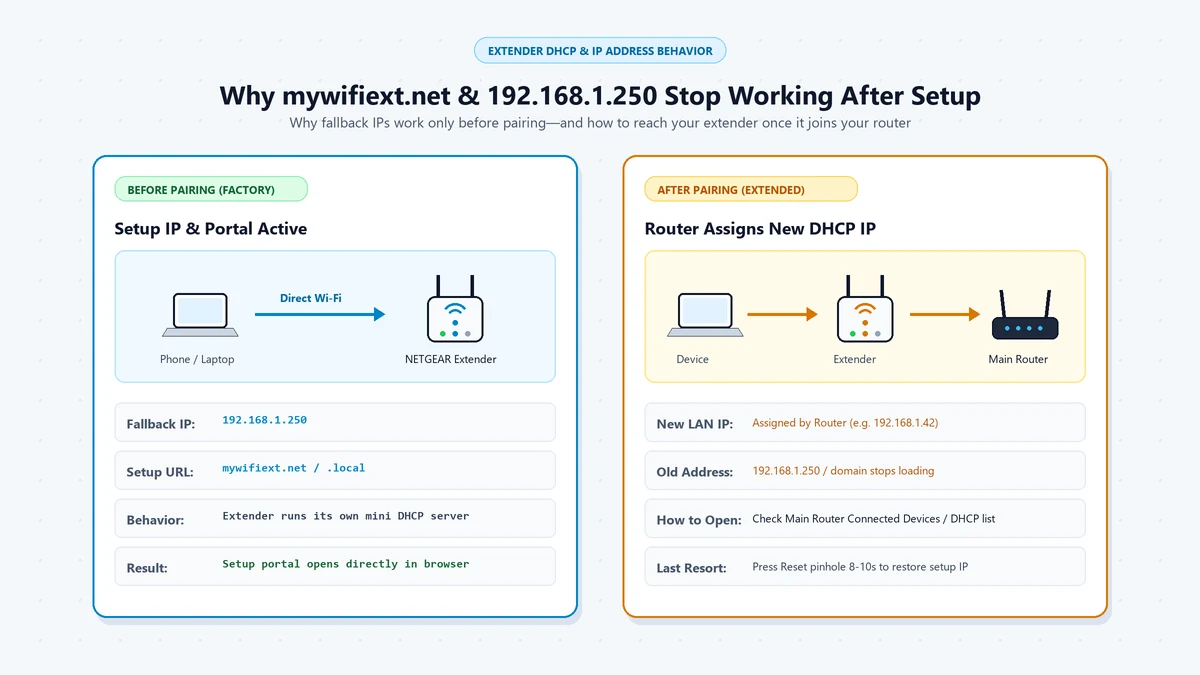
Step-by-Step: Log In to a NETGEAR Extender
- Connect directly to the extender: Connect your computer or phone to the extender’s Wi-Fi network, or plug an Ethernet cable from your computer into the extender’s LAN port. Do not stay connected only to your main router’s Wi-Fi, because the extender’s local setup address may not resolve from that network.
-
Open the correct address: Type one of these into the browser address bar, not the search box:
http://192.168.1.250http://www.mywifiext.nethttp://mywifiext.local— mainly for macOS and iOS
-
Enter the default login: Use these credentials only if you have not previously changed them:
- Username:
admin - Password:
password
- Username:
- Complete or adjust the setup: From the extender dashboard, you can connect it to your home Wi-Fi, change the extender’s admin password, update firmware, and manage the extended network. For the most reliable setup, use the NETGEAR setup wizard rather than manually assigning network settings.
If 192.168.1.250 Will Not Load
-
Turn off mobile data and VPN: On a phone, disable mobile data, VPNs, and proxies. When the extender’s Wi-Fi has no internet access, your phone may route browser traffic over cellular data, causing local addresses such as
192.168.1.250to fail. -
Use the address bar, not Google: Enter
http://192.168.1.250directly into the browser address bar. Searching for the IP in Google or Bing can redirect you to a search results page instead of the extender login screen. -
Try the NETGEAR setup URL: Use
http://www.mywifiext.neton Windows or Android, orhttp://mywifiext.localon macOS or iOS. These local management domains rely on the extender itself, so they work only while you are connected to the extender’s network or Ethernet port. - Check the extender’s new IP: If the extender is already paired, open your main router’s admin page and find the extender in the DHCP client list. Then enter its assigned IP address directly into your browser.
-
Check your computer’s IP address: Make sure your computer or phone is receiving an IP in the
192.168.1.xrange while connected to the unconfigured extender. If your device has a self-assigned IP (such as169.254.x.x), the extender’s DHCP server may not have responded yet.
What If You Forgot the Extender’s Admin Password?
If the default credentials do not work and you forgot the custom password:
- Locate the Reset button or pinhole on the back or side of the extender.
- Use a paperclip to press and hold the button for about 7 to 10 seconds (or until the Power LED blinks amber).
- Release the button and wait for the extender to reboot.
- Once the Power LED turns solid, reconnect to the default Wi-Fi network and start setup again using
192.168.1.250ormywifiext.net.
Common Mistakes and Typos
When trying to reach this IP, avoid these common search mistakes:
Frequently Asked Questions
It is almost always a range extender IP, specifically used by NETGEAR. Most home routers use 192.168.1.1, 192.168.0.1, or 10.0.0.1.
Usually only before the extender is paired with your router, or when your computer is connected directly to the extender’s Wi-Fi network or Ethernet port. Once paired, the extender takes a new IP from your main router.
The default username is admin and the default password is password. On newer models, setup requires you to create a personalized password during first-time configuration.
mywifiext.net is a local redirect address handled by the extender’s internal DNS. If your computer or phone is connected to your main router, cellular data, or a guest network instead of the extender, the request goes to the public internet where the domain cannot reach your local device.
The Bottom Line
192.168.1.250 is the initial setup address for NETGEAR Wi-Fi extenders, not your main router. If it does not load, you are either not connected directly to the extender, or the extender has already joined your router and received a new local IP through DHCP.
Extender Setup & Mesh Optimization Guides
Detailed walk-throughs for Wi-Fi range extenders, access point configuration, and backhaul: