RANGEXTD WiFi Range Extender — 192.168.188.1 Login & Setup Guide
If you searched 192.168.188.1 expecting to open your RANGEXTD WiFi range extender, you are in the right place—but the page will only load when your phone or computer is connected directly to the extender. 192.168.188.1 is the default management IP address used by many RANGEXTD WiFi repeaters and Wireless-N range extender models.
192.168.188.1 is the default admin IP address for many RANGEXTD WiFi range extenders.
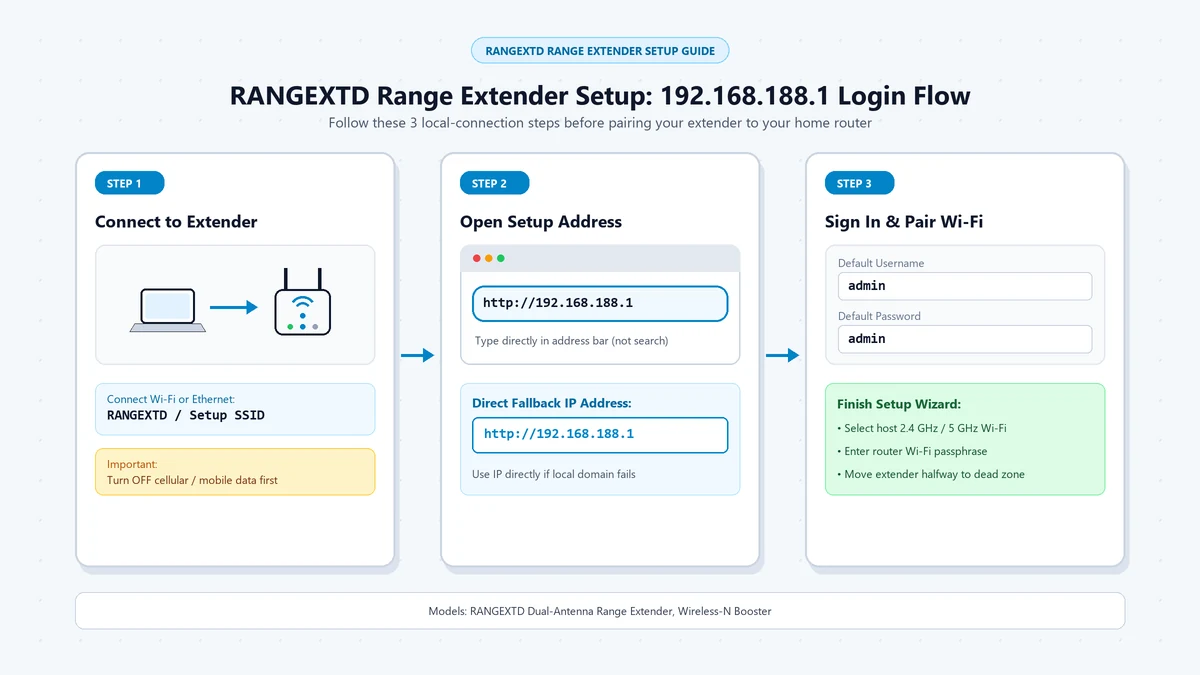
Connect your phone or computer directly to the extender’s Wi-Fi network or Ethernet port, then enter http://192.168.188.1 in your browser’s address bar.
- Username:
admin - Password:
admin(or leave blank /passwordon some models)
Some RANGEXTD models may use a blank password, password, or credentials printed on the extender label. If the extender was configured before, use the admin password you created during setup.
RANGEXTD Login Details
| Setting | Default Value |
|---|---|
| Default IP address | 192.168.188.1 |
| Setup URL | http://192.168.188.1 |
| Default username | admin |
| Default password | admin |
| Default Wi-Fi network | Often RANGEXTD, Wireless-N, WiFi-Repeater, or a name printed on the label |
| Reset method | Hold Reset/RST button for about 8–10 seconds |
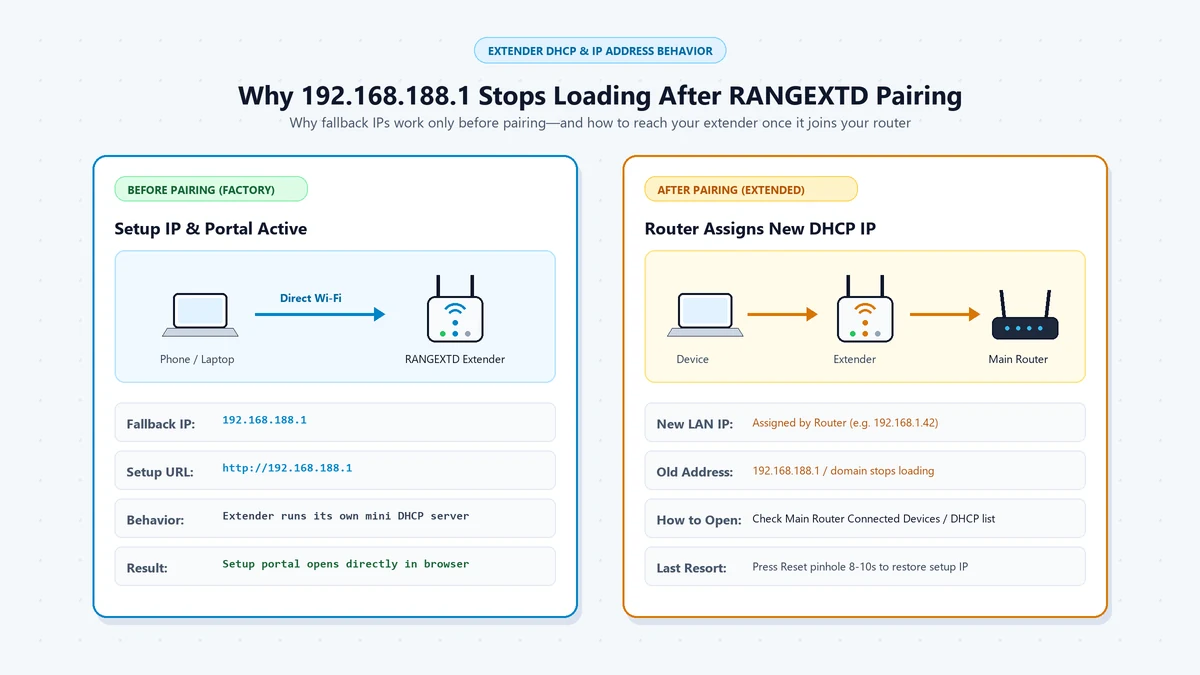
The default IP is mainly a fallback address. After the RANGEXTD extender connects to your router in Repeater or Access Point mode, your router may assign it a new dynamic LAN IP through DHCP.
Network Role: Extender vs. Router
| Device | Typical Address | What It Controls |
|---|---|---|
| Main router / gateway | Often 192.168.1.1 or 192.168.0.1 |
Internet connection, DHCP, firewall, primary Wi-Fi |
| RANGEXTD extender before setup | 192.168.188.1 |
Extender setup, Wi-Fi extension, local settings |
| RANGEXTD extender after pairing | New DHCP-assigned IP | Extended Wi-Fi coverage and connected devices |
| Phone, laptop, or smart TV | Assigned by router | Ordinary client device on your network |
So, if 192.168.188.1 does not open your main router’s admin page, that is expected. This address is intended to reach the RANGEXTD WiFi range extender, not the router itself.
Diagnostic: What Are You Trying to Do?
| Your Situation | What You Actually Need | What to Do |
|---|---|---|
| You want to set up a new RANGEXTD extender | RANGEXTD setup wizard | Connect to the extender and open http://192.168.188.1 |
| You want to change extender settings | RANGEXTD extender admin page | Connect directly to the extender and log in using the correct credentials |
| You want to log into your main router | Router gateway address | Use 192.168.1.1, 192.168.0.1, or the address printed on your router |
| 192.168.188.1 will not load | Direct extender connection | Connect to the extender’s Wi-Fi or Ethernet port, then retry |
| The extender is already paired | Its new DHCP-assigned IP | Check the main router’s Attached Devices or DHCP client list |
| You forgot the extender password | Factory reset | Hold the Reset button until the LED changes, then set it up again |
Why 192.168.188.1 May Not Load
192.168.188.1 is a private local IP address, not a public website. It works only when your device is connected directly to the RANGEXTD extender.
If you are connected to your main router’s Wi-Fi instead of the extender, the browser cannot reach 192.168.188.1. Connect to the extender’s setup Wi-Fi network or use an Ethernet cable, then try again.
Step-by-Step: Set Up the RANGEXTD WiFi Range Extender
Plug in the extender
Place the RANGEXTD WiFi range extender near your main router during the first-time setup. Wait for it to power on completely before connecting to it.
Connect to the extender
On your phone or computer, open the Wi-Fi list and connect to the RANGEXTD extender’s default Wi-Fi network. The network name may look like RANGEXTD, Wireless-N, WiFi-Repeater, or another name printed on the device label. If the extender has an Ethernet port, you can also connect a computer directly using an Ethernet cable.
Open the setup page
In your browser address bar, enter:
• http://192.168.188.1
Do not type the address into a Google or Bing search box. Enter it directly into the browser address bar.
Log in
For many RANGEXTD WiFi range extenders, use:
• Username: admin
• Password: admin
If that does not work, try a blank password, password, or the credentials printed on the extender label. If the extender was configured before, use the admin password created during original setup.
Choose your home Wi-Fi network
The setup wizard will scan for nearby Wi-Fi networks. Select your main router’s network, enter its Wi-Fi password, and follow the prompts to complete the extender setup.
Move the extender to its final location
After setup, unplug the extender and place it halfway between your router and the area with weak Wi-Fi. Do not place it too far from the router, because a weak incoming signal will also create a weak extended signal.
If 192.168.188.1 Will Not Load
1. Connect directly to the extender
Disconnect from your main router’s Wi-Fi and connect to the RANGEXTD extender’s Wi-Fi network. Alternatively, connect a computer to the extender using an Ethernet cable and disable Wi-Fi on that computer.
2. Turn off mobile data and VPN
On a phone, disable mobile data, VPNs, and proxy settings. The extender’s setup network may not have internet access, and your phone may try to route the request through cellular data instead.
3. Use the browser address bar
Type http://192.168.188.1 directly into the browser address bar. Do not search for it in Google, Bing, or another search engine.
4. Check your device IP address (Set Temporary Static IP)
If your device shows an IP address starting with 169.x.x.x or 0.0.0.0, the extender may not have assigned a valid DHCP address. Set a temporary static IP in the 192.168.188.x range, such as 192.168.188.100, with subnet mask 255.255.255.0 and gateway 192.168.188.1. After setup, switch your device back to automatic DHCP.
5. Try another browser or private window
Open an Incognito or InPrivate window, disable browser extensions, and try Chrome, Edge, Firefox, or Safari. This helps rule out cached DNS results, extensions, or browser-security warnings.
6. Find the extender’s new IP
If the extender is already paired, log into your main router and open the Attached Devices, Connected Devices, or DHCP Client List page. Find the RANGEXTD extender, copy its assigned IP address, and enter that IP into your browser.
Factory Reset the RANGEXTD WiFi Range Extender
Reset the extender only if you cannot log in, are moving it to a new router, or the setup page will not load after troubleshooting.
- Keep the RANGEXTD WiFi range extender powered on.
- Find the small Reset or RST button or pinhole on the side, bottom, or back panel.
- Press and hold it with a paperclip for about 8–10 seconds.
- Release when the indicator lights blink or the extender restarts.
- Wait for the extender to reboot completely.
- Reconnect to the extender’s Wi-Fi network and open
http://192.168.188.1.
Reset times can vary by model. If 8–10 seconds does not work, try holding the button for up to 15 seconds while watching the LED behavior.
RANGEXTD Extender vs. Router Login
| Login Type | Address | Default Credentials |
|---|---|---|
| RANGEXTD WiFi range extender | 192.168.188.1 |
Often admin / admin; some units use a blank password |
| Main router | Usually 192.168.1.1 or 192.168.0.1 |
Router-specific credentials or password created during setup |
Do not confuse the RANGEXTD extender login with the main router login. The RANGEXTD extender extends your existing Wi-Fi signal; it does not replace your router or manage your internet connection.
Common Mistakes
- Trying
192.168.188.1while connected to the main router. Connect directly to the RANGEXTD extender’s Wi-Fi network or Ethernet port first. - Assuming
192.168.188.1opens the main router. It is the RANGEXTD extender’s factory management address, not a typical router gateway address. - Using the wrong credentials. Many RANGEXTD extenders use
admin/admin, but some use a blank password,password, or label-printed credentials. - Using mobile data during setup. Turn off mobile data, VPNs, and proxies before opening the local setup page.
- Resetting before checking the DHCP list. If the extender is already paired, its new IP may be listed in your router’s client list.
Common Typos to Watch Out For
Misspelling the IP address is the most common reason the setup portal fails to load:
Frequently Asked Questions
No. It is a private local IP address used by many RANGEXTD WiFi range extenders. It only works when your phone or computer is connected directly to the extender’s Wi-Fi network or Ethernet port.
Many RANGEXTD WiFi range extenders use admin as both the username and password. Some models use a blank password, password, or credentials printed on the device label.
The most common reason is that you are connected to your main router instead of the RANGEXTD extender. Other causes include mobile data, VPN interference, browser search behavior, or the extender already receiving a new DHCP-assigned IP address.
Log into your main router and open the connected-devices or DHCP client list. Find the RANGEXTD extender, copy its assigned IP address, and enter that address in your browser.
Yes. Connect your phone to the RANGEXTD extender’s Wi-Fi network, turn off mobile data and VPN, then enter http://192.168.188.1 in the browser address bar.
The Bottom Line
192.168.188.1 almost always means you are trying to reach a RANGEXTD WiFi range extender, not your main router. Connect directly to the extender, enter http://192.168.188.1 in the browser address bar, and use the correct credentials for your model. If the page will not load, check the extender’s new DHCP-assigned IP in your router’s client list.
Extender Setup & Mesh Optimization Guides
Detailed walk-throughs for Wi-Fi range extenders, access point configuration, and backhaul: