AT&T Fiber Gateway Login — 192.168.1.254 Admin Access
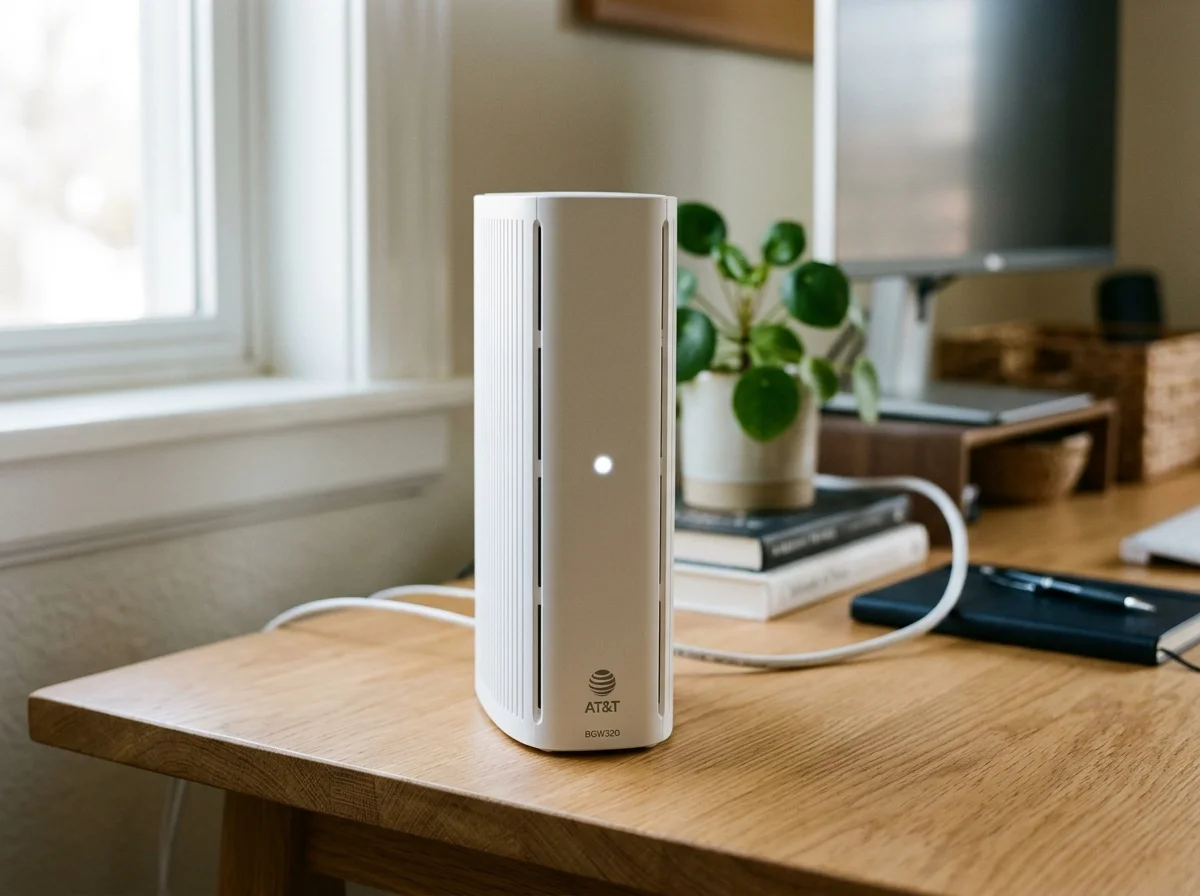
To access your AT&T Fiber gateway, connect to your home Wi‑Fi or use an Ethernet cable, then enter 192.168.1.254 in your browser’s address bar. This opens the local admin page for AT&T gateways such as the BGW320, BGW210, and NVG series.
Most AT&T gateways use http://192.168.1.254 as the default local admin address. You do not normally need a separate username and password to view basic settings; access to advanced settings may require a system password or access code.
Quick Answer
- Connect to your AT&T gateway using Wi‑Fi or Ethernet.
- Open Chrome, Edge, Safari, or Firefox.
- Type 192.168.1.254 in the address bar.
- Press Enter.
- Use the on-screen menu to view or change gateway settings.
- Enter the system password or access code if prompted.
192.168.1.254 in the browser address bar, and use the access code printed on the gateway label if prompted.
Quick Reference
| Item | Details |
|---|---|
| Login URL | 192.168.1.254 |
| Full address | http://192.168.1.254 |
| Common gateway models | BGW320, BGW210, NVG599, NVG589, Pace 5268AC |
| Default admin username | Usually not required |
| System password | Check the gateway label |
| Access code | Located on the gateway label |
| Main settings | Wi‑Fi, devices, firewall, IP Passthrough, LAN, diagnostics |
What Is 192.168.1.254?
192.168.1.254 is the local IP address used by many AT&T Fiber gateways for their admin interface. It lets you manage the gateway from a device connected to your home network.
Think of it as the control panel for your AT&T gateway. Your devices connect through the gateway, and 192.168.1.254 is where you can view network status, manage Wi‑Fi, configure security settings, and set up advanced features.
This address works only when you are connected to the same local network. It will not work if you are using mobile data or connected to another Wi‑Fi network.
How to Log In
On Windows or Mac
- Connect your computer to the AT&T gateway using Wi‑Fi or Ethernet.
- Open a browser.
- Type 192.168.1.254 into the address bar.
- Press Enter.
- Wait for the AT&T gateway home page to load.
- Select the setting you want to manage.
- Enter the system password or access code if prompted.
On iPhone
- Open Settings.
- Tap Wi‑Fi.
- Connect to your AT&T gateway Wi‑Fi network.
- Open Safari.
- Type 192.168.1.254 in the address bar.
- Press Go.
- Use the gateway menu to manage settings.
- Enter the access code if requested.
On Android
- Open Settings.
- Tap Network & internet or Connections.
- Tap Wi‑Fi.
- Connect to your AT&T gateway Wi‑Fi network.
- Open Chrome or another browser.
- Type 192.168.1.254 in the address bar.
- Press Enter.
- Access the gateway settings.
Gateway Access Code
AT&T gateways often use an access code instead of a traditional username and password. This code is printed on the gateway label.
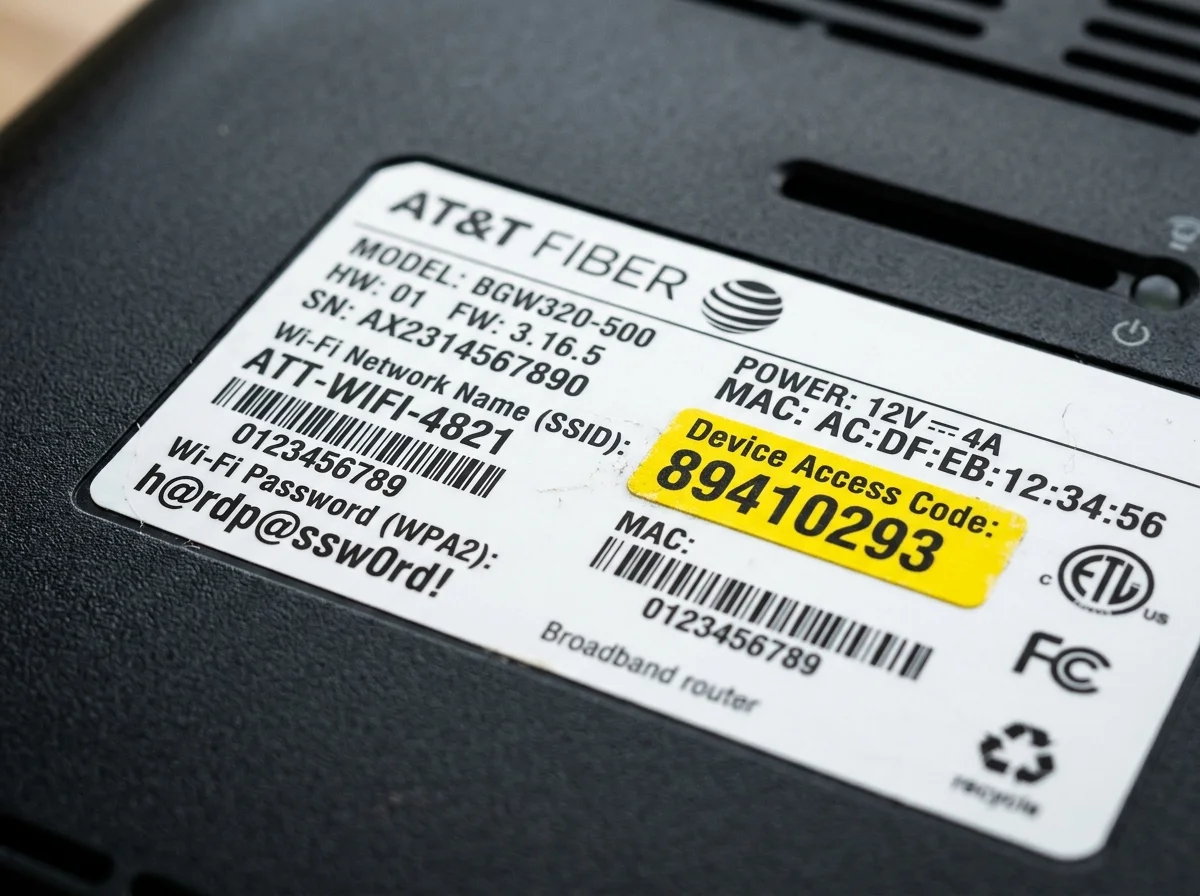
| Item | Where to find it |
|---|---|
| Access code | Bottom or side label on the gateway |
| Wi‑Fi name | Gateway label |
| Wi‑Fi password | Gateway label |
| Gateway model | Gateway label |
| Serial number | Gateway label |
| MAC address | Gateway label |
What You Can Manage
The 192.168.1.254 admin page gives you access to several important gateway settings.
| Setting | What it does |
|---|---|
| Wi‑Fi settings | Change Wi‑Fi name, password, and security settings |
| Connected devices | View devices using your network |
| LAN settings | Manage local IP addresses and DHCP |
| Firewall | Control security and access rules |
| IP Passthrough | Use your own router behind the AT&T gateway |
| Port forwarding | Allow specific incoming connections |
| Diagnostics | Check gateway status and connection details |
| System information | View firmware, model, and hardware details |
How to Change Wi-Fi Name and Password
- Open 192.168.1.254 in your browser.
- Go to Home Network or Wi‑Fi.
- Select Wi‑Fi or Wireless.
- Choose the 2.4 GHz or 5 GHz network.
- Enter a new Wi‑Fi network name, also called an SSID.
- Enter a strong new Wi‑Fi password.
- Save the changes.
- Reconnect your devices using the new password.
Use a Wi‑Fi password with at least 12 characters. Include uppercase letters, lowercase letters, numbers, and symbols.
IP Passthrough for Your Own Router
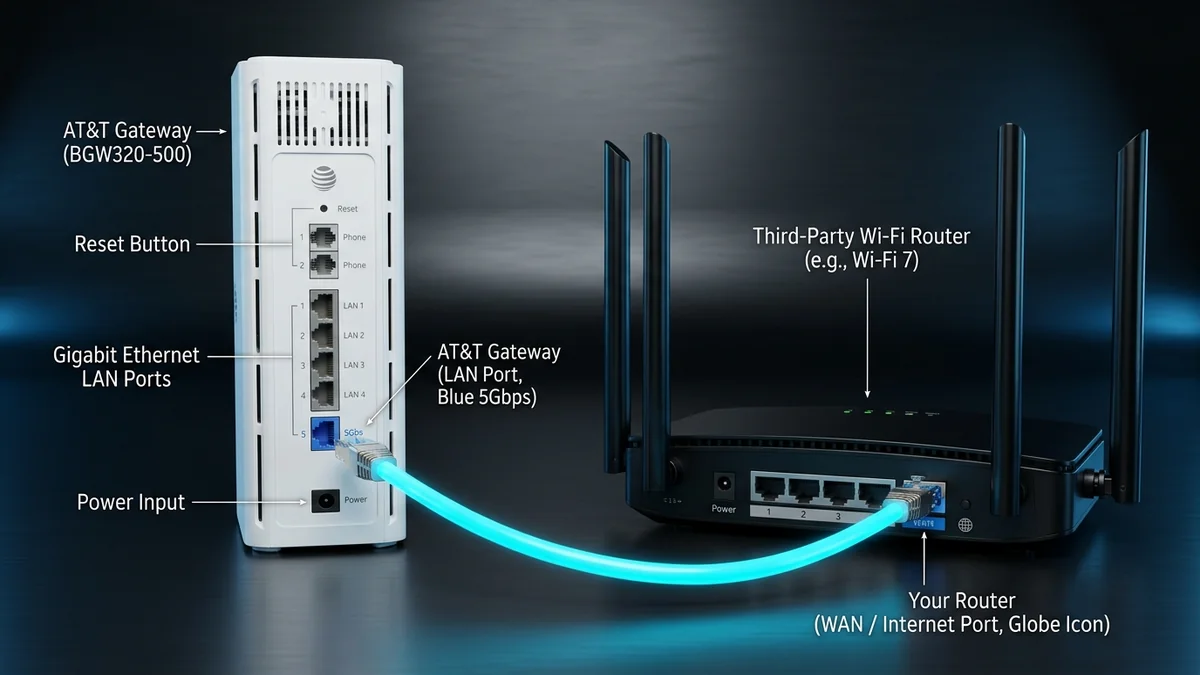
If you use your own router with AT&T Fiber, enable IP Passthrough to avoid Double NAT. This allows the AT&T gateway to pass its public internet address to your router.
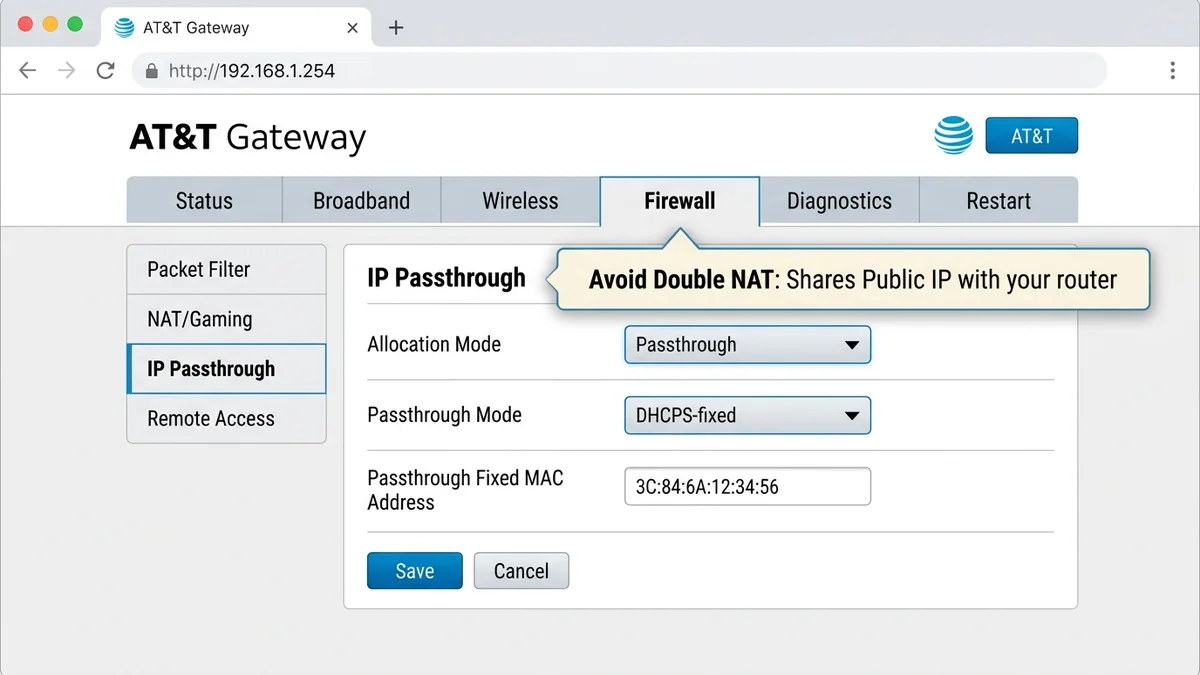
- Open 192.168.1.254.
- Go to Firewall.
- Select IP Passthrough.
- Set Allocation Mode to Passthrough.
- Set Passthrough Mode to DHCPS-fixed.
- Select or enter your router’s WAN MAC address.
- Save the settings.
- Restart both the AT&T gateway and your router.
Port Forwarding
Port forwarding allows specific devices to receive incoming connections from the internet. It is commonly used for gaming consoles, security cameras, NAS devices, and self-hosted services.
- Open 192.168.1.254.
- Go to Firewall.
- Select NAT/Gaming or Port Forwarding.
- Choose the device or enter its local IP address.
- Add the required port or port range.
- Select TCP, UDP, or both.
- Save the rule.
Troubleshooting
192.168.1.254 Does Not Load
Cause: You may be using mobile data, connected to another network, or entering the address incorrectly.
Fix: Connect to the AT&T gateway’s Wi‑Fi or use an Ethernet cable. Then enter 192.168.1.254 directly into the browser address bar.
Browser Redirects to Another Page
Cause: Browser cache, VPN, proxy, or an incorrect address.
Fix: Disable VPN, clear the browser cache, or try incognito/private browsing mode.
Access Code Not Working
Cause: You may be using the Wi‑Fi password instead of the gateway access code.
Fix: Check the gateway label and enter the access code exactly as printed. Access codes are case-sensitive.
Wi-Fi Works but Admin Page Does Not
Cause: Browser issue, network setting, or gateway restriction.
Fix: Restart the gateway, try another browser, or connect using Ethernet.
No Internet Connection
Cause: Service outage, loose cable, or gateway issue.
Fix: Check the gateway lights, restart it, and confirm all cables are secure. Check the AT&T app or website for outage alerts.
Factory Reset
A factory reset should be your last option.
- Locate the Reset button on the AT&T gateway.
- Keep the gateway powered on.
- Press and hold the Reset button for about 10–15 seconds.
- Release the button when the gateway begins restarting.
- Wait several minutes for the gateway to reboot.
- Reconnect using the Wi‑Fi name and password printed on the label.
- Reconfigure settings through 192.168.1.254 if needed.
Common Misspellings
Avoid these common mistakes when entering the gateway address:
192.168.l.254instead of192.168.1.254(letter "l" instead of number "1")192.168.1.254.1192.168.1.1(used by Netgear/ASUS, not standard AT&T gateways)192.168.0.1(used by TP-Link, not AT&T)10.0.0.1(used by Xfinity, not AT&T)attgatewaylogin.comAT&T router login192.168.1.254 admin login
The correct address is 192.168.1.254, entered directly into the browser address bar.
After You Log In
Once you access the gateway:
- Change the default Wi‑Fi password if needed.
- Use WPA2 or WPA3 security if available.
- Review connected devices.
- Keep gateway firmware updated automatically.
- Avoid unnecessary port forwarding.
- Disable remote access if you do not use it.
- Use a guest network for visitors.
- Enable IP Passthrough if you use your own router.
Frequently Asked Questions
Bottom Line
Use 192.168.1.254 to access your AT&T Fiber gateway’s local admin page. Connect to the gateway’s network, enter the address in your browser, and use the access code on the gateway label if prompted.
192.168.1.254 into the browser address bar, and use the gateway label for the access code. If the page does not load, restart the gateway and check all cable connections.
Step-by-Step Gateway Setup & Troubleshooting Guides
Guides for logging into administration panels, configuring Wi-Fi, enabling bridge mode, and hard resets: